Exercise: Bring the Input Parameters into the Workflow
The first thing we need to do in our workflow is obtain the Constituent ID, Revenue ID, Amount, and Amount Threshold values that are the main parameters to our workflow. In our Workflow Start Add Data Form named Major Giving Workflow Instance Add Form (Custom), we capture these four values as form fields and then kick off the workflow. All form data that is captured by the Workflow Start Add Data Form is associated with the workflow and available to use within the workflow logic. In fact, this form data is delivered to the workflow as part of the StartWorkflow activity that was included with the workflow template that is already in our sample.
Tip: The form fields within Workflow Start Add Data Form are delivered to the workflow as part of the StartWorkflow activity.
The StartWorkflow activity has an OutArgument named startInputDataFormItemXml that is populated with the form data from the add form that kicks off the workflow.
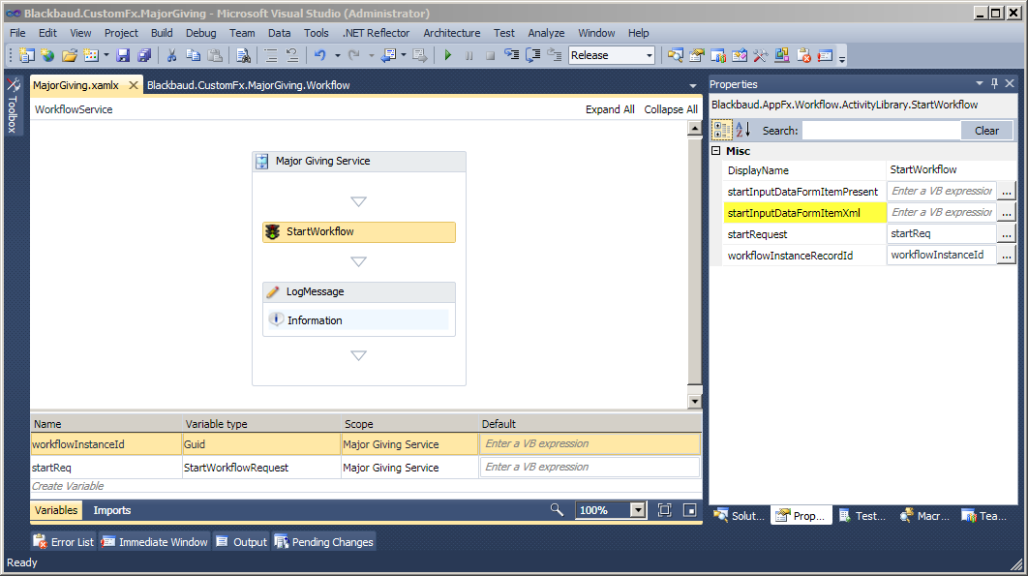
The value of this string variable will be the standard DataFormItem serialized XML format that is used throughout the AppFx web service API as the payload to carry form field values. (When you click Save on the AddForm under the hood, the form packages up the values into a DataFormItem, serializes it, and ships it up to the web server. This is the standard implementation of all Infinity Forms).
You are free to do what you want with this XML in your workflow. We want to obtain the values for the form fields, and that is exactly what we want to do in this case to get the values for Constituent ID, Revenue ID, Amount, and Amount Threshold.
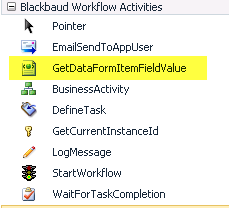
There is an activity that is part of the Blackbaud activity library that is designed to obtain the value of a field in a DataFormItem xml string named GetDataFormItemFieldValue.
Instructions
Step 1 - Create a workflow variable for the data form XML.
We need to create a variable in the workflow named "startInputXml" that is assigned to the startInputDataFormItemXml OutArgument:
-
Select the Major Giving Service sequence activity.
-
Open the MajorGiving.xamlx within the workflow designer and select the Variables button/tab at the bottom of the designer.
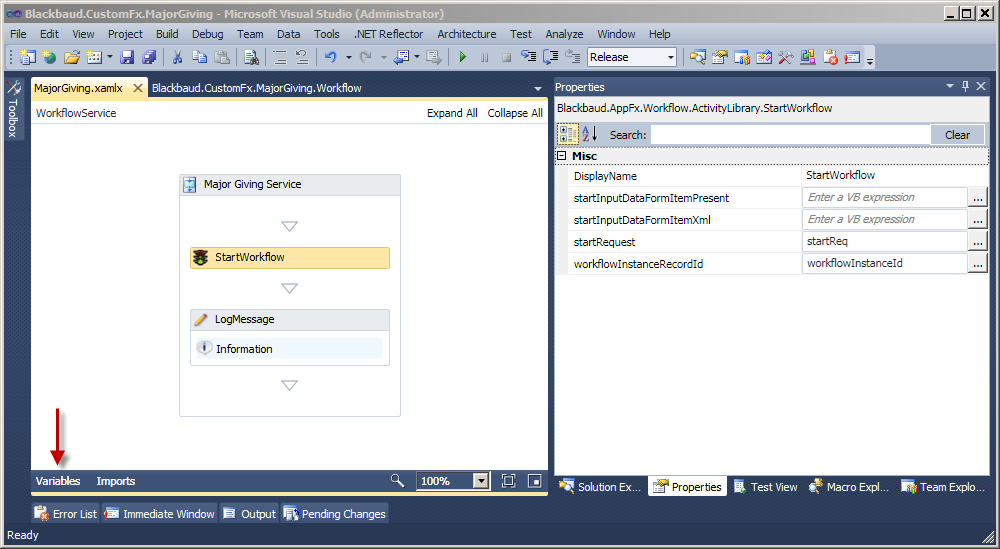
This allows you to create variables for your workflow. As you can see, two variables named workflowInstanceID and startReq are already scoped to the Major Giving Service. These variables were created when you elected to create an Integrated Workflow Definition.
-
To add a new variable to the workflow, select the Create Variable line in the grid .
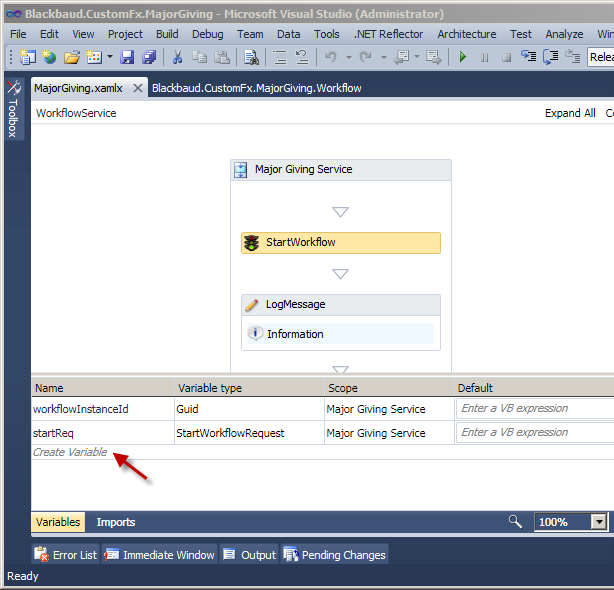
We can now add the startInputXml variable that will be assigned to the startInputDataFormItemXml OutArgument within the StartWorkflow activity.
Variable Property
Value
Name
startInputXml
Variable Type
String
Scope
Major Giving Service
Default
<no value>
When you are done, your variables should look like this:

Step 2 - Assign the startInputXml variable to the startInputDataFormItemXml OutArgument.
-
Select view the properties for the StartWorkflow activity.
-
Add the startInputXml variable to the startInputDataFormItemXml OutArgument.
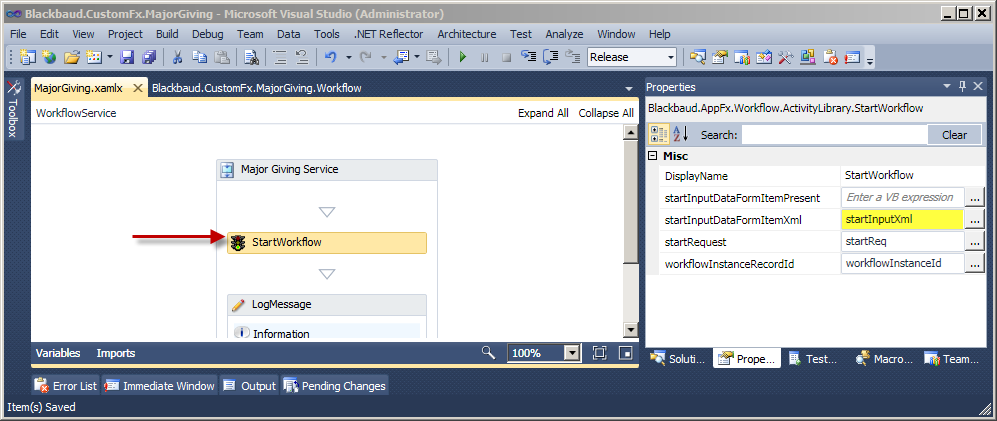
Step 3 - Create Workflow Variables for each of the four form fields
-
Select the Major Giving Service sequence workflow activity within the workflow designer
-
Select the Variables button/tab at the bottom of the designer.
-
Add the following variables to the designer:
Constituent ID
Variable Property
Value
Name
inputformfieldConstituentID
Variable Type
System.Guid
Scope
Major Giving Service
Default
<no value>
Revenue ID
Variable Property
Value
Name
inputformfieldRevenueID
Variable Type
System.Guid
Scope
Major Giving Service
Default
<no value>
Amount
Variable Property
Value
Name
inputformfieldAmount
Variable Type
String
Scope
Major Giving Service
Default
<no value>
Amount Threshold
Variable Property
Value
Name
inputformfieldAmountThreshold
Variable Type
String
Scope
Major Giving Service
Default
<no value>
When you finish, your variables should look like this:
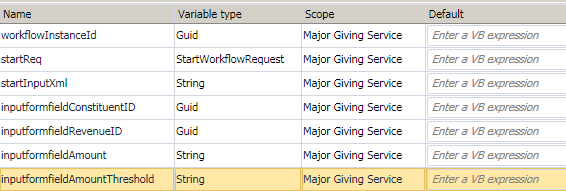
Step 4 - Create a Sequence Activity named "Initialize Workflow."
A Sequence Activity runs a set of child activities according to a single defined order. The Sequence Activity is a Composite Activity, meaning the Sequence Activity can contain other activities. A Composite Activity is responsible for the execution of its child activities.
-
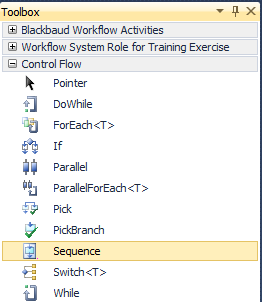
From the Toolbox in Visual Studio 2010, expand the Control Flow tab and select the Sequence activity.
-
Drag a Sequence activity underneath the StartWorkflow activity.
-
Rename the Sequence "Initialize Workflow."
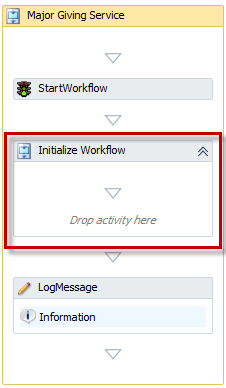
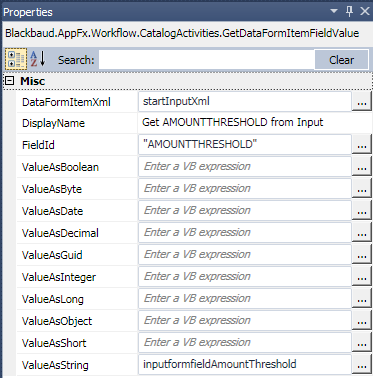
Step 5 - Place four GetDataFormItemFieldValue activities within the Sequence Activity.
We want to grab the values from our form fields (Constituent ID, Revenue ID, Amount, and Amount Threshold) and place each value into the appropriate variable.
There is an activity that is part of the Blackbaud activity library that is designed to obtain the value of a field in a DataFormItem XML string named GetDataFormItemFieldValue.
- Drag four GetDataFormItemFieldValue activities into the Sequence activity we created in the previous Step.
-
Provide the following properties for each GetDataFormItemFieldValue activity:
-
Constituent ID
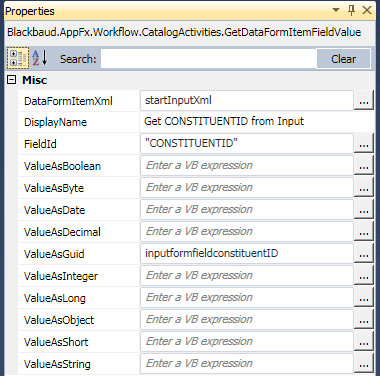
-
Revenue ID
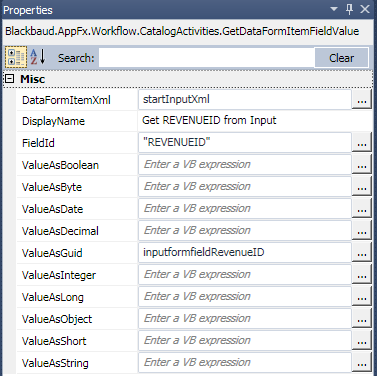
-
Amount
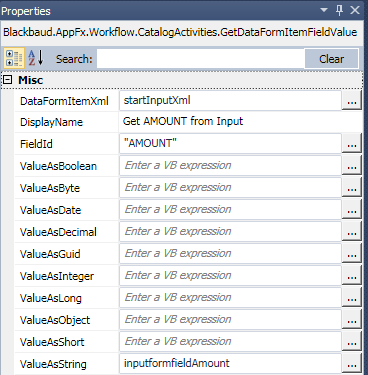
-
AmountThreshold
-
-
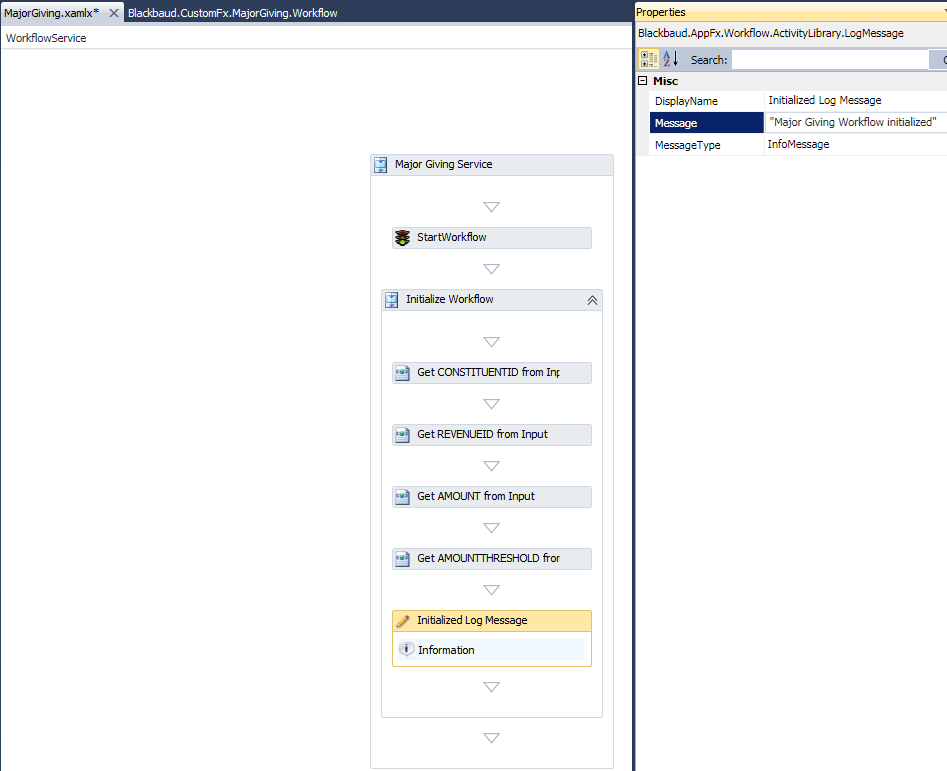
When you are done, your Major Giving workflow should look like this:
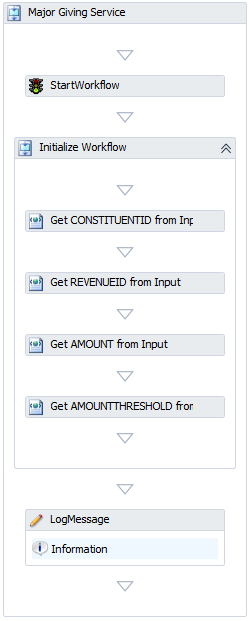
Step 6 - Drag the existing LogMessage Activity inside the Initialize Workflow Sequence Activity.
-
Drag the LogMessage activity from the Major Giving Service Sequence Activity into the Initialize Workflow Activity.
-
Change the Display Name to "Initialized Log Message."
-
Change the message to "Major Giving Workflow Initialized."