Account Distribution Report
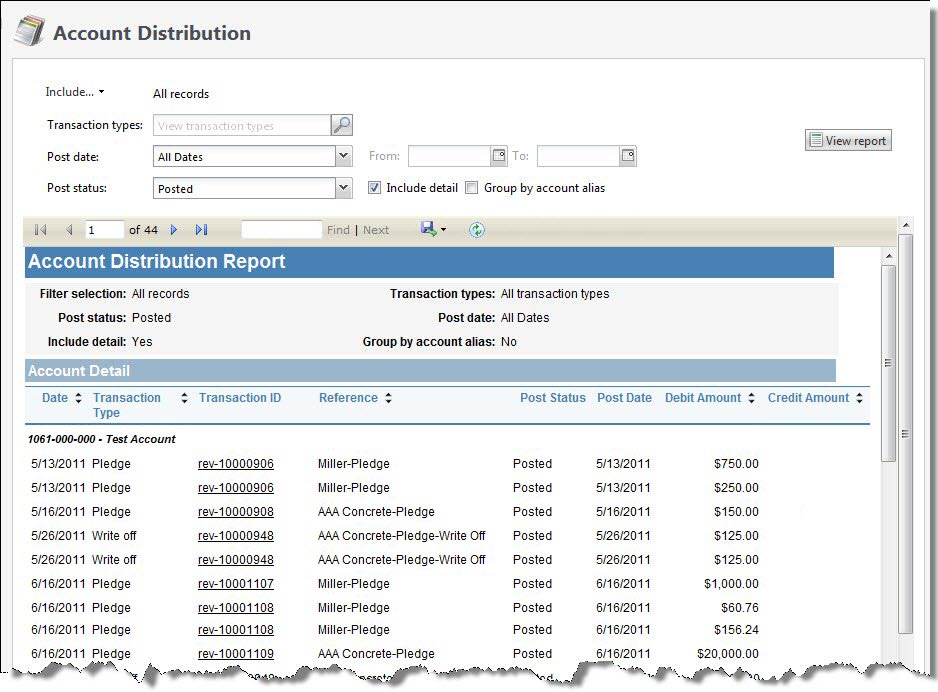
The Account Distribution Report provides a breakdown by general ledger accounts of transactions during the time period you select. The data included depends on the parameters you select.
Note: Transactions with a post status of “Do not post” do not generate general ledger distributions and are excluded from the Account Distribution Report.
-
From Revenue, select Account distribution under Reports. Or, from Analysis, select Revenue reports and then Account distribution. The Account Distribution report page appears.
-
In the Account system field, select the account system for the transactions you want to view. This field only appears if your organization configures multiple general ledger account systems and implements site security, and you have rights to work with multiple account systems.
-
To select the GL accounts to include, select Include and select "All records," "Selected records," or "Specific record." If you select "Selected records" or "Specific record," in the field that appears, search for GL accounts to include in the report.
-
To select the transaction types to include, select the search button in the Transaction types field. The Transaction types screen appears where you can select one or more transaction types. When you select transactions types, you limit the report results to only the transaction types you select. By default, all transaction types are included unless you use this filter.
From this screen, you can select Select all to choose all transaction types and Deselect all to include none. Examples of transaction types include pledges, refunds, and payments.
-
In the Post date field. select a specific time period of post dates to include. If you select “Specific Date,” the From and To fields appear where you can enter a specific period of time.
-
In the Post status, select the post status of the transactions to include. You can include posted or not posted transactions, or both.
Note: Transactions with a post status of “Do not post” do not generate general ledger distributions and are excluded from the Account Distribution Report.
-
To display the report in both summary and detail format, select Include detail. To view the report in summary format only, do not select Include detail.
Warning: If you filter the report using a small amount of criteria or no criteria at all, and you select to view the report in detail, a message may appear alerting you that results exceed the capacity of the report. In this case, we recommend you filter by smaller segments of activity, such as post date, specific accounts, or specific transaction types.
-
To group the report by account alias, select Group by account alias. If you do not select this option, the report is grouped by GL account.
-
With Multicurrency, the Currency field appears. Use this field to determine how you want to view transaction amounts in the report.
“Base” is the base currency of the associated account system. “Organization” is the organization currency, and “Transaction” is the revenue’s transaction currency. When you add revenue, the program calculates and stores the base currency and organization currency amounts, along with the original transaction currency amount. When you switch currencies on the report, the amounts displayed are the original currency amounts calculated when the transactions were added.
-
Select View Report.