Revenue Annual Statement Report
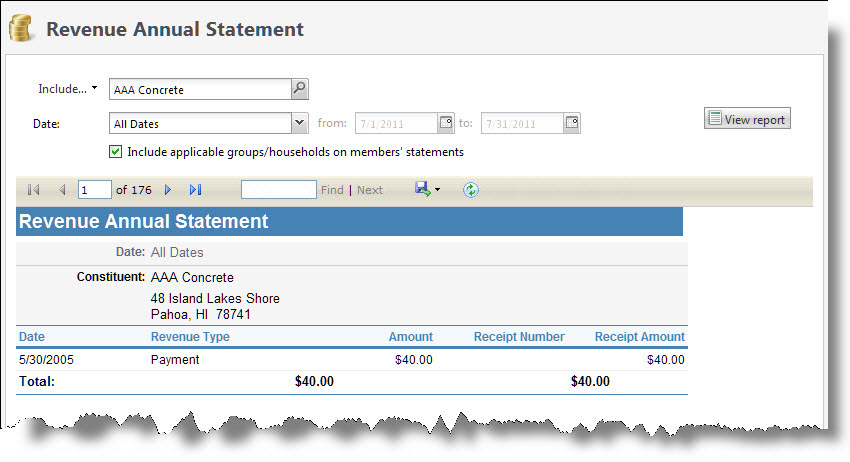
The Revenue Annual Statement Report provides constituent giving histories for a time period you select. It can include receipt information, including receipts with no receipt amount. This report is useful to send to constituents as an end-of-the-year report so they can review their donations for tax purposes. Each constituent’s information appears on a separate page. The data included depends on the parameters you select.
Note: This report only contains payment revenue.
Note: If your organization uses site security, the amounts that appear in the Revenue Annual Statement report include only revenue associated with the sites the user who generates the report has rights to access.
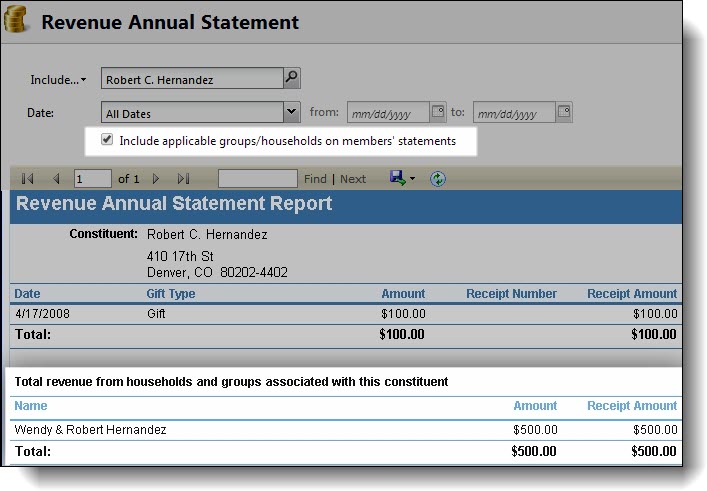
If your organization uses constituent groups and households, you can select to view any revenue from the constituent group or household of which the constituents in the report are members. For example, if revenue information for Robert Hernandez appears in the Revenue Annual Statement Report, you can also view total giving information for the Hernandez household.
Note: Groups and households will still have their own statements in the report if they are included in the report criteria regardless of whether they appear on individual constituent's statements.
-
From Revenue, select Revenue annual statement under Reports. Or, from Analysis, select Revenue reports and then Revenue annual statement. The Revenue Annual Statement Report screen appears.
-
To select the constituents to include, select Include and select "All records," "Selected records," or "Specific record." If you select "Selected records" or "Specific record," in the field that appears,search for and select the records to include in the report.
-
Enter the date range for which to view constituent giving histories.
-
In the Date field, select a date for which to view constituent giving histories.
-
If, in the Date field, you select “Specific date,” in the date range fields, select the calendar and select the date range for which to view constituent giving histories. The report displays only constituent giving histories for the date range you select.
-
-
To display revenue information for any households or groups of which the constituent is a part, select Include applicable groups/households on members’ statements.
-
Select View Report. The program generates and displays the report.