Matching Gift Claim Summary Report
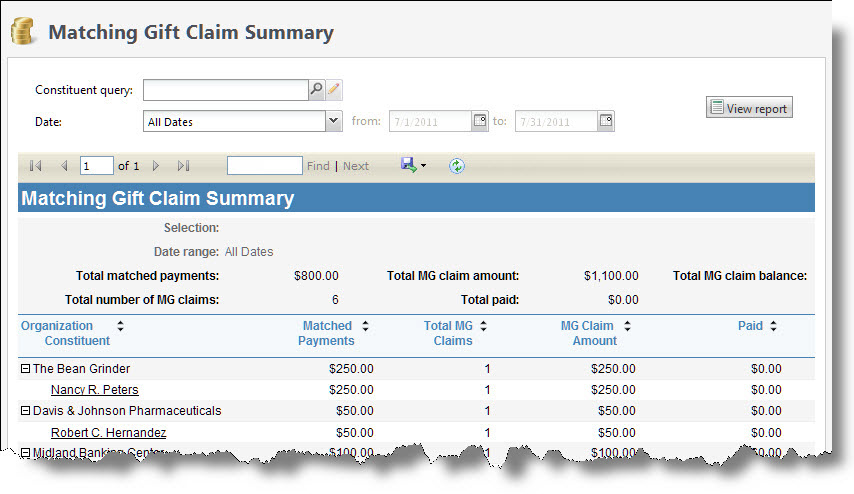
With the Matching Gift (MG) Claim Summary report, you can view information about a specific set of matching gift claims, based on a query selection that you define. You can narrow the report to include only matching gift claims processed within a specific date range. When you generate a Matching Gift Claim Summary report, you can view information the organizations for which you have recorded matching gift claims, the total revenue those organizations matched, and for which constituents they matched revenue.
Note: Only constituent organizations that have matching gift claim records will display in the report. Querying any constituents whose gifts are matched will not display the matching gift claim record. For example, if AAA Concrete has a matching gift claim record for a donation made by Robert Hernandez, querying on Robert Hernandez will not pull up the matching gift claim record.
Note: If your organization uses site security, the amounts that appear in the Matching Gift Claim Summary report include only revenue associated with the sites the user who generates the report has rights to access.
-
From Revenue, select Matching gift claim summary under Reports. The Matching Gift Claim Summary page appears.
-
In the Constituent query field, enter the query selection with which to run the report, or select the magnifying glass to search for a constituent query selection. For more information about queries, refer Query.
-
To narrow the results by a specific date range, in the Date field, select the date range for which to view matching gift claim information.
In the from and to fields, select the calendar icons to access calendars from which to select the date range.
-
To generate the report, select View Report. The Matching Gift Claim Summary report appears.