Recognition Credits Report
To view recognition credit information for a selected group of revenue or constituents, generate the Recognition Credits report. For example, generate this report to make sure board members are correctly recognized for gifts for a given period of time.
Note: If your organization uses site security, the amounts that appear in the Recognition Credits report include only revenue and recognition associated with the sites the user who generates the report has rights to access.
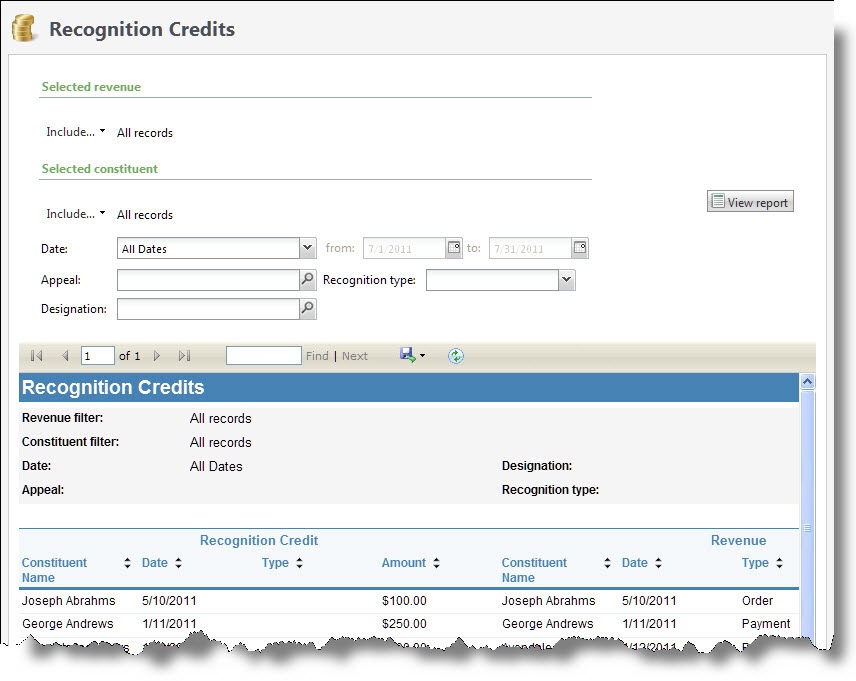
The Recognition Credits report displays a list of constituents and recognition credits with the associated revenue. The recognition credit constituent name, recognition credit type, effective date, and the recognition amount display on the report. In addition, the report also displays the donor constituent name, the revenue date, revenue type, and revenue amount for the revenue associated with the recognition credit.
-
From Revenue, select Recognition creditsunder Reports. Or, from Analysis, select Revenue reports, Recognition credits. The Recognition Credits screen appears.
-
In the Selected revenue frame, select Include and select the records to include. Select “All records,” “Selected records,” or “Specific record.” If you select “Selected records” or “Specific record,” in the field that appears, select the magnifying glass to search for the revenue transaction records to include in the report.
Note: If you select a revenue transaction query and a constituent query, the two queries merge before query results appear. However, records in the revenue transaction query that are not in the constituent query are removed from the merged query. For example, Michael Adamson’s $50 cash gift is in the revenue transaction query. Because Michael Adamson is not in the constituent query, he does not appear in the report results.
-
In the Selected constituent frame, select Include and select the records to include. Select “All records,” “Selected records,” or “Specific record.” If you select “Selected records” or “Specific record,” in the field that appears, select the binoculars to search for the constituent records to include in the report.
-
Enter the date range to filter the report.
-
In the Date field, select a date for which to view constituent recognition credit information.
-
If, in the Date field, you select “Specific date,” in the next field, select the calendar and select the date for which to view recognition credit information. The report will display information only for the date you select.
-
-
Select filters as necessary, such as by appeal, designation, campaign, or recognition type.
-
Select View Report. The program generates and displays the report.