Giving Detail Report
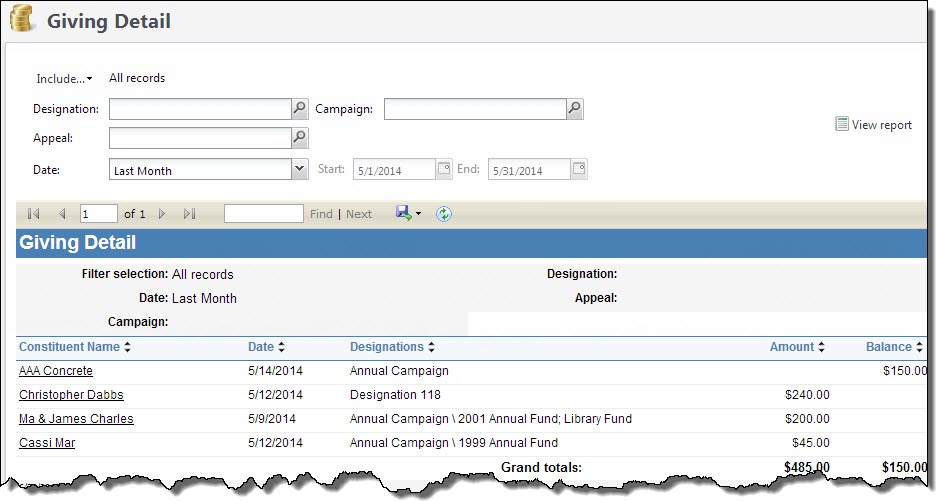
The Giving Detail report provides information about constituent giving during a time period you define. The report includes totals of revenue received within the date range for each designation, as well as constituent name and address information. The data included in the report depends on the parameters you select.
The report counts payments made towards a designation, such as donations and pledge and recurring gift payments, in the Amount column and any outstanding commitments, such as pledge balances or matching gift claims, in the Balance column.
Note: Recurring gift balances are not included in the Balance column.
Note: If your organization uses site security, the amounts that appear in the Giving Detail report include only revenue associated with the sites the user who generates the report has rights to access.
-
From Revenue, select Giving detail under Reports. Or, from Analysis, select Revenue reports and then Giving detail. The Giving Detail screen appears.
-
Select Include and select the records to include. Select “All records,” “Selected records,” or “Specific record.” If you select “Selected records” or “Specific record,” in the field that appears, search for the records to include in the report.
-
Enter the date range for which to view detailed revenue information.
-
In the Date field, select a date for which to view detailed revenue information.
-
In the from and to fields, use the calendars to select a date range for which to view activity. The report displays activity only for the date or date range you select.
-
-
To include revenue for a specific designation only, in the Designation field, select the magnifying glass to search for and select a designation, for example, “Library.”
If the revenue is split between the designation you selected and another designation, the report includes the full amount of the revenue, but lists all designations to which the revenue is applied.
-
To include revenue for a specific appeal only, in the Appeal field, select the magnifying glass to search for and select an appeal, for example, “Walk-A-Thon.”
-
To include revenue for a specific campaign only, in the Campaign field, select the magnifying glass to search for and select a campaign, for example, “Annual Campaign.”
Note: To filter your report further, you can use criteria such as appeal and designation. Be careful not to narrow your criteria too much or the report will not return any results.
-
Select View Report. The program generates and displays the report.