Reconcile Deposits Report
You must reconcile the payments entered in the program or posted to the general ledger with your organization’s bank deposit. To help reconcile the payments your organization receives to the revenue deposited to your organization’s bank account, the program provides the Reconcile Deposits report.
Note: If your organization uses site security, the amounts that appear in the Reconcile Deposits report include only revenue associated with the sites the user who generates the report has rights to access.
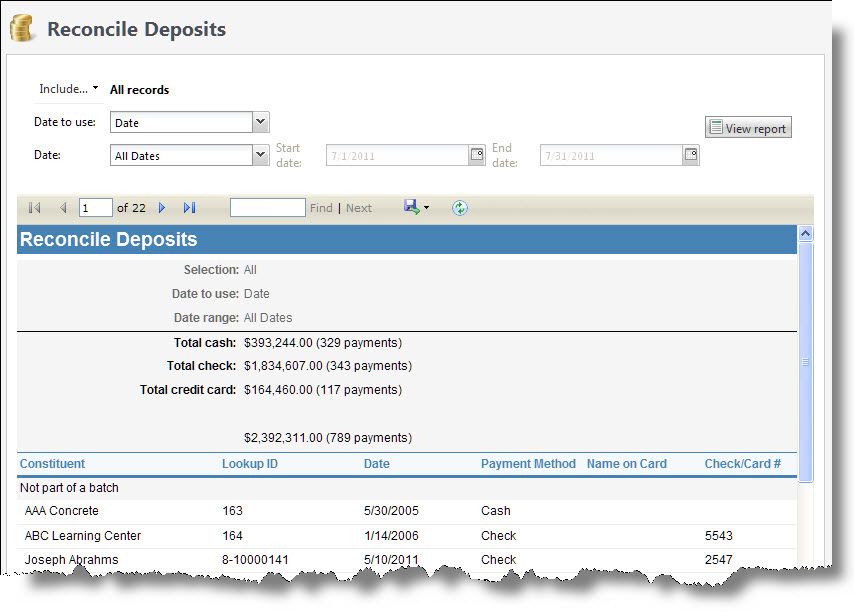
The Reconcile Deposits report provides information about the cash, check, credit card, and direct debit payments received from a selection of revenue records, including the sum of the selected payments, the constituent who made each payment, the date of each payment, and the payment method and amount of each payment. The report groups payments by batch and provides the sum and count of payments received that can be deposited, by payment type.
-
From Revenue, select Reconcile deposits under Reports. Or, from Analysis, select Revenue reports and then Reconcile deposits. The Reconcile Deposits screen appears.
-
To select the revenue transactions to include, select Include and select "All records," "Selected records," or "Specific record." If you select "Selected records" or "Specific record," in the field that appears,search for and select the records to include in the report.
-
In the Date to use field, select whether to use the “Date” or the “Post date” for the revenue.
-
Enter the date range for which to view deposits.
-
In the Date field, select a date for which to view deposits.
-
In the from and to fields, use the calendars to select a date range for which to view deposits. The report will display deposits only for the date or date range you select.
Note: The Reconcile Deposits report shows only payments that can be deposited, regardless of whether the selection contains revenue that cannot be deposited.
-
-
Select View Report. The program generates and displays the report.