Resolve duplicates in a Constituent Update or Enhanced Revenue Batch
-
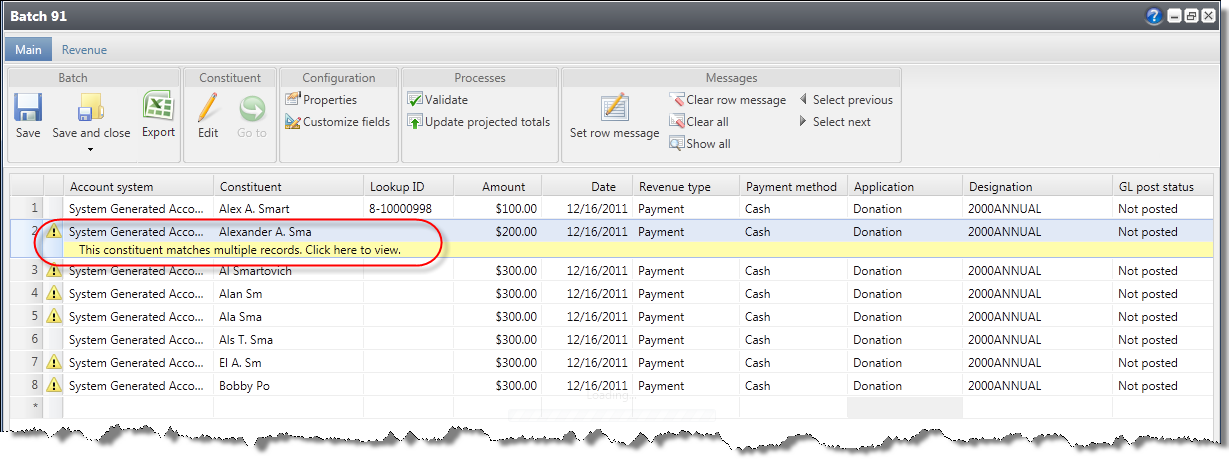
From a validated batch that contains exceptions, find a row in the grid with a yellow caution symbol. Select the symbol and a duplicate records message appears under the row.
Note: When an incoming constituent is similar enough to an existing constituent to qualify for an automatic update (their match confidence score is above the top matching threshold), but your organization's constituent update rules require manual review for certain fields, the batch generates an exception that requires you to review the incoming fields and manually select which action to take. For information about constituent update rules, refer to Configure Constituent Update Rules.
-
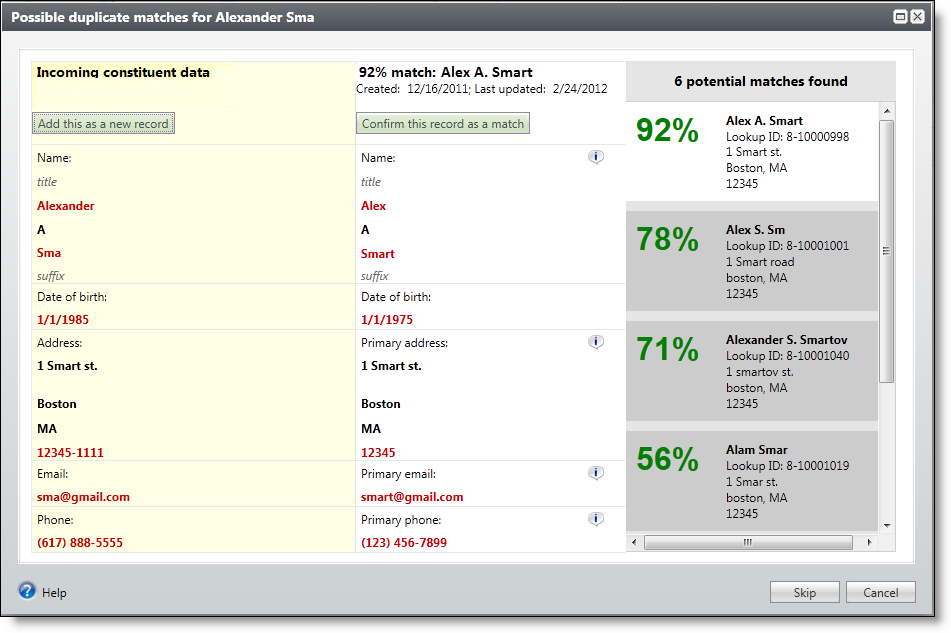
Select the message. The Possible duplicate matches screen appears.
Warning: The Possible duplicate matches screen does not appear when you turn off matching via the Enable/disable matching configuration task in Administration.
The Incoming constituent data column displays information from the new record.
The Potential Matches column on the right lists all existing constituents in the database that are possible matches, ranked from the highest to lowest match confidence score. The percentage represents the degree of similarity between the first names, last/organization names, middle names, suffixes, titles, addresses, and zip codes. For more information about the match confidence score, refer to Constituent Matching Settings.
When you select a constituent in the Potential matches column, its information appears in the middle column so you can compare the incoming and existing records side-by-side. Black fields are exact matches. Red fields are similar but need careful review. After you compare the records, you can do one of the following:
-
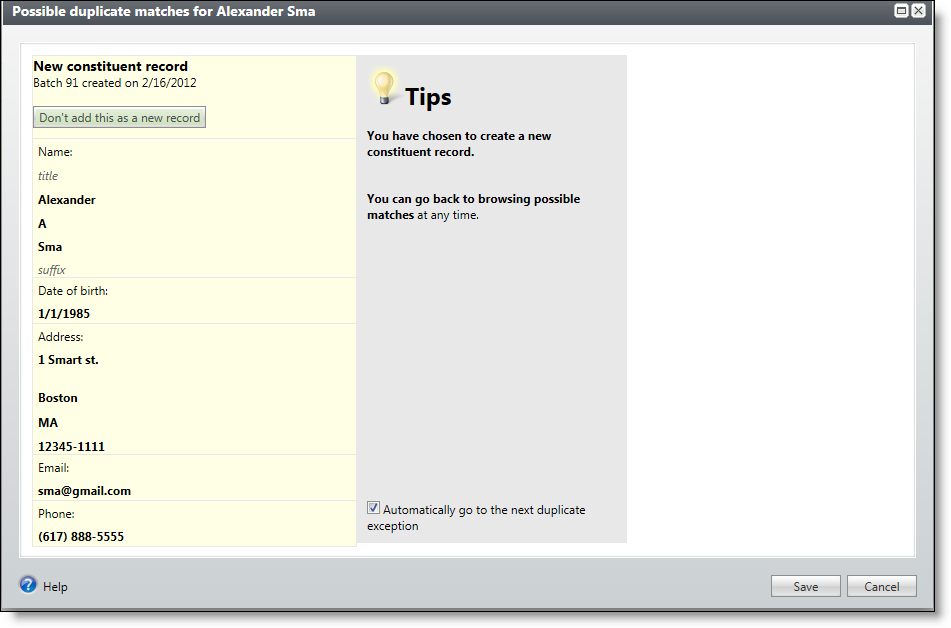
When you decide the incoming constituent is not a duplicate, select Add this as a new record. The screen displays the name and contact information for the new record. Select Save to create a new record, or if you change your mind, you can select Don't add this as a new record to return to the previous screen.
-
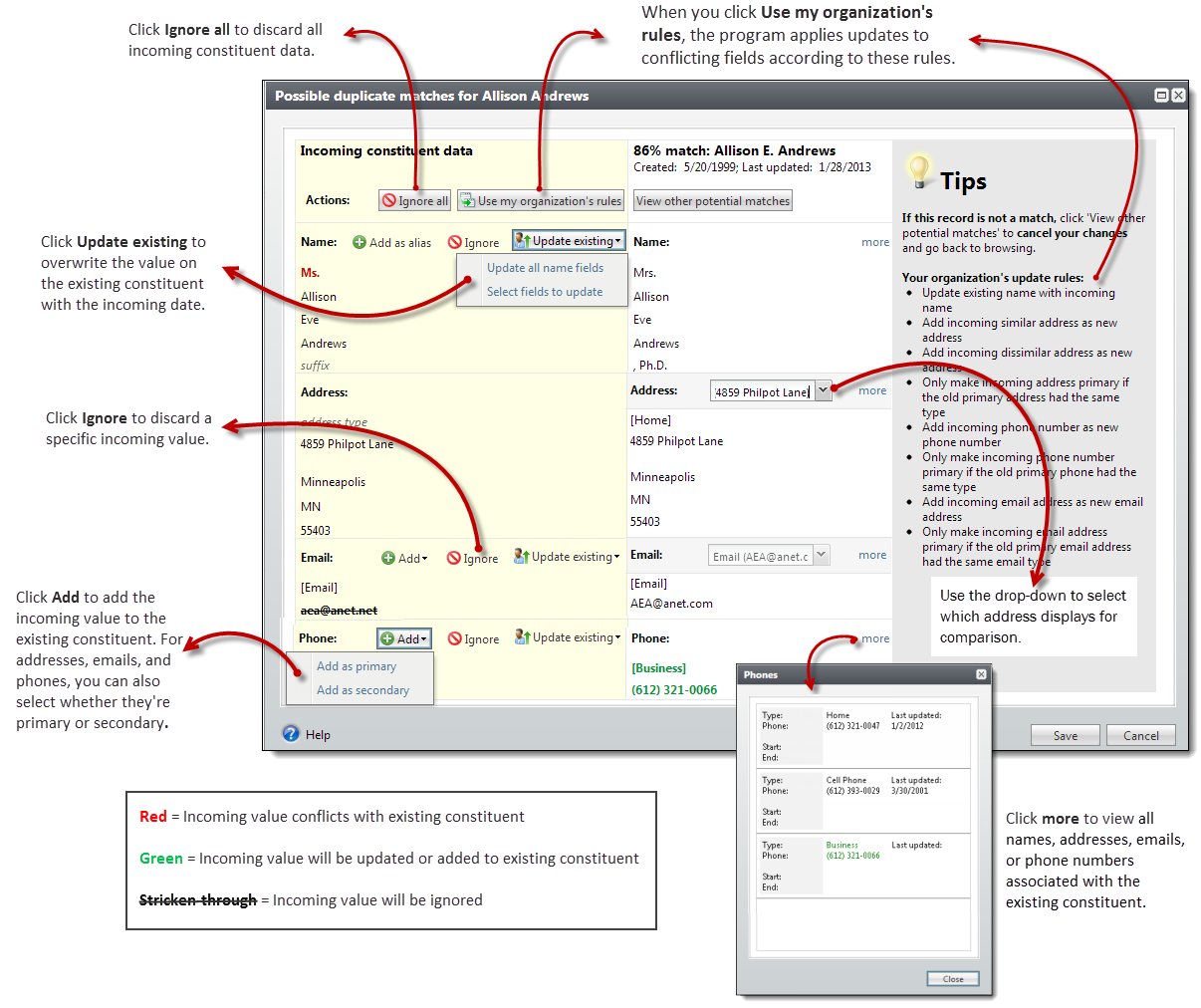
When you decide the incoming constituent matches an existing constituent, select Confirm this record as a match. Additional options appear. You can evaluate each red field and decide what to do with the incoming data: When you select to add or update a field, it appears green in the existing constituent column. When you select to ignore a field, it appears stricken through in the incoming constituent column.
-
To discard all new or conflicting data from the incoming constituent, select Ignore all.
-
To automatically apply the constituent update rules set on the Global data entry page of Administration, select Use my organization's rules. For example, when you have Add incoming phone number as new phone number set as a rule, and you select Use my organization's rules, the program automatically adds the incoming phone number to the existing record. When your update rules require manual review for certain fields, you must review those incoming fields and manually select which action to take. As a reference, your organization's selected update rules appear in the Tips column. For information about constituent update rules, refer to Configure Constituent Update Rules.
-
To add the name as an alias to the existing constituent, select Add as alias. To add the address, email, or phone number as primary or secondary on the existing constituent (rather than replace the existing value), select Add and select Add as primary or Add as secondary. When the incoming constituent has information that is blank on the existing constituent, you can select Add to add that data to the existing record.
Note: When the existing constituent has multiple addresses, phone numbers, or emails, use the drop-down to select which one to display.
Note: Select more to view the history of changes for each field on the address, phone number, or email.
-
To discard the incoming value (neither add a new value nor update the existing value), select Ignore.
-
To replace the existing name, address, email, or phone number with the incoming value, select Update existing and select whether to update all fields or to select individual fields to update. If you select Update all name/address/email/phone number fields, the program moves all fields of that type to the existing constituent. If you select Select fields to update, the Ignore and Update current options appear so you can handle each field individually.
-
-
-
Select Save to save your changes to the existing record, or if you change your mind, you can select View other potential matches to return to the previous screen.
Note: When you select Automatically go to the next duplicate exception, the program automatically opens the next record in the batch with possible matches when you select Save.
Note: For Enhanced Revenue batches, the constituent is updated automatically when you select Save.
-
Select Save and close to save the batch and return to the Uncommitted batches tab.
Note: For Constituent Update batches, the program updates existing constituents with changes when you commit the batch.