Academic Groups Data Import
Data managers can use the data import process to import academic group data.
-
Select Core.
-
Select System tools.
-
Select Data import.
-
Select Create import job.
-
Select the "Academic Groups" Category.
These Import types appear:
-
Academic Department
-
Academic Course-Insert
-
Academic Course-Update
-
Academic Course Faculty Resources
-
Academic Section-Insert
-
Academic Section-Update
-
Academic Enrollment
Tip: Don't know the offering_id? Find it as the Course ID in a Courses list or in an Advanced list under the Course base object. Similarly, the duration_id is the same as the Term ID in Advanced lists.
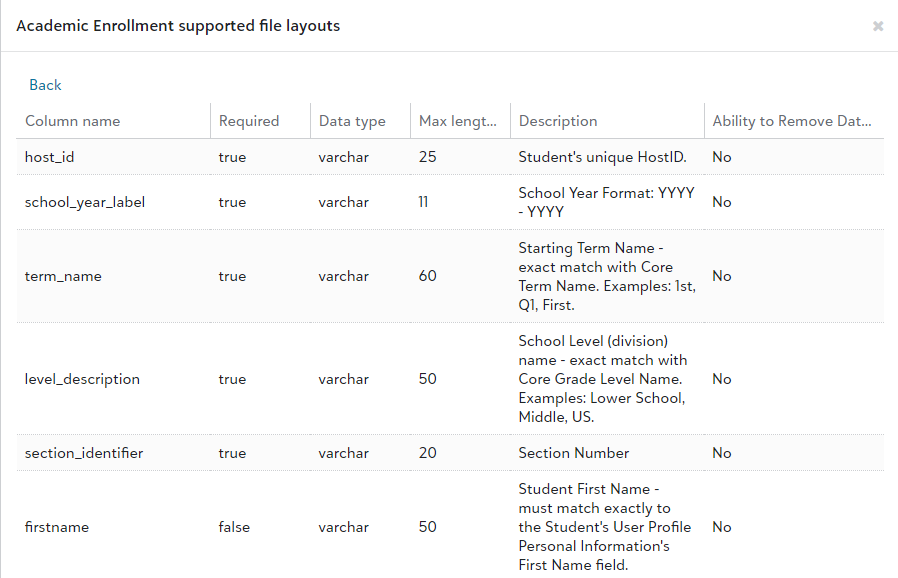
For a list of all import fields, requirements, data types, max length data, descriptions, and information on whether or not you can remove data from the field, open the detailed view screen by selecting the following on the import screen: Category > Import type > View file layout help (under File layout help) > Detailed view. A screen similar to the following displays.
Download Sample Import Layout File
You can view and download sample import files.
-
Select Core.
-
Select System tools.
-
Select Data import.
-
Select Create import job.
-
Select the Category and Import type of the information being imported.
-
Select View file layout help.
-
Select Detailed view to view the file layout fields; select Sample file to download a sample import file from which you can work to create your import file.
 Academic Department Import File Layout
Scheme 1
Use this import to import fields based on the academic department name. Required fields are: department_name, department_type, level_description, inactive, publish.
Academic Course-Insert Import File Layout
Scheme 1
Use Scheme 1 to import fields based on the department name. Required fields are: course_title, course_code, course_length, level_description, inactive, publish, department_name_1.
Scheme 2
Use Scheme 2 to import fields based on the grade level. Required fields are: course_title, course_code, course_length, level_description, inactive, publish, grade_level_desc_1,.
Academic Course-Update Import File Layout
Scheme 1
Use Scheme 1 to import fields based on the offering_id. Required fields are: offering_id.
Tip: Don't know the offering_id? Find it as the Course ID in a Courses list or in an Advanced list under the Course base object.
Scheme 2
Use Scheme 2 to import fields based on the course code. Required fields are: course_code, level_description.
Academic Course Faculty Import File Layout
Scheme 1
Use Scheme 1 to import fields based on the course_code. Required fields are: course_code.
Scheme 2
Use Scheme 2 to import fields based on the offering_id. Required fields are: offering_id.
Scheme 3
Use Scheme 3 to import fields based on the course_title. Required fields are: course_title.
Academic Section-Insert Import File Layout
Scheme 1
Use Scheme 1 to import fields based on the course title with exceptions. Required fields are: section_identifier, course_title, school_year_label, this_duration, level_description, block, schedule_set.
Scheme 2
Use Scheme 2 to import fields based on the course code with exceptions. Required fields are: section_identifier, school_year_label, this_duration, level_description, course_code, block, schedule_set.
Scheme 3
Use Scheme 3 to import fields based on the course title. Required fields are: section_identifier, course_title, school_year_label, this_duration, level_description.
Scheme 4
Use Scheme 4 to import fields based on the course code. Required fields are: section_identifier, school_year_label, this_duration, level_description, course_code.
Academic Section-Update Import File Layout
Scheme 1
Use Scheme 1 to import fields based on the course title with exceptions. Required fields are course_title, section_identifier, level_description, school_year_label, term_name, block, schedule_set.
Scheme 2
Use Scheme 2 to import fields based on the course code with exceptions. Required fields are: course_code, section_identifier, level_description, school_year_label, term_name, block, schedule_set.
Scheme 3
Use Scheme 3 to import fields based on the course code and course title with exceptions. Required fields are: course_code, course_title, section_identifier, level_description, school_year_label, term_name, block, schedule_set.
Scheme 4
Use Scheme 4 to import fields based on the course code and course title. Required fields are: course_code, course_title, section_identifier, level_description, school_year_label, term_name.
Scheme 5
Use Scheme 5 to import fields based on the course title. Required fields are: course_code, course_title, section_identifier, level_description, school_year_label, term_name.
Scheme 6
Use Scheme 6 to import fields based on the course code. Required fields are: course_code, section_identifier, level_description, school_year_label, term_name.
Academic Enrollment Import File Layout
Scheme 1
Use Scheme 1 to import fields based on the student host_id, course code, and/or course title. Required fields are: host_id, firstname, lastname, school_year_label, term_name, level_description, section_identifier.
Scheme 2
Use Scheme 2 to import fields based on the student ID, course code, and/or course title. Required fields are: user_id, firstname, lastname, school_year_label, term_name, level_description, section_identifier.
Scheme 3
Use Scheme 3 to create an import guided by IDs. Required fields are: user_id, section_id.
Tip: Don't know the offering_id? Find it as the Course ID in a Courses list or in an Advanced list under the Course base object. Similarly, the duration_id is the same as the Term ID in Advanced lists.