Parent Submitted Attendance
Parents can submit attendance through their own portal. From there, Attendance managers can view all submissions and update any information as needed.
 Enable Parent Submitted Attendance
To be able to see and get started with Parent Submitted Attendance, the following security tasks need to be enabled for your role. Visit Core, Security, then Roles:
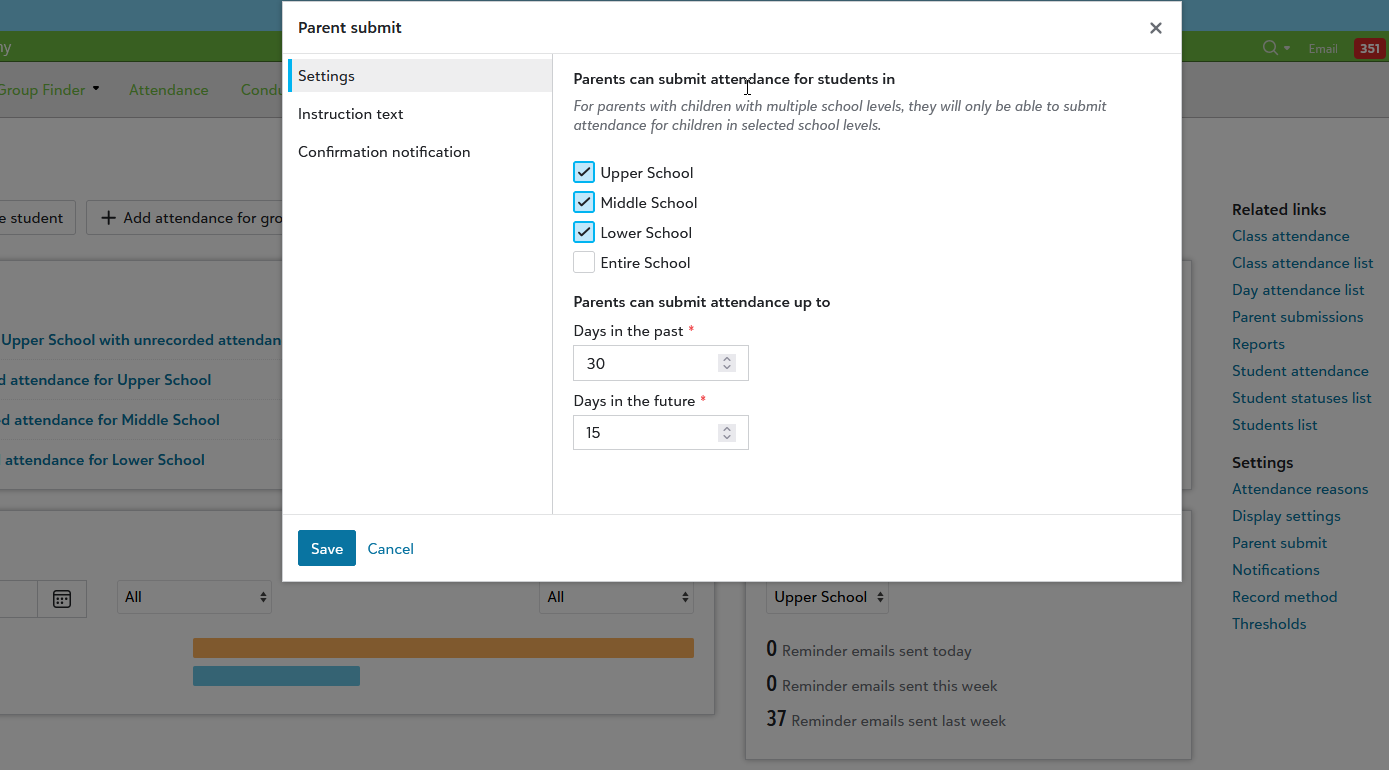
Once the roles have been set up, platform managers can go to Academics, Attendance, and then Parent submit under Settings.
In the new modal window, select the school level(s) needed. Based on the Parental Access setting from student relationships, guardians with students in these levels will be able to submit their attendance. Alternatively, select the Entire School option to turn it on for everyone, regardless of school level.
Note: Parents with children in multiple school levels will only be able to submit attendance if the child’s school year is enabled.
Next, use the Instruction text to display a message to parents, giving them tips, advice, or instructions on what they need to do for the submission process.
Finally, select Confirmation notification to turn on and customize messages that get sent to parents after they submit attendance. You can set the Reply email address, From name, Subject, and the Email body as needed or use the premade merge fields options to automatically default certain values like the student’s name and the date.
Working With Attendance Reasons
Attendance reasons will need to be set before parents can submit attendance. Select Attendance reasons under Settings from the Attendance hub. To ensure a reason is available for parents to use, edit an existing reason (or when creating a new one) and change the Parent submit access setting to Yes. Using No will not make it available as a selectable option for parents.
The Parent Perspective
Once this feature is turned on and configured by the school, parents can access it from the Parent portal and then select their child. From the student profile, there will be a +Report absence button that can be selected.
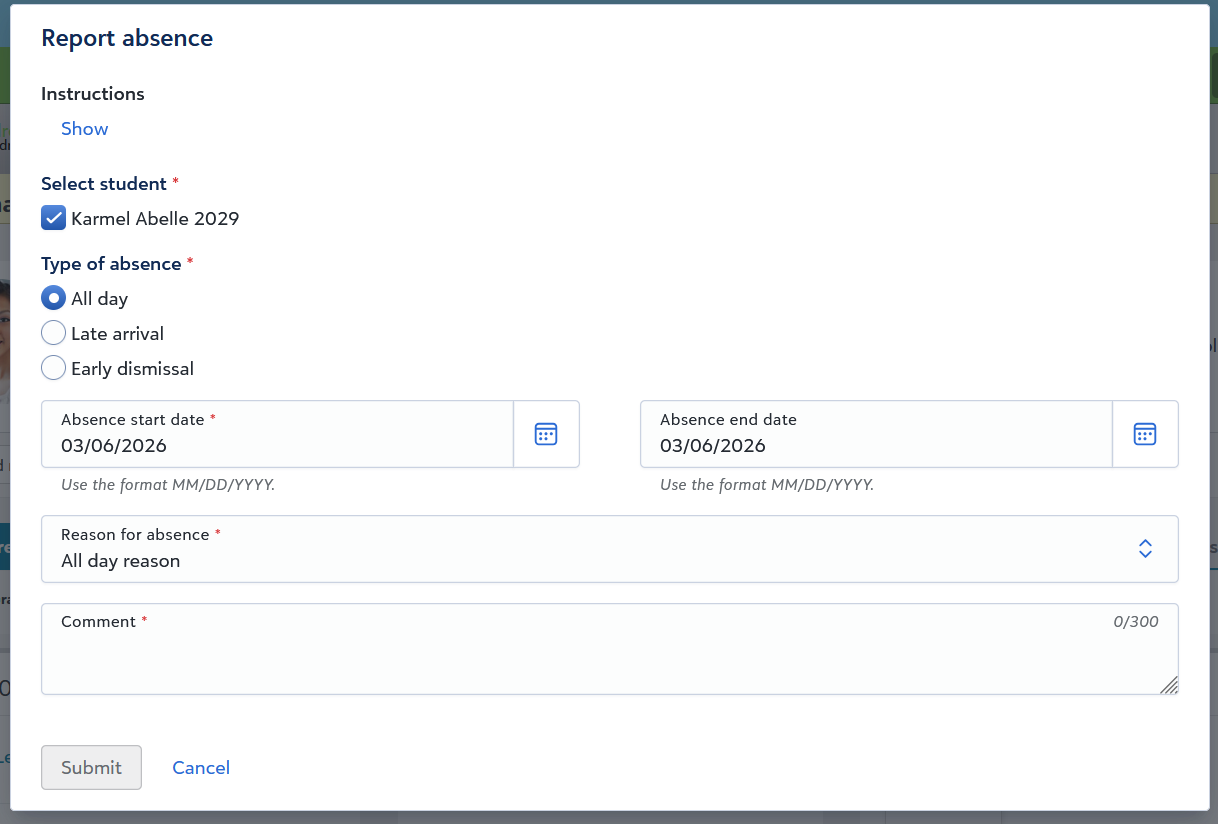
Selecting it will open a new modal where the parent can select the Type of absence, the Absence start date and the Absence end date. Parents will also have to enter the Reason for Absence and enter a Comment before the Submit button can be selected. Once submitted, the parent will receive a confirmation email as per the Confirmation notification setup performed earlier.
Note: Late arrival and Early dismissal will also require the parent to enter the estimated arrival and dismissal time as well.
Alternatively, parents can use the Report Absence tile from the Resource Board. It offers the same functionality without forcing the parent to navigate to a different screen. Keep in mind that this tile needs to be enabled by the school first from Core, Content, and then Resource Boards. The tile is also customizable by schools, allowing changes to be made to the Title, Description, changing the Cover Photo, and which School level it appears for.
Admin Review Process
Once parents submit absences, administrators will see a new row from the Needs attention tile on the Attendance hub. Select the link to be taken to the review screen for Parent submitted attendance. The left hand side displays all submitted entries and selecting the submission will display the details on the right hand side. It’ll show who submitted the attendance, the student and their grade level, as well as other pertinent information like the submission details.
Admins will also get an overview of how the absence, early dismissal, or late arrival will impact the student’s schedule with which activity they’ll be at during specific times. If needed, the administrator can make further changes to the Reason or Comment.
For attendance that had already been taken earlier, there’s a Previous attendance column that will display with the information that had been added at that time.