Introducing Parent Submitted Attendance!
New Features
In this journal entry, we’ll be taking a closer look at the new Academics feature for allowing Parents to submit attendance.
https://d3k2f0s3vqqs9o.cloudfront.net/media/314ECBC4-9678-41CF-9E352DD63C518811/E3BA4C99-D749-476A-B5235042A89D55E3/webimage-99F2E354-822E-4915-9CE14B83D6E485AC.png
December 15, 2025
As part of the December 16 release, the Academics team has added a brand new Parent Submitted Attendance feature. This is an opt in feature that allows parents and guardians to submit an absence, late arrival, or early dismissal request for their child.
Let’s take a look at how it works.
Where Can I Find It?
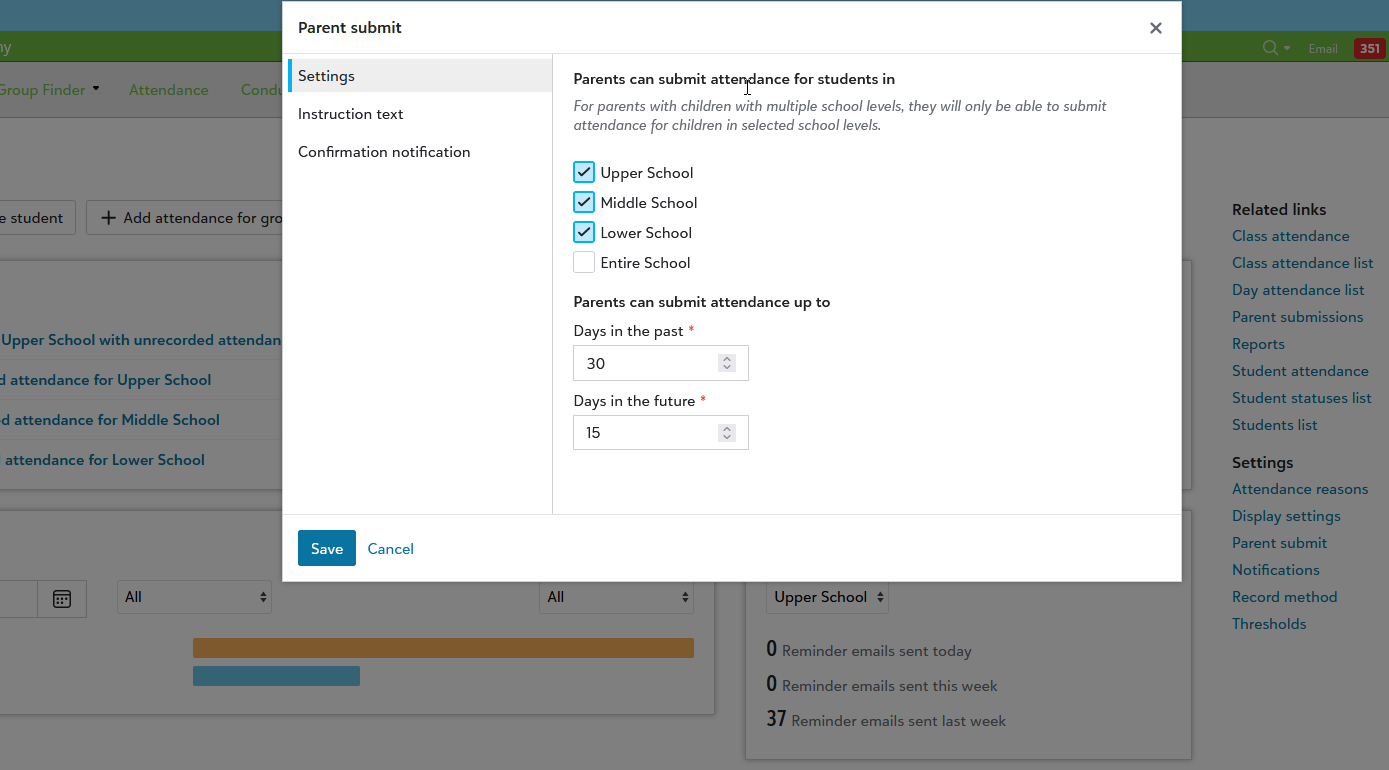
To get started, administrators should head to Academics, Attendance, and then Parent submit under the Settings section.
A new modal window will appear for you, allowing you to select which School levels to include which will allow Guardians with students in these school levels to submit their attendance. These fields are based on the Parental Access from the Student relationships setting, so if anything needs to be adjusted, head there.
Alternatively, you also have the option to select the Entire School option, which will activate it for everyone regardless of the School level.
Use the Instruction text to display a message to parents, giving them tips, advice, or instructions on what they need to do for the submission process.
Finally, select the Confirmation notification area to turn this feature on, which will send a customized (by you!) message to parents after they submit attendance. Maybe it’s a thank you confirmation message or perhaps you have additional information you want them to know about after submitting. Either way, it’s up to you. Set the Reply email address, From name, , and Email body, and don’t be afraid to use our premade merge fields to help save some time for things like automatically adding the student’s name or the date.
But Hold On! Consider This First!
So, you’ve turned it on and configured everything to how you want it. You’re not quite ready yet.
You’ll need to make sure your Attendance Reasons are set before parents can submit attendance. Under the Settings area from the Attendance hub, select Attendance Reasons to make sure there are options for a parent to select. If you already have some created, edit it and switch the Parent submit access option to Yes so it will appear as an option for parents to select.
How Parents See It
The work is done on your side, but you may be curious as to know what parents now experience on their end.
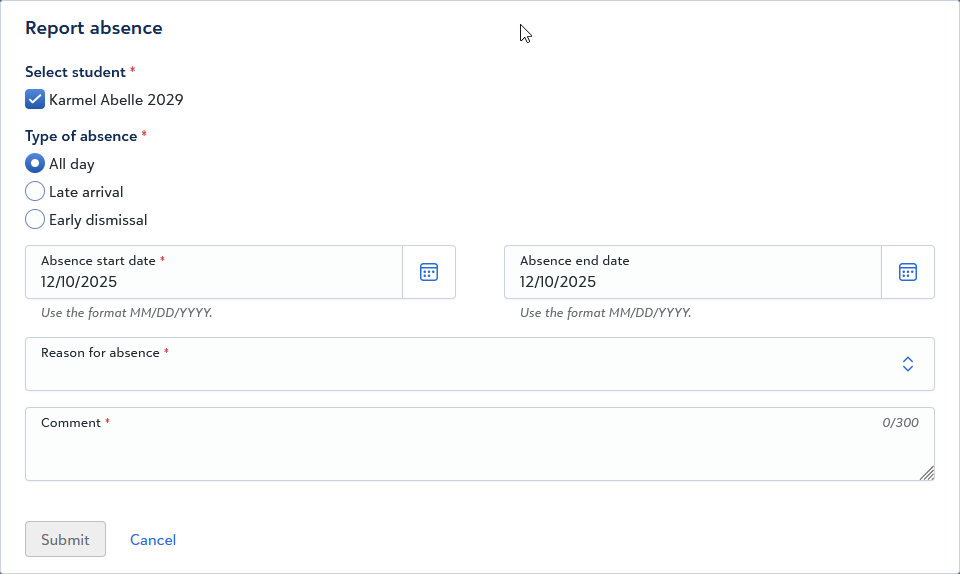
Parents can access this feature right from their portal and selecting their child. The student profile will have a +Report absence button which will allow the parent to select the Type of absence, the Absence start date and Absence end date. They’ll also need to enter the Reason for Absence and can enter additional comments before the Submit button can be selected.
Alternatively, parents can also select the Report Absence tile from the Resource Board, which leads to the same modal window. One thing to note here is that school will need to first enable the tile from Core, Content, and then Resource Boards.
Let's Review!
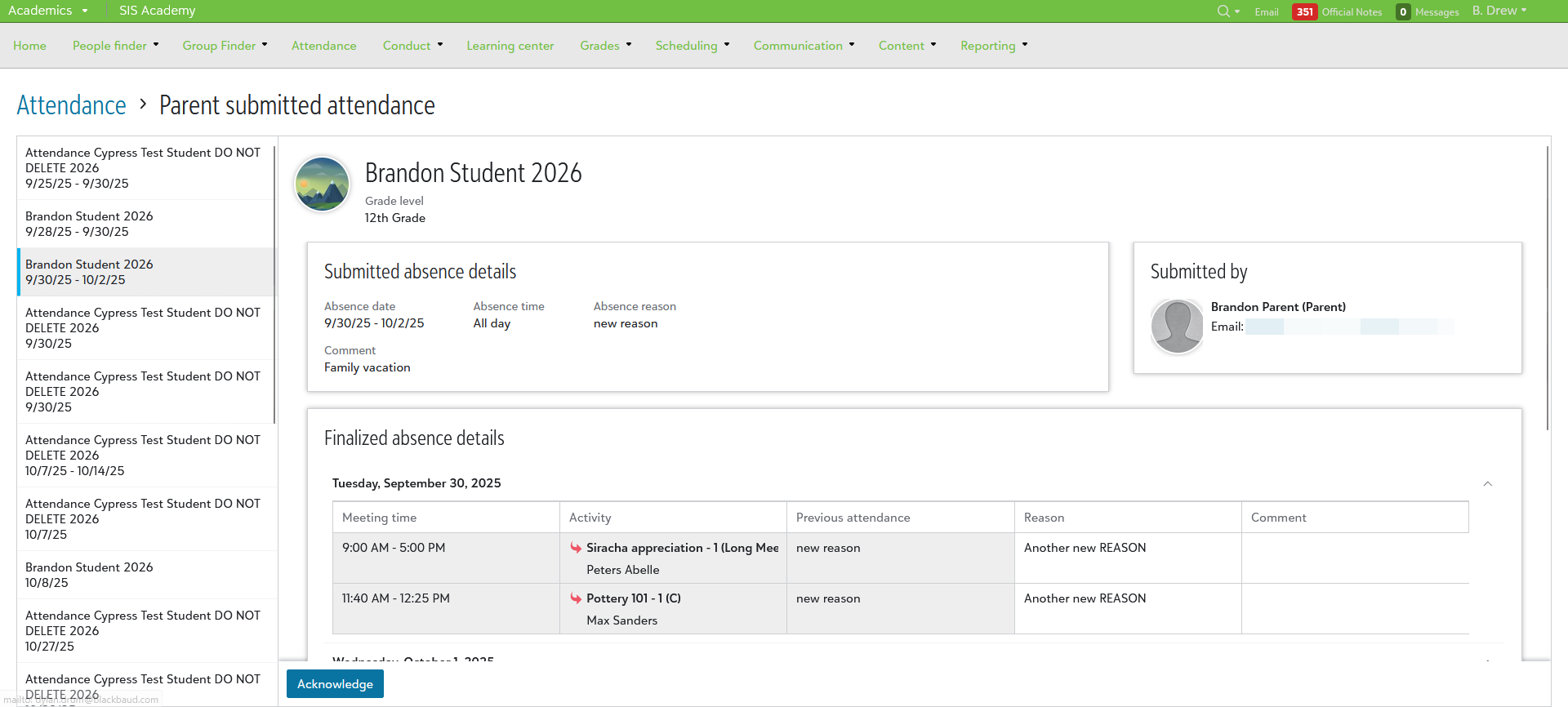
Okay, one last piece to this feature: the Administrator Review Process. Once the attendance has been submitted by a parent, the Needs attention tile on the Attendance Hub will display it for administrators.
Select the link to be taken to the review screen, which displays all of the entries on the left and the specific submission details for the selected entry on the right. You’ll see things like who submitted the attendance, the grade level, student name, and more. Admins will also see an overview of how the absence, dismissal, or late arrival will impact the student’s schedule and which class or activity they’ll be at during the times selected. If needed, the admin can make further edits and changes to the Reason or Comment.
For more information on this, make sure to check out our specific help topic. Thanks for reading this week!
With the holidays rapidly approaching, this may be the final journal of 2025, so I just wanted to take a moment to thank all of you who have been on this ride with us, whether you’ve been reading since the start or have just recently stopped by. We have a lot planned for 2026, so I hope we’ll see you then! Have a Merry Christmas, Happy Holidays, and fantastic New Year!