Application Section 1: Household
In this section, you’ll provide information about parents/guardians and dependents in the household. You'll also select the schools where your students are applying for aid.
Note: For additional assistance, please reach out to the Parent Contact Center.
 Parents and Guardians
-
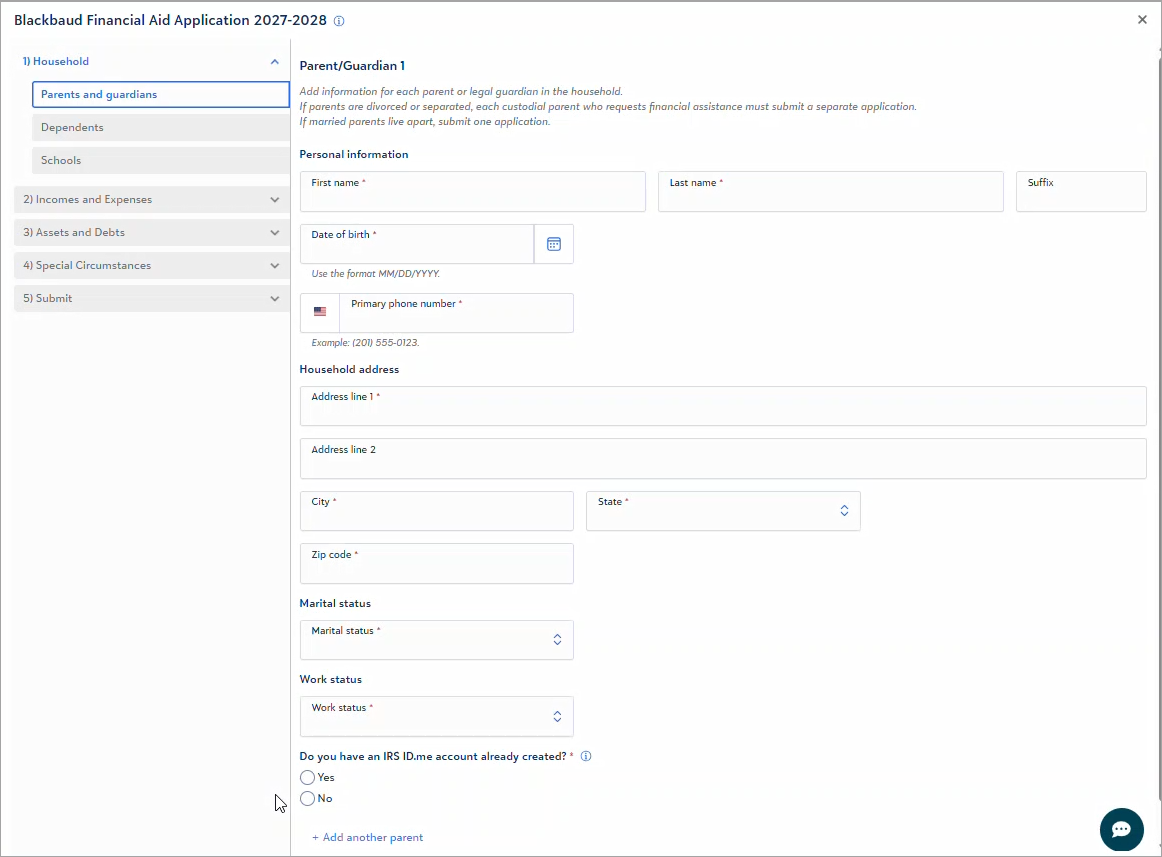
Date of birth: Use the calendar icon to select the year, month, and date.
-
Marital status: If you select Married or Residing with significant other, select Add another parent before you continue. You can edit the household address only under Parent/Guardian 1.
-
Divorced or separated parents: Each custodial parent seeking financial assistance must submit a separate application. Married parents who live separately submit one application.
-
Employment: If a parent or guardian's Work Status is Employed, enter their Employer Name and Job Title. If they have multiple jobs, enter information for their primary employer.
-
IRS ID.me account: If you have an Internal Revenue Service (IRS) ID.me account, select Yes. The IRS uses ID.me to verify your identity securely. For more information, see the ID.me Help Center.
-
When you finish entering your information, select Save and continue.
Dependents
-
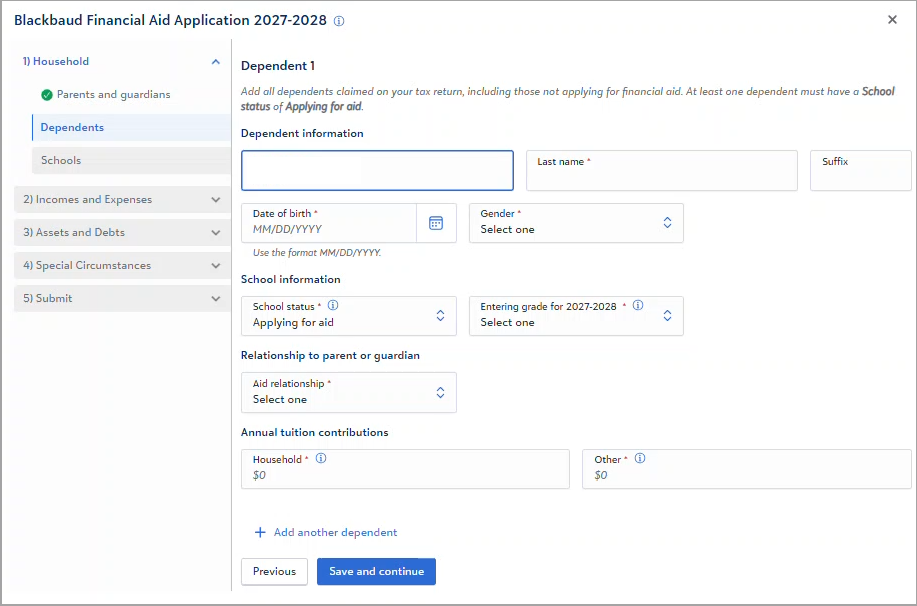
Include any dependents that you claim on your tax return, not only your student dependents applying for aid.
-
You must include at least one dependent with a School Status of Applying for aid.
-
For dependents attending a school that offers aid, but does not offer aid for the student's grade, select Attending but not applying for aid. For example, a dependent may attend Pre-K at a school that only offers aid in grades 1-12.
-
For dependents attending college, set their School Status to Attending another private school, set their Grade to 13*, and enter their Tuition amount and School Name.
-
For dependents that will not attend school during the financial aid application year, select Not attending school.
-
The Annual Tuition Contribution fields only need to be filled out for dependents applying for aid and dependents attending another private school. If multiple dependents are applying for aid or attending another private school, enter the individual amount for each dependent. For example, if your household is able to contribute $5,000 total and you have two dependent children applying for aid, enter $2,500 for each child.
-
Household: Enter the dollar amount family members in your household can afford to contribute toward education for the academic year for this dependent. Consider how much you can contribute per month and multiply that amount by 12 to figure out the annual amount.
-
Other: Enter the dollar amount others (i.e., relatives, friends, scholarships, other aid, etc.) are contributing toward this dependent child's education for the academic year.
Tip: Select the info icon in a field for more information on that field.
-
-
Select Add another dependent to add more dependents.
-
To remove a dependent, select Remove dependent.
Note: You cannot remove the dependent in the first position. If you want to remove the dependent in the first position, replace their information with information for a dependent who should be included in the application. Ensure you've only included each dependent one time.
When you're finished, select Save and continue.
Schools
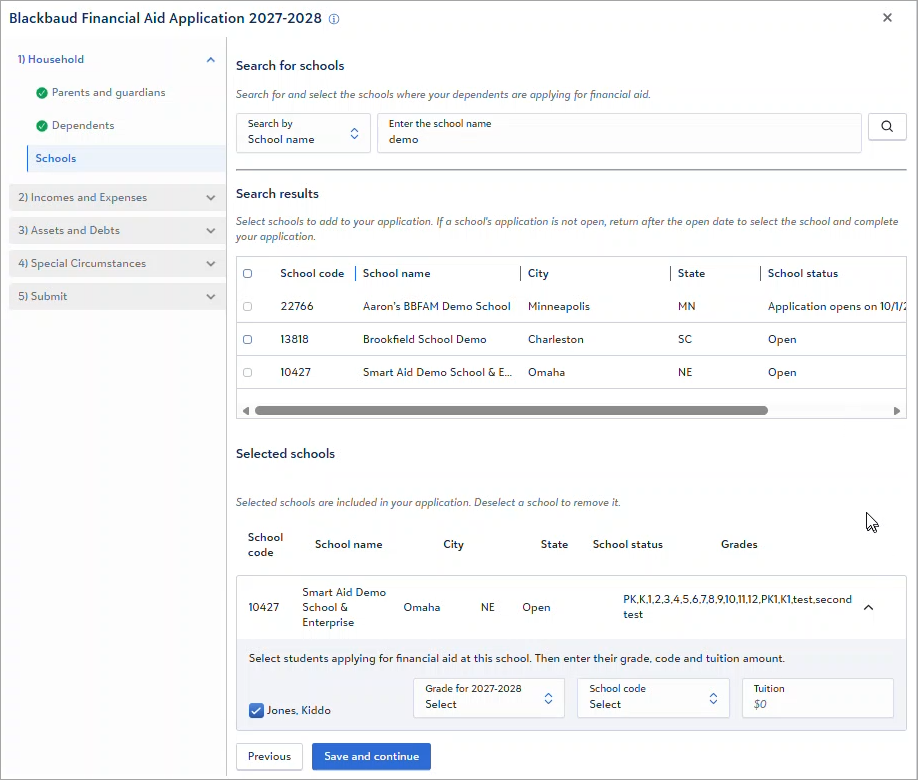
Schools you selected prior to starting the application are displayed under Selected schools.
-
If you do not need to add or change your school selection, proceed to Selected schools.
-
If a dependent is applying for aid at multiple schools, you can select more than one school for that dependent.
-
If you have multiple dependents applying for aid, you can specify which schools each dependent is applying for aid at.
Add Additional Schools
To search for and select additional schools:
-
Under Search for schools, select a search option:
-
School Name
-
School Code: A 5-digit code provided by your school.
-
City
-
State
-
-
Enter at least three characters or the 5-digit school code, and then select the Search icon.
-
Under Search results, select a school to add it to your application.
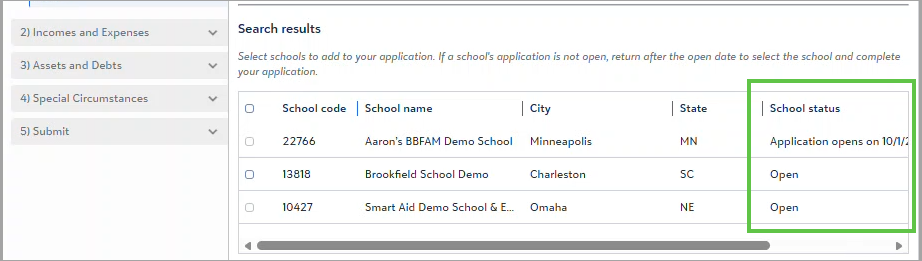
Note: You can only select schools with an Open status.
-
Select Begin.
If a school's application opens at a future date or is already closed, the open or closed date displays under School status.
School Search Tips
-
Enter at least three characters.
-
Search for part of a school name instead of the full name. For example, enter “John” instead of “St. John the Baptist High School” and use City, State, and Grades to identify the correct school.
-
If your school did not provide a School Code, search by School Name, City, or State.
Remove a Selected School
To remove a school from Selected schools, unmark the checkbox next to it under Search results or Selected schools.
Enter Student Details for Selected Schools
For each school that a student is applying to:
-
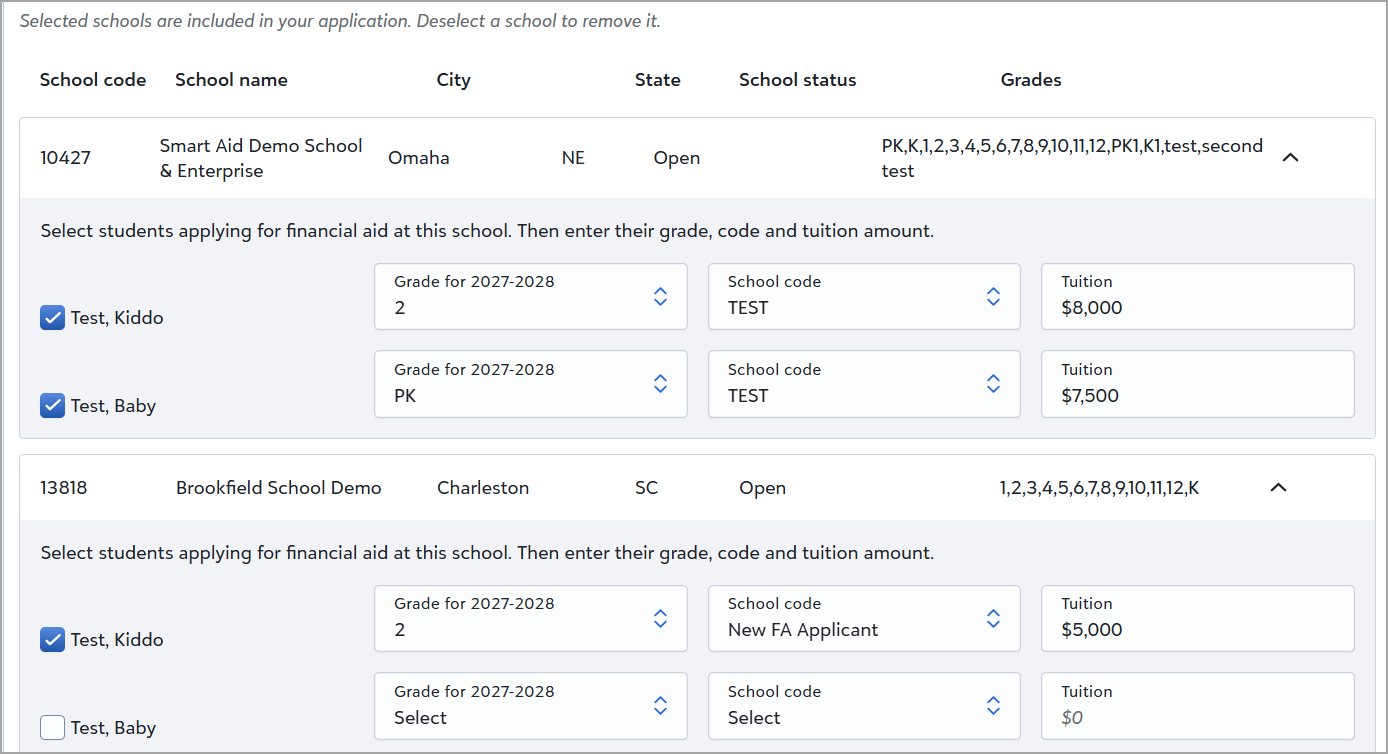
Mark the checkbox next to a student's name if they are applying for aid at that school.
-
Use the dropdown to select each student's Grade for each school they are applying to. Available grades are set by the school.
-
Select a Student code if required.
-
Schools create codes and use them to identify segments of their student population, such as New or Returning students.
-
Your school may not require a Student code.
-
-
Tuition amounts are pre-filled if tuition is preset. If no amount is displayed after selecting the student's grade, enter the Tuition amount manually.
In this example, sibling students are both applying for aid at the first school, but only one sibling is applying for aid at the second school.
When finished, select Save and continue.
Up next: Section 2: Income & Expenses