Specify Character and Word Counts
You can specify the minimum and maximum number of characters and words for text-based fields.
Supported field types
-
Text
-
Text area
Configure validation
-
Access Grant Manager Portal - Navigate to yourcausegrants.com or your client URL. Sign in using your Blackbaud ID (BBID) or Single Sign-On (SSO) credentials.
-
Open Form Builder - From the side navigation, select Program Setup > Custom Forms. Click the ellipsis next to the form and choose Edit.
-
Edit Form Component - In the Form Builder, hover over the field and select Edit component.
-
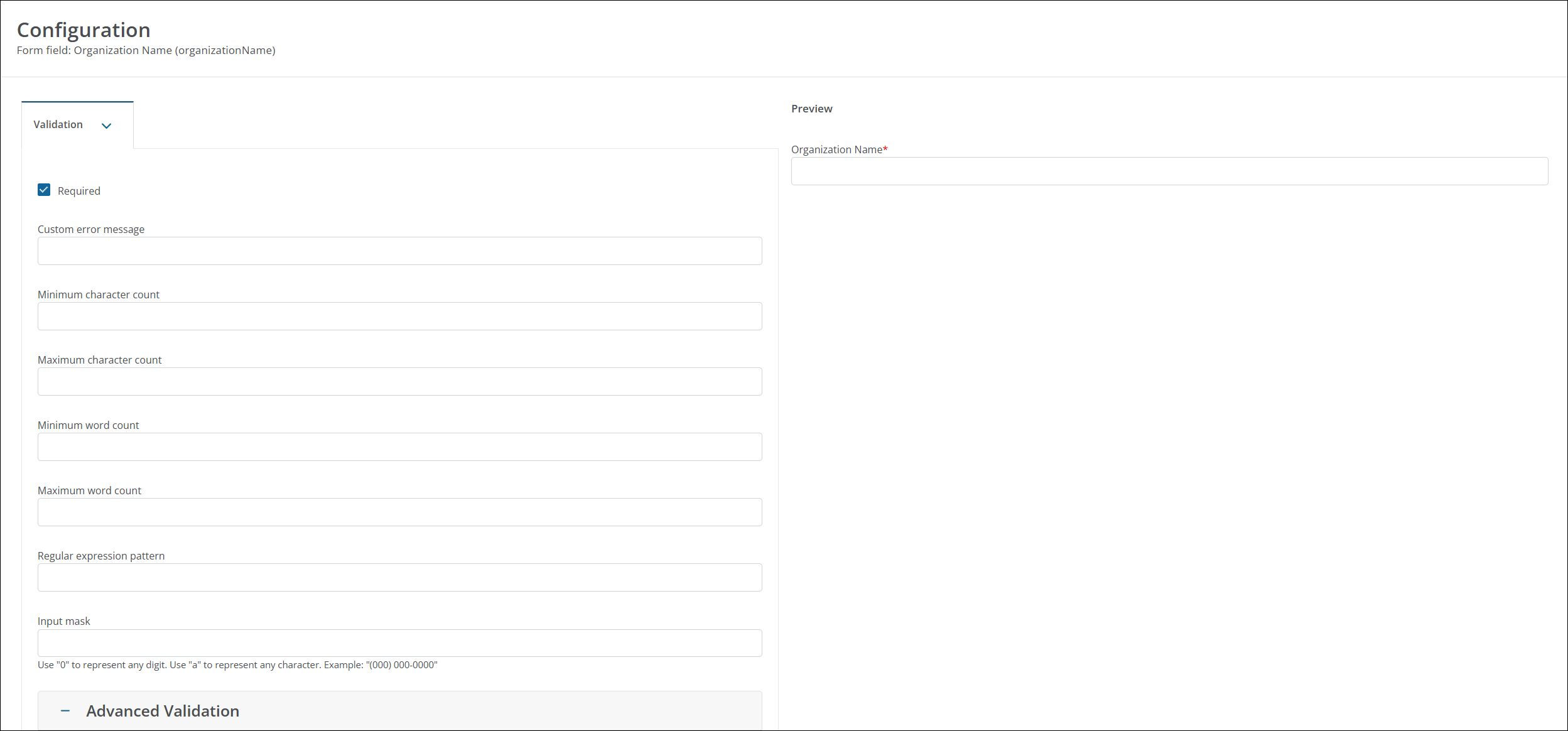
Configure Component - Select the Validation tab.
-
Specify Min or Max Count - Enter the minimum or maximum accepted counts in:
-
Minimum character count and Maximum character count
-
Minimum word count and Maximum word count
Tip: To help users easily recognize when they're approaching the limit, we recommend configuring the field to display the show the word and character counts in the Details tab.
-
-
Save Changes - Select Save in the Configuration modal and then save the form to finalize your changes.
Display character or word count in the form
-
Access Grant Manager Portal - Navigate to yourcausegrants.com or your client URL. Sign in using your Blackbaud ID (BBID) or Single Sign-On (SSO) credentials.
-
Open Form Builder - From the side navigation, select Program Setup > Custom Forms. Click the ellipsis next to the form and choose Edit.
-
Edit Form Component - In the Form Builder, hover over the field and select Edit component.
-
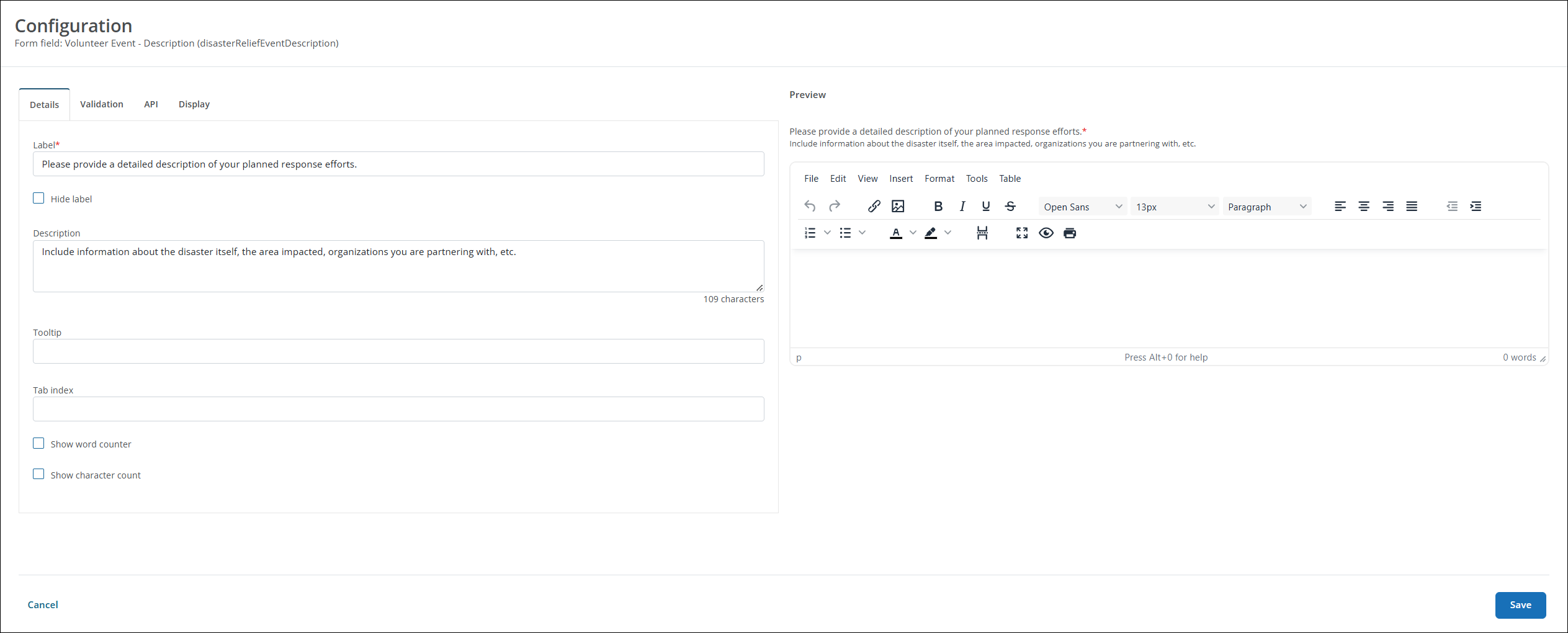
Configure Component - Select the Details tab.
-
Show Requirements - Select the Show character count and Show word counter checkboxes to display the accepted counts in the field.
-
Save Changes - Select Save in the Configuration modal and then save the form to finalize your changes.