Create a Custom UI Model to Manage Child Records
Batches often manage data that has a one-to-many relationships. A constituent batch record can contain many child phone records. In the case of a Food Bank Transaction Add Batch, a parent food bank transaction record can contain many child transaction detail records.
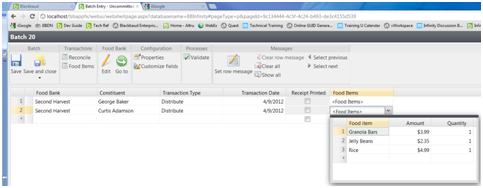
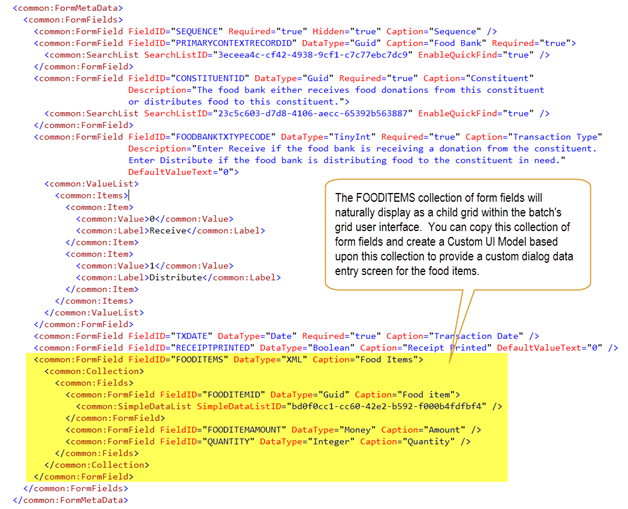
Using the Food Bank Transaction Add Batch code sample as an illustration, we see below the form fields within batch's add form used to add food bank transaction header and detail records into their respective staging area tables.
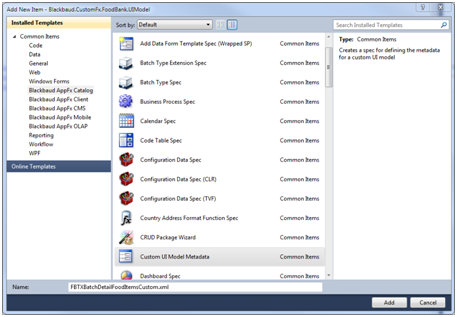
Add a new Custom UI Model item to your UIModel Visual Studio project to support the batch.
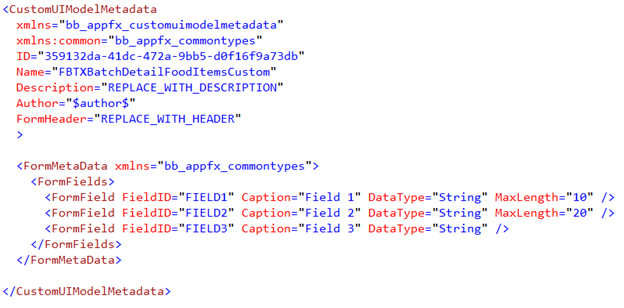
The template provides you with a starting point for your Custom UI Model. In the next step, we will replace these default form fields with the food item form field collection used by the batch.
Copy the collection form field from your batch's add data form and place the XML into the CustomUIModelMetadata spec.
The structure of the collection of form fields within the Custom UI Model dialog screen matches the structure of the collection of form fields within the batch. This ensures that food items can be easily copied programmatically from the batch child grid to the Custom UI model dialog screen and vice versa.
-
Within the UI Model project, remove the three default form fields within the CustomUIModelMetadata spec.
-
Within the Catalog project, open the batch's add data form (FoodBankTransactionAddBatch.Add.xml) from the project's BatchTypes\Food Bank Tx Adv Add folder.
-
Copy the FOODITEMS form field from the add data form and paste it into the CustomUIModelMetadata spec within the
<FormFields>node (yellow highlight below).
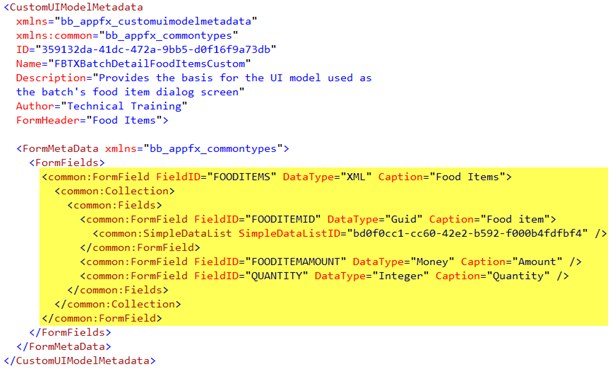
Provide values for the CustomUIModelMetadata's Author and FormHeader attributes.
Note: The CustomUIModelMetadata spec is not loaded into the catalog system like other data form specs. This spec generates a UI Model class that forms the user interface for the custom data form. After the UI Model class is generated, it is not needed conceptually anymore other than to serve as an artifact to help document the structure of your custom form.
Generate the UI Model from the CustomUIModelMetadata spec.
Tip: If you are unfamiliar with UI Models, see Define the Data Form’s Behavior with a UI Model and UI Model Overview.
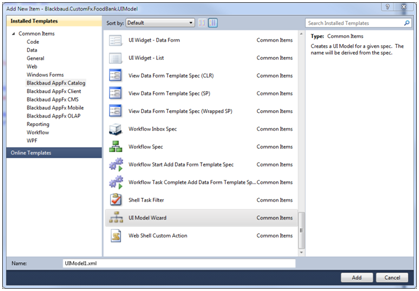
Within the UI Model project, add a new item by selecting the UI Model Wizard.
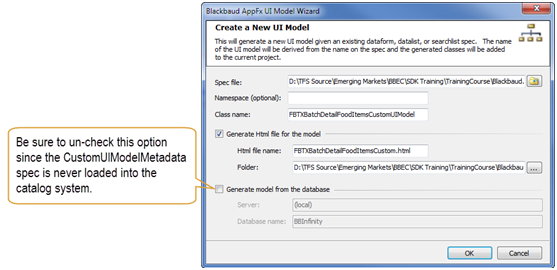
After the wizard generates the UI Model, we are ready to wire it up to an action within a web event handler. If necessary, you can add event handlers and other user interface interaction code to the UI Model.