Select Eligible Attribute Categories
In addition to the fields that the Data Mart Deployment Wizard includes in the data mart, you can also add eligible attribute categories to the data mart. For attribute categories to be eligible for the data mart, they must have a record type of constituent, revenue, educational history, event, registrant, designation, interaction, or modeling and propensity. In addition, the data type for the attribute categories must be code table or yes/no. After you set up eligible attribute categories, you can manually add them to the data mart.
On the Reporting data mart page, click Select eligible attribute categories under Configuration. The OLAP attribute category selection screen appears.
To load eligible attribute categories, select them in the grid on the left and click the arrow to add them to the grid on the right.
Include Attribute Categories in the Data Warehouse
You can select the eligible attribute categories to include in the data warehouse on the OLAP attribute category screen. To access this screen, go to the Reporting data mart page and click Select eligible attribute categories under Configuration.
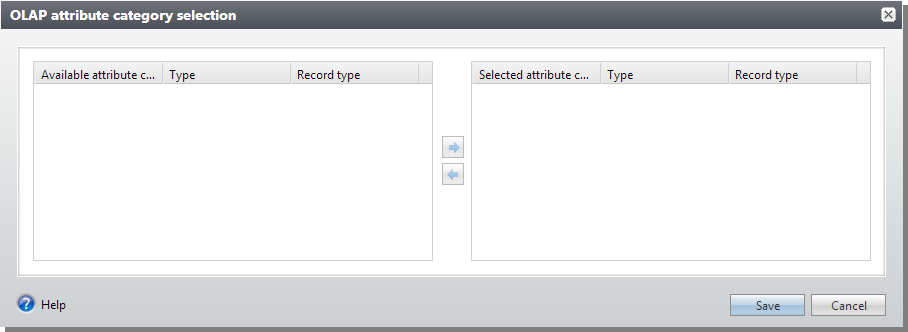
Eligible attribute categories appear in the grid on the left.
Note: If you selected Make available in lists for an attribute on the Add an attribute category screen or the Edit an attribute category screen, it does not appear on the OLAP attribute category selection screen because the attribute category is automatically included in the warehouse.
To load an eligible attribute category into the data warehouse, select it and click the arrow to add it to the grid on the right. This adds a row for the attribute category to the dbo.OLAPDATASOURCEATTRIBUTECATEGORY table in the Blackbaud CRM transactional database. The next time the ETL process runs, it brings the attribute categories from the dbo.OLAPDATASOURCEATTRIBUTECATEGORY table into data warehouse.
To include an eligible attribute categories in the data warehouse, you select the attribute category on the Attribute Categories page and click Include in warehouse.
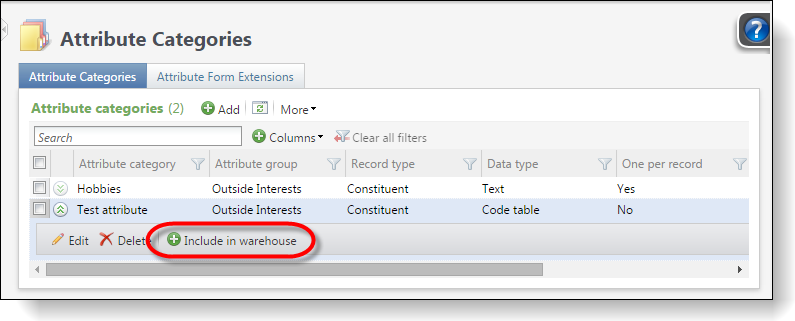
This adds a row for the attribute category to the dbo.OLAPDATASOURCEATTRIBUTECATEGORY table in the Blackbaud CRM transactional database. The next time the ETL process runs, it brings the attribute categories from the dbo.OLAPDATASOURCEATTRIBUTECATEGORY table into data warehouse.
To remove an attribute category from the warehouse, you can select it again on the Attribute Categories page and click Remove from warehouse.
In addition, attribute categories are automatically included in the data warehouse when you select Make available in lists on the Add an attribute category screen or the Edit an attribute category screen. To access these screens, you click Attribute categories from Administration, and then on the Attribute categories page, you can click Add or select an attribute in the grid and click Edit.
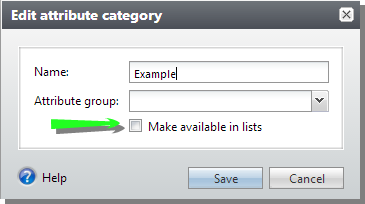
The Make available in lists checkbox makes attribute categories available to display attributes in columns for list builders, and it also adds those attribute categories to the data warehouse.