HTML for UI Model Data Forms
The UI Model wizard creates an HTML "snippet" to define form field layout. When the wizard creates the initial layout, it creates a table to organize the elements mapped to form fields on the spec. A table is not strictly necessary. But you can use table, tr (row), and td (cell) elements to organize the layout.
Form field captions are placed in label elements. UI elements such as checkboxes and drop-down list boxes use input elements. Large areas of text use textarea.
The platform associates special behaviors with certain style classes. Some of these behaviors are defined with CSS and others are defined with JavaScript. Common examples include <div class="bbui-forms-fieldset-column"> to organize form fields into multiple columns and <div class="bbui-forms-tabs-main"> to organize form fields into tabs. For more information about columns, see bbui-forms-fieldset-column. For more information about tabs, see Tabs Element or bbui-forms-tabs-main.
Elements that map to form fields use the #MAP# prefix in the ID to ensure a unique mapping for each form session. This way form fields are unique and CSS classes declared outside the form do not cascade down to those form field elements.The #MAP# prefix is replaced at runtime with a unique value. The naming convention for ID values enables a mapping between Data Form Spec metadata values to the HTML based user interface.
The following uses a label element with the id="#MAP#FIELD1_caption" attribute to display the caption for the FIELD1 form field within a label. An input element is used to display the corresponding text box. The id="#MAP#FIELD1_value" attribute maps the value of the FIELD1 form field into the control.
<div id="#MAP#BBUITestsAddDataForm">
    <h2 id="#MAP#FORMHEADER_value"></h2>
    <table>
        <tr id="#MAP#FIELD1_container">
            <td>
                <label id="#MAP#FIELD1_caption" for="#MAP#FIELD1_value"></label>
            </td>
            <td>
                <input id="#MAP#FIELD1_value" type="text" />
            </td>
        </tr>
        <tr id="#MAP#FIELD2_container">
            <td>
                <label id="#MAP#FIELD2_caption" for="#MAP#FIELD2_value"></label>
            </td>
            <td>
                <input id="#MAP#FIELD2_value" type="text" />
            </td>
        </tr>
        <tr id="#MAP#FIELD3_container">
            <td>
                <label id="#MAP#FIELD3_caption" for="#MAP#FIELD3_value"></label>
            </td>
            <td>
                <input id="#MAP#FIELD3_value" type="text" />
            </td>
        </tr>
    </table>
</div>
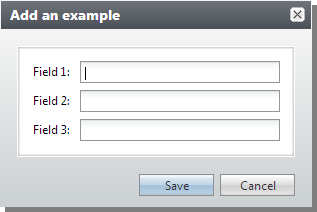
The HTML is housed on the web server and is referenced within the Data Form Spec after the reference to the UI Model in an XML element named ExternalResource.
  <common:FormMetaData>
    <common:FormFields>
      <common:FormField FieldID="FIELD1" Caption="Field 1" DataType="String" MaxLength="10" />
      <common:FormField FieldID="FIELD2" Caption="Field 2" DataType="String" MaxLength="20" />
      <common:FormField FieldID="FIELD3" Caption="Field 3" DataType="String" />
    </common:FormFields>

    <common:WebUIComponent>
      <common:UIModel AssemblyName="Blackbaud.CustomFx.BBUIExamples.UIModel.dll" ClassName="Blackbaud.CustomFx.BBUIExamples.UIModel.BBUITestsAddDataFormUIModel" />
      <common:WebUI>
        <common:ExternalResource Url="browser/htmlforms/BBUITestsAddDataForm.html" />
      </common:WebUI>
    </common:WebUIComponent>
  </common:FormMetaData>