Select your user interface:
Exercise: Create a Smart Field Using a Constituent Revenue Date Smart Field Definition
This exercise is a continuation of the scenario described at the beginning of Exercise: Create a Smart Field Using a Constituent Revenue Amount Smart Field Definition. This exercise shows you how to create the revenue date smart field.
Step 1 - Add a new smart field.
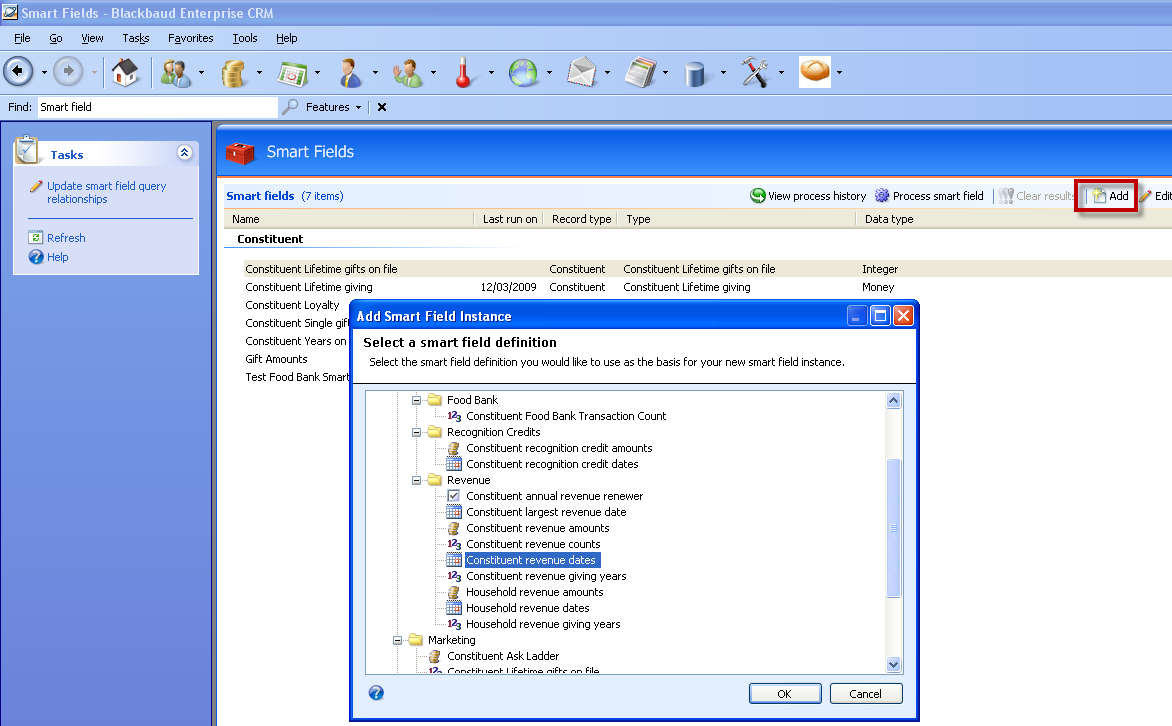
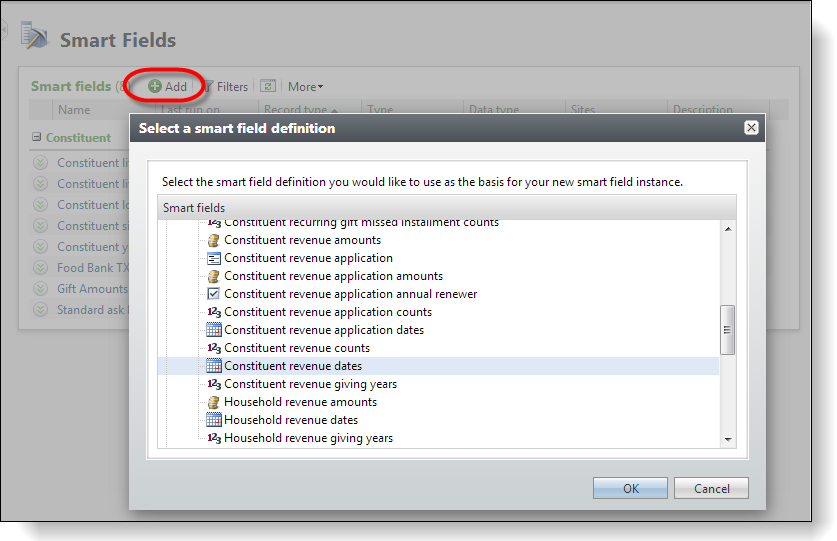
Navigate to the Smart Fields page and click the Add action to create a smart field instance. On the Add Smart Field Instance window, select a smart field definition. Definitions are templates that form the basis for your smart field instances. A smart field definition specifies how to calculate a smart field. For this scenario, select Constituent revenue dates and click OK.
Step 2 - Add parameters.
On the Generaltab of the Add constituent revenue dates smart field screen, enter a name for your smart field. For this scenario, enter "Gift Dates" because the prospector refers to revenue as "gifts."
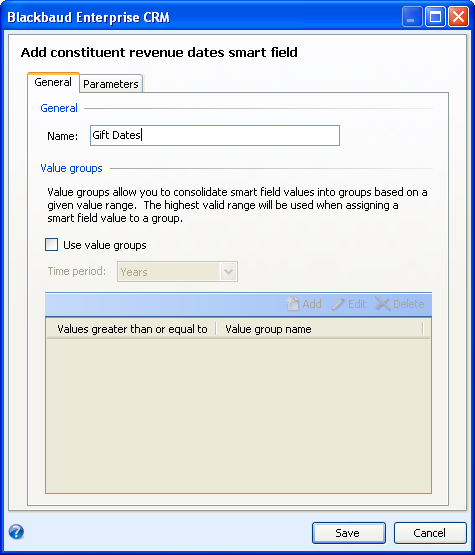
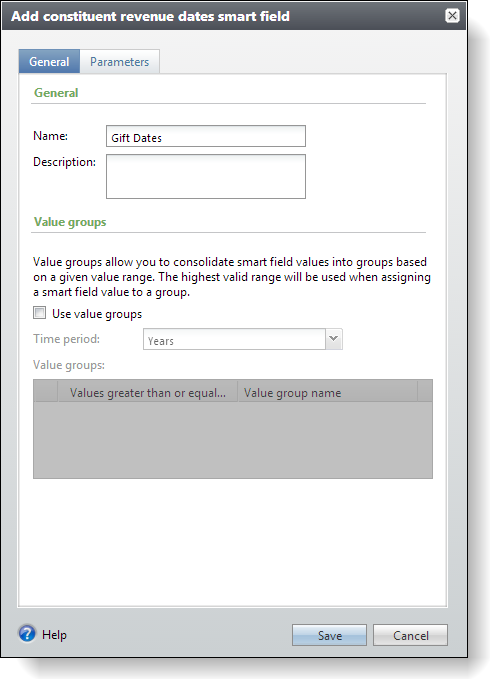
In the Value groups frame, you can add designations based on values. In this scenario, value groups are not needed for the gift date smart field.
Select the Parameters tab, and in the Value to return field, select the calculation type for the smart field. For this scenario, select "Latest date."
If necessary, in the Start date and End date fields, select the time period for the smart field. For this scenario, the dates to include are determined by the values selected by the prospector in Query, so leave the fields blank.
In the Revenue types and designations box, select the revenue types to include in the smart field value. For this scenario, the prospector requested all gift types, so select all the checkboxes.
You can also filter dates included in the smart field value based on the designation. In the Designations box, click the binoculars to access the Designation Search screen. From here, you can search for the designation to use in your smart field value. If you do not select a designation, revenue from all designations is included in the value. No designations were requested for this smart field scenario.
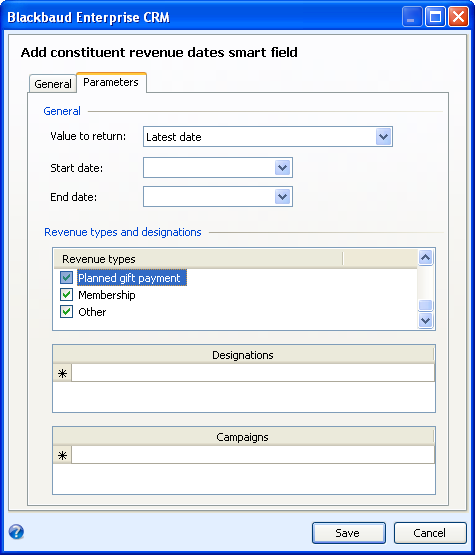
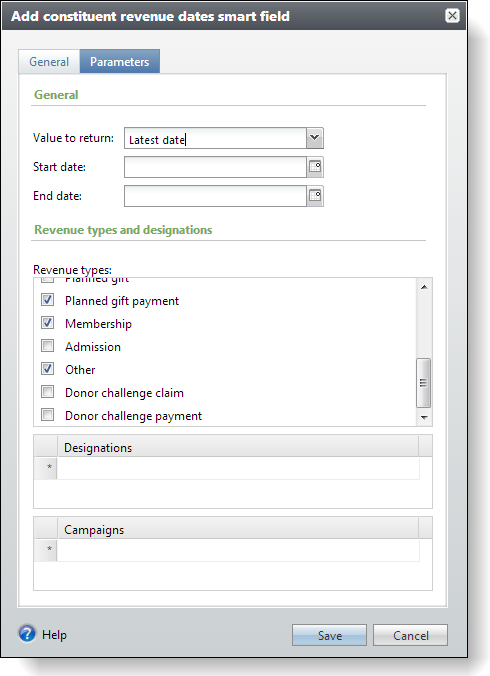
Click Save. The smart field is added to the system, and you return to the Smart Fields page. You now must process the smart field. This makes the smart field value available for queries, reports, and related records.
Step 3 - Process smart field values.
After you create a smart field, you can generate the output value associated with the field whenever necessary. You can also schedule the update to run at designated intervals. When you generate smart field values, they are then available to use in queries and reports and to view in related records.
Warning: Whenever you update an existing smart field value, the program updates the value based on any new data entered since the Last run on date. This date displays in the Smart Fields grid on the Smart Fields page. To update the value of a smart field and consider data entered during all dates that satisfy the premiered settings in the smart field and not just the data entered since the last update, you can click the Clear results action.
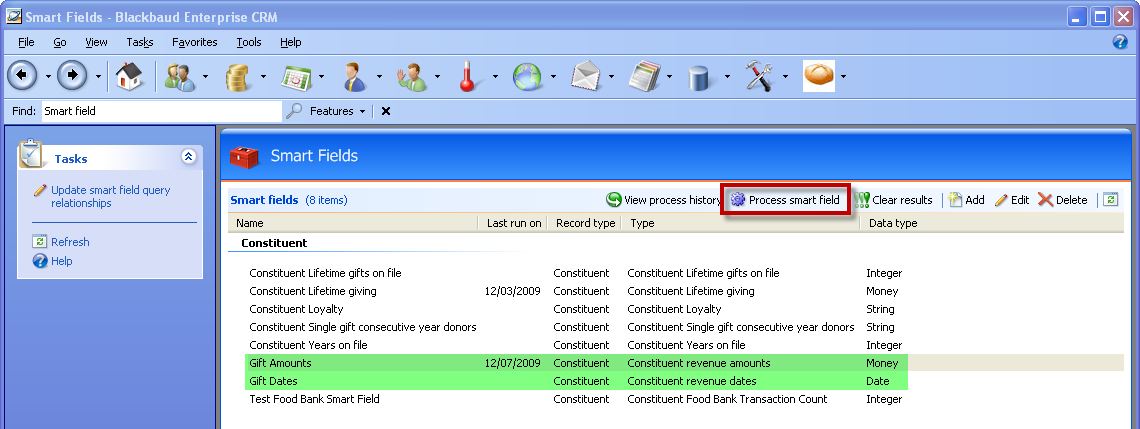
On the Smart Fields page, select the smart field to generate values for. We will generate values for the two smart field instances we created: Gift Amounts and Gift Dates.
Click the Process smart field action. The field is processed and the smart field record appears.
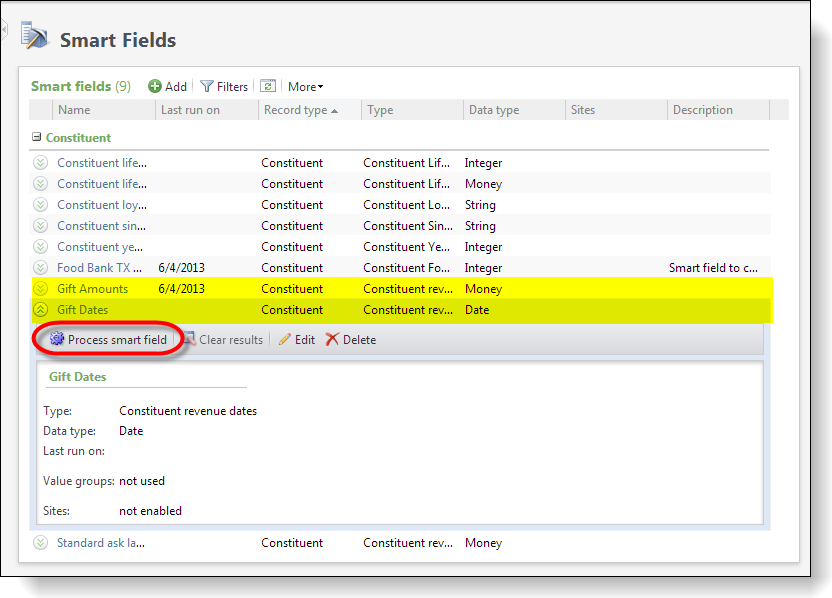
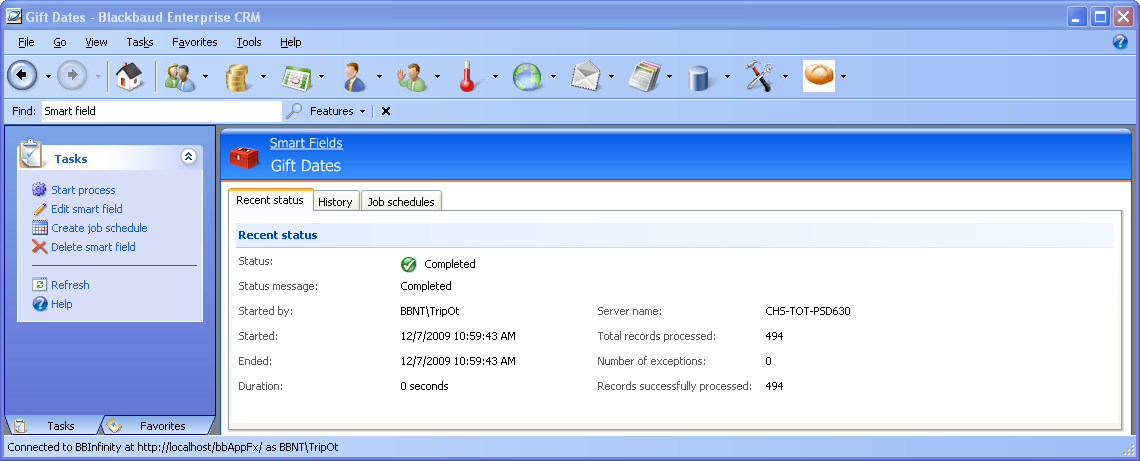
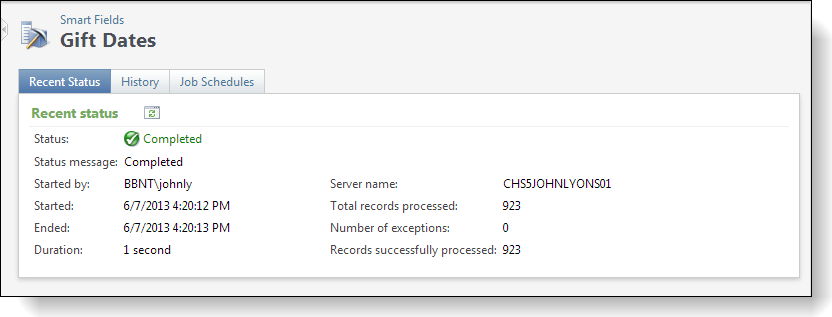
The smart field record displays status and history information about the smart field. The figure below displays the recent status for the Gift Dates smart field: