Create a Report Spec
-
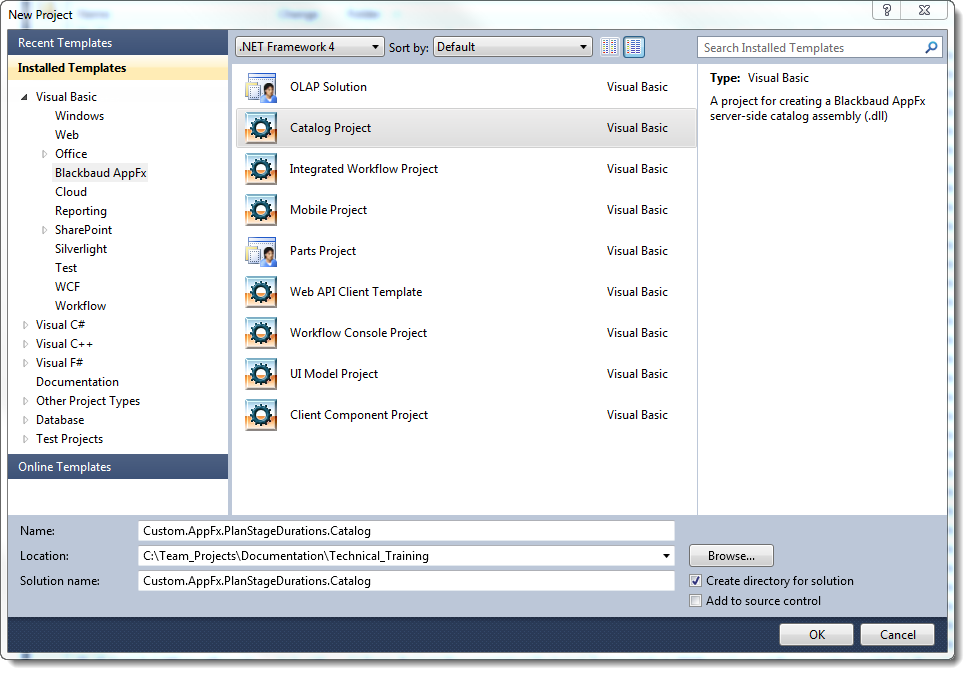
To create a new Catalog Project for Blackbaud Infinity development, from Visual Studio with the Blackbaud Infinity SDK installed, click File > New > Project. Then from the New Project screen, click Catalog Project, enter a name and click OK. Otherwise, open your existing Catalog Project.
-
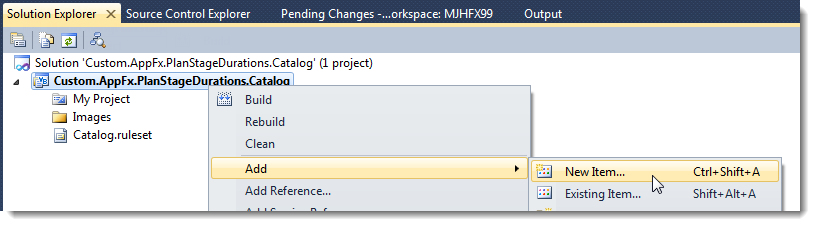
From the project node in the Solution Explorer, click Add > New Item.
-
From the Add New Item screen, click Installed Templates > Common Items > Blackbaud AppFx Catalog > Report Spec.
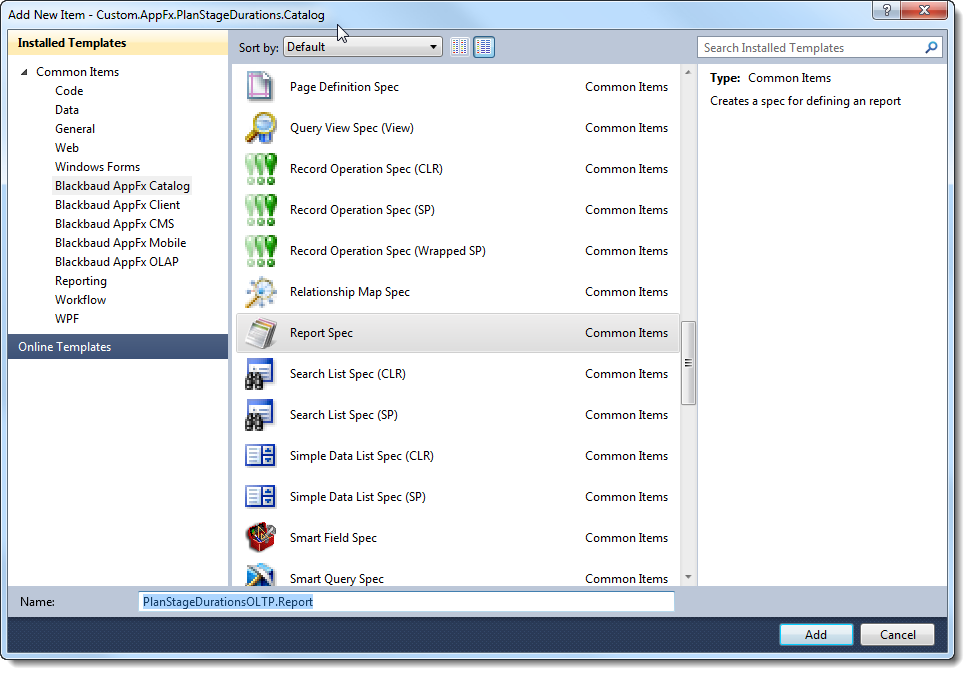
The Report Spec appears.
<ReportSpec
	xmlns="bb_appfx_report"
	xmlns:common="bb_appfx_commontypes"
	ID="882fe807-2570-4900-9c89-0861070f7ea5"
	Name="PlanStageDurationsOLTP Report"
	Description="REPLACE_WITH_DESCRIPTION"
	Author="Blackbaud Product Development"
	>

	<RDLFileName>PlanStageDurationsOLTP.rdl</RDLFileName>
	<Folder>System Reports/Misc Reports</Folder>

	<DataRetrieval>
		<CreateSQL ObjectName="dbo.USP_REPORT_xxx" ObjectType="SQLStoredProc">
			<![CDATA[
create procedure dbo.USP_REPORT_xxx
(
<list any report parameters here>
)
as
	<build the report SQL here>
			]]>
		</CreateSQL>
	</DataRetrieval>

</ReportSpec>
-
Adjust this information:
Name: Prospect Plan Stage Durations Report (OLTP Version)
Description: Displays the averages, minimums, and maximums of durations of plan stages and stage occurrences. Also displays an average count of stage occurrences.
Author: Technical Training
RDLFileName: Custom.AppFx.PlanStageDurations.Catalog.PlanStageDurationsReport.rdl
DataRetrieval: See the code sample at Report Spec for OLTP Version.
-
Save the Report Spec.
Note: At this point, if you attempt to run LoadSpec to test the spec, LoadSpec will throw an error because the RDL file is not available. Message shown for a different version:
Connecting to database 'BBInfinity' on server 'MJHFX99\MSSQLSERVER2008R'. Loading ...C:\Users\TomTr\Documents\Visual Studio 2010\Projects\MajorGivingPlanStageDurations\MajorGivingPlanStageDurations\MajorGivingPlanStageDurations.Report.xml Uploading ReportSpec 'Plan Stage Durations - Averages Report' to catalog... Uploading input file C:\Users\TomTr\Documents\Visual Studio 2010\Projects\MajorGivingPlanStageDurations\MajorGivingPlanStageDurations\MajorGivingPlanStageDurations.Report.xml Error. The specified report definition, "C:\Users\TomTr\Documents\Visual Studio 2010\Projects\MajorGivingPlanStageDurations\MajorGivingPlanStageDurations\MajorGivingPlanStageDurations.rdl" could not be located. Upload complete. -
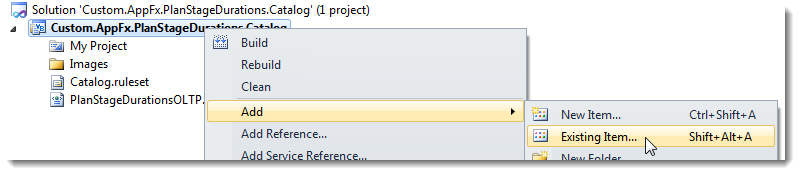
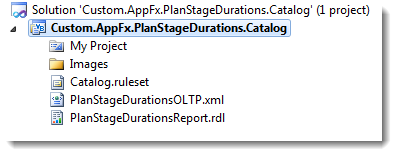
Add the RDL file created in Create an RDL File to the project as an embedded resource. From Solution Explorer, right-click the project and click Add > Existing Item.
-
Browse to the RDL file and click Add.
-
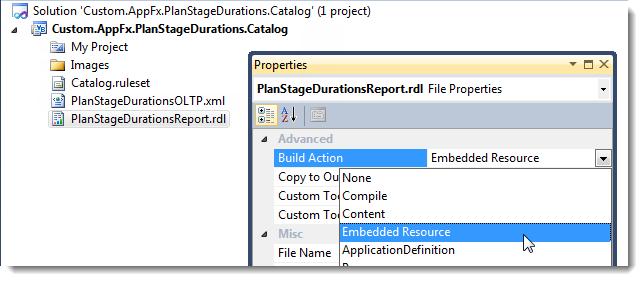
Right-click the RDL file and select Properties.
-
From Build Action, select Embedded Resource.
-
Save the project.
As you update the RDL file in your Report Server project, you will have to update this version of the RDL. You could alternately update this file from ReportBuilder 2.0, Business Intelligence Development Studio outside of the context of the project, or with an XML editor.