Summary Tiles
On the Constituent page in Blackbaud CRM, the constituent summary now displays a series of interactive summary tiles. Each tile is a self-contained view form that the summary view form dynamically loads, and end users can edit which tiles are displayed.
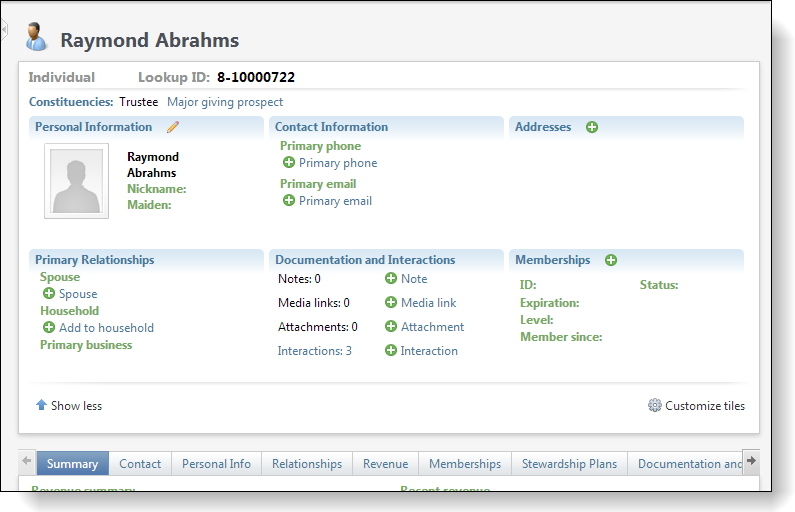
Tiles have a set size and standard headers that can act as hyperlinks to access additional information. For example, the header in the Contact Information navigates users to the Contact tab on the Constituent page. Tiles can also allow users to add and edit data. For example, on the Documentation and Interactions tile, users can such add notes, media links, attachments, and interactions. And repeater tiles allow users to page through multiple records on a single tile. For example, on the Addresses tile, end users can page through all the addresses for constituents.
Currently, tiles are only available for the Constituent page. Third-party developers can create view forms to use as custom tiles in the Constituent page’s summary, but they cannot currently create new custom summary view forms to display tiles on other pages.
To create custom tiles, third-party developers must follow the following steps:
-
Create the view data form to display as a tile.
-
Create a UI Model to implement the tile interface.
-
Insert a row for the view form in the CONSTITUENTSUMMARYAVAILABLETILE table to designate it as a tile.
Tip: For more information about tiles and detailed instructions about how to create custom tiles, see the Constituent Tiles section of the Data Forms guide.