Create New Stories
-
Navigate to the Administration > Stories area.
-
Select Create Story.
-
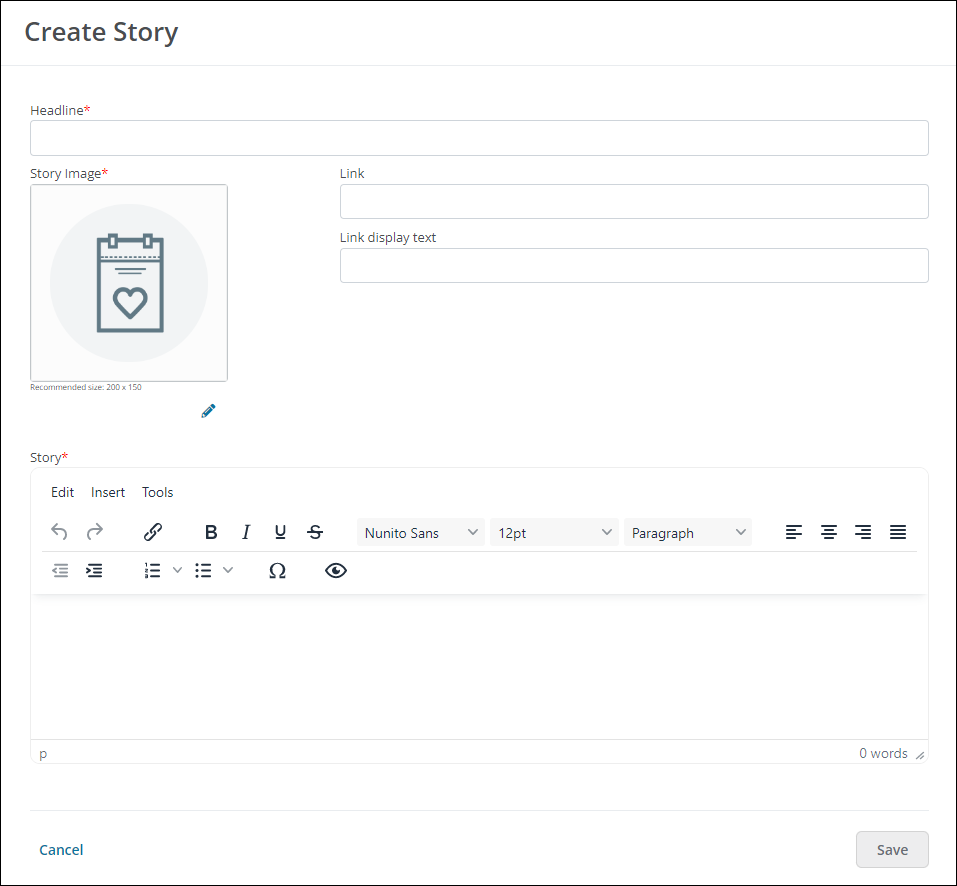
In the Create Story screen, provide the following information.
-
Headline - This the title of your story. It should be a short blurb that describes what your story is about.
-
Story Image - This image represents your story. Click on the pencil icon to select your file.
Note: Recommended image size is 200 pixels x 150 pixels. When uploading, you will be able to adjust the size of the image in the Upload Story Image screen.
-
Link (Optional) - You can include a link to an external website, such as a page on your organization's website or event page.
-
Link Display Text (Optional) - This text displays instead of the URL provided in the Link field. Describe where the link is taking the user.
-
Story - Engage your audience with a unique story that describes the impact of your organization. It is recommended to keep your story clear and concise.
-
-
Save your story.
After saving, your new story will appear as a Draft.