Example Scenarios
Add Data
The addition of data can appear in two forms: adding a brand new constituent record to RE or adding details to a record that already exists in RE.
Example 1
Andrew makes his first donation through Luminate Online, so his details are sent to the plugin’s Unmatched tab to be processed into RE as a new constituent record.
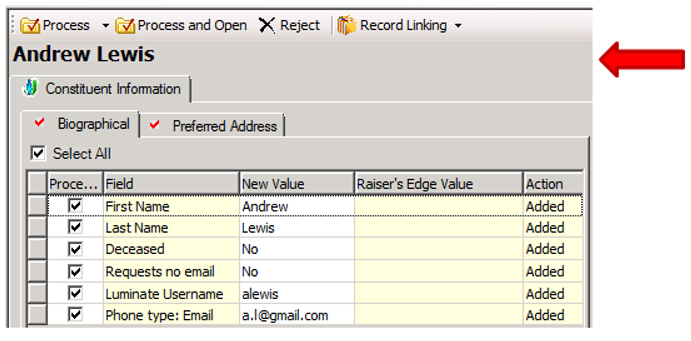
Note: There is nothing in the upper right-hand corner of the plugin to indicate this is an auto-matched, duplicate or linked record (see red arrow). After manually searching your database for a match (Record Linking > Find Constituent), if no match is found, a new record should be created for Andrew.
Example 2
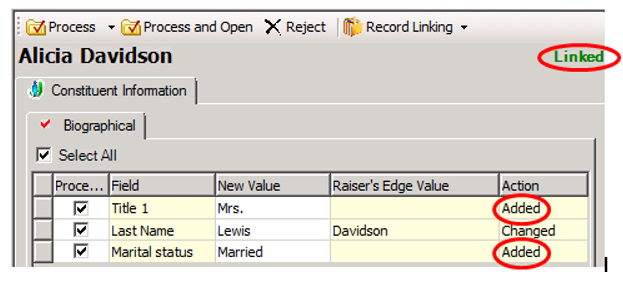
Alicia is recently married, so she makes a few changes to her profile in LO. Her LO record is already linked to an RE record, so Alicia appears on the Linked tab. She adds a title and marital status, which appear in the Action column as Added:
Change Existing Data
The plugin may attempt to make changes to RE data for the following types of constituents in the plugin:
-
Linked records
-
Matched records
-
Unmatched record that are manually linked to an existing record in RE
Example 3
Katie makes a donation online which updates her address information. She abbreviates street, and does not add the last 4 digits of her ZIP code.
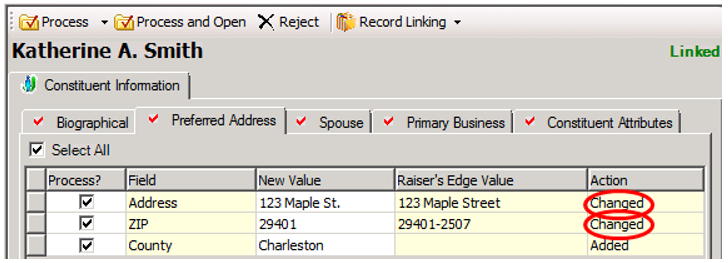
By using the New Value, Raiser’s Edge Value and Action columns, a user can visualize exactly how the new LO data will impact RE. Since Katie’s existing address is being changed, a user should ask herself the following questions:
-
Do I want to replace Street with St.?
-
Do I want to remove the last 4 digits of the ZIP code?
The plugin will rely on a user’s knowledge to indicate if the Address or ZIP change should be processed into RE.
-
If the answer to both of these questions is ‘Yes’, no manual changes should be made by the user.
-
If the answer to either or both of these questions is ‘No’, manual changes should be made by the user. There are two options to avoid overwriting Street with St., for example:
-
Unmark the Address field’s checkbox to reject the address change. This will reject the formatting change. Street will not be overwritten with St. on Katie’s address in RE.
However, the address will remain ‘as is’ in LO. The next time Katie’s record is touched, i.e. another profile change is made or Katie makes a donation, this address change will be sent back to the plugin to be handled by a user.
-
Correct the address formatting in the plugin and process. By selecting the New Value address field, a user can manually change the formatting from St. to Street.
Any changes made to the New Value column will also be passed back to LO.
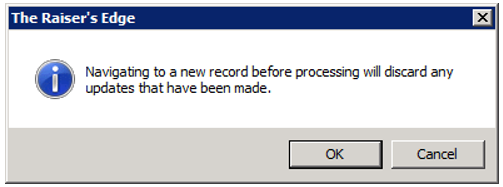
Note: If any manual changes are made to your constituent data, i.e. unmarking a checkbox or reformatting an address, the constituent must be processed individually. If you navigate away from this constituent, manual changes will not be saved, and the following prompt will occur:
Best practice is to pursue option #2. While this requires an additional step for the user, it ensures that Katie’s RE and LO records contain the same data, and will prevent the same change from being pushed into the plugin in the future.
-
Example 4
When Alicia updated her profile in LO, her last name was changed:
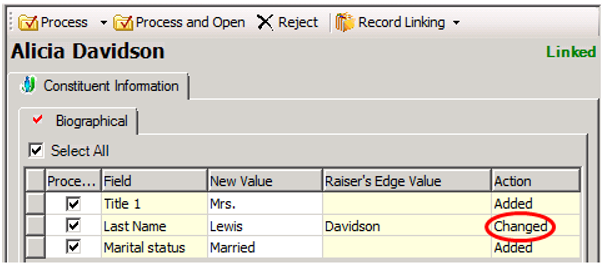
It is perfectly acceptable to process this change, but if it is your policy to track as much information as possible, it would be beneficial to add Davidson to the Maiden Name field.
Because the Maiden Name field is not available in the plugin, a manual change to the constituent record is required.
The user processing Alicia’s record must make a note of the maiden name, which will be added later. Luckily, this can be done without leaving the plugin by selecting the Process and Open option. This will process the details currently in the plugin, and open a copy of Alicia’s record that can be saved. Add Davidson to the maiden name field, save and close.
Example 5
Andrew’s address has changed completely. This is not a formatting change to an existing address – it appears to be a new address.
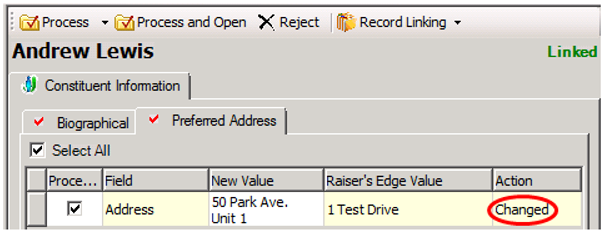
By default, Andrew’s existing preferred address will be overwritten with the new preferred address:
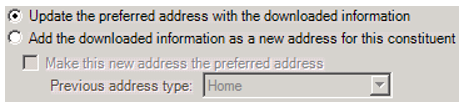
Users can utilize the options at the bottom of the Preferred Address tab to preserve both addresses if desired.
To create a new, alternate address record for the Park Drive make the selection below:
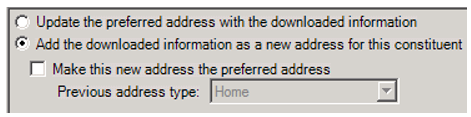
To move the Test Drive address to an alternate address record and make the Park
Avenue address Andrew’s preferred address, make the selections below:
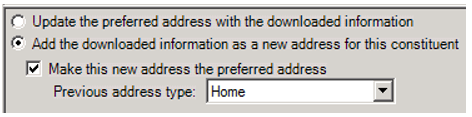
Note: If Home is not a valid address type in RE for your organization, administrators may see a different option in the drop down menu.
Example 6
Andrew’s primary email address has changed from a Gmail account to a Yahoo account.
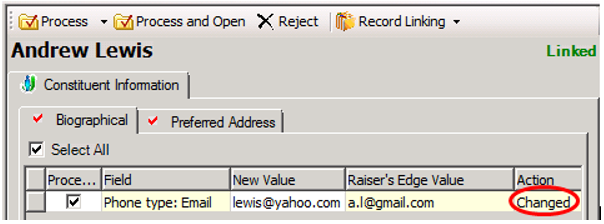
Because the primary email address has been changed in LO, the plugin will attempt to change Andrew’s primary email address in RE. In this situation, a user must ask herself the following question:
Do I want to replace Andrew’s Gmail account with Andrew’s Yahoo account, or do I want to keep both email addresses?
If the answer is "Replace Andrew’s Gmail account with Andrew’s Yahoo account," no manual changes are required
If the answer is "Keep both email addresses," a manual change to the constituent record is required. This change cannot be made in the plugin, as there is no additional phone field to which the secondary email address can be added.
The user processing Andrew’s record must make a note of the Gmail email address, assuming he would like to replace it with the Yahoo email address, and add the Yahoo email address to the New Value column:
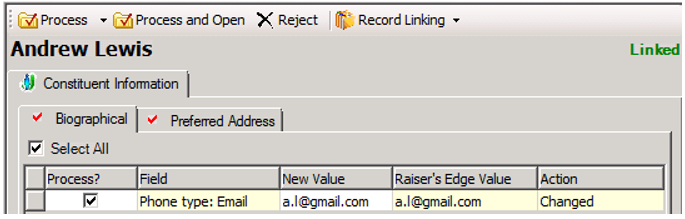
To easily enter the second email address to Andrew’s record without exiting the plugin, select Process and Open. This will process the details currently in the plugin, and open a copy of Andrew’s record that can be saved. Add the Yahoo email address to Andrew’s record, save and close.
Remove Existing Data
It is possible that the plugin will attempt to remove existing RE data for the following types of constituents in the plugin:
-
Linked records
-
Matched records
-
Unmatched records that are manually linked to an existing record in RE
Example 7
Mary’s RE and LO records are already linked (matched), and the plugin is attempting to remove her spouse relationship. This is clearly marked in both the Field and New Value columns:
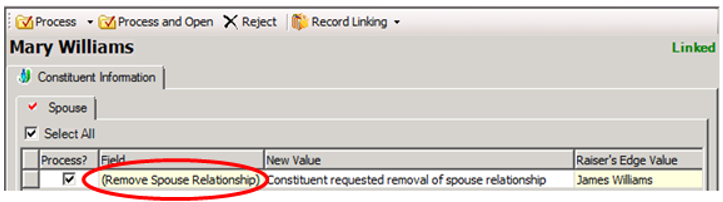
By looking at the screenshot above, it is difficult to determine if the spousal relationship should in fact be removed from RE. This is the type of plugin update that requires a user’s judgment before the individual can be processed.
Because the records are already linked, a user could likely deduce that James’ information was either removed by a staff member, or by Mary herself by making a profile update (assuming users are able to access their profiles on the site).
In some cases, it is obvious why the spouse removal has arrived in the plugin. For example, if Mary’s title and marital status were also changing,
If a user is ever unsure if a constituent change from LO should be processed, more details can be found in LO on the individual’s Constituent360 record on the Interactions tab. Contact Luminate Support for assistance with this process.
To avoid removing the spouse relationship, simply unmark the Process? checkbox before processing Mary’s record.
Example 8
Bob signs up for your org's annual newsletter through your new site. His record arrives in the plugin on the Matched tab. This means that Bob’s LO record is not currently linked to an RE record, but the plugin has found an existing record in RE to which a user could potentially link the newly created LO record:
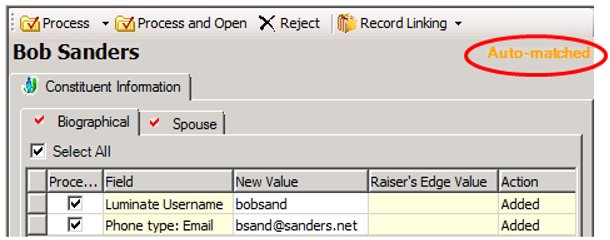
Often times when a record is auto-matched or manually matched in the plugin, a user will find a large number of changes or removals in the plugin. This is the integration’s attempt to equalize data that exists in RE and LO before the records are linked together, which is expected plugin behavior. User discretion must be used when processing these types of records.
In Bob’s case, the plugin is attempting to remove his spouse relationship:
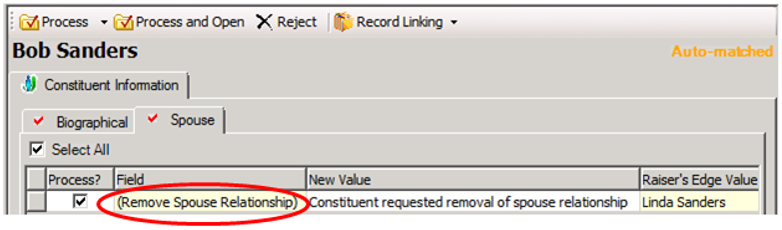
Because Bob signed up for a newsletter, he likely did not have an opportunity to enter significant other details in LO. Thus, Bob is probably not intentionally removing his spouse, Linda.
To avoid removing the spouse relationship, unmark the Process? checkbox before processing Bob’s record.
Example 9
Katie makes her first donation to your org through Luminate Online, so her constituent details are sent to the plugin. She already has a constituent record in RE where her first name is Katherine.
If your matching criteria includes the First Name field, she will not be identified on the Matched tab – rather, she will be identified on the Unmatched tab because the value in the First Name field in LO is different than the value in the First Name field in RE.
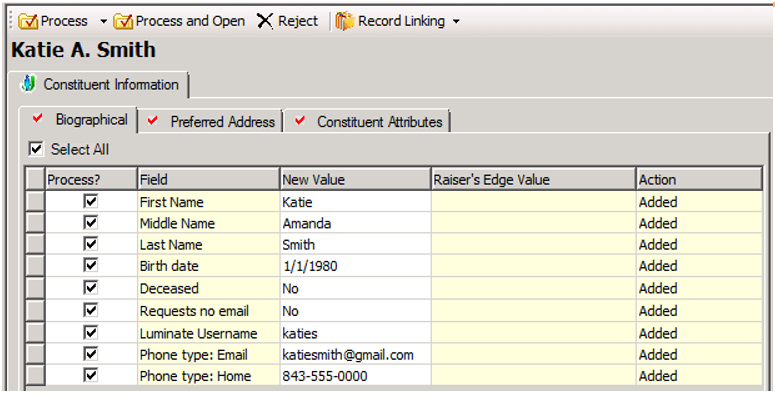
The user processing Katie’s constituent record should select Record Linking > Find Constituent to manually search your RE database for a record that might be associated with Katie.
When linking Katie’s LO record to Katie’s existing RE record, a combination of changes, additions and removals will display in the plugin:
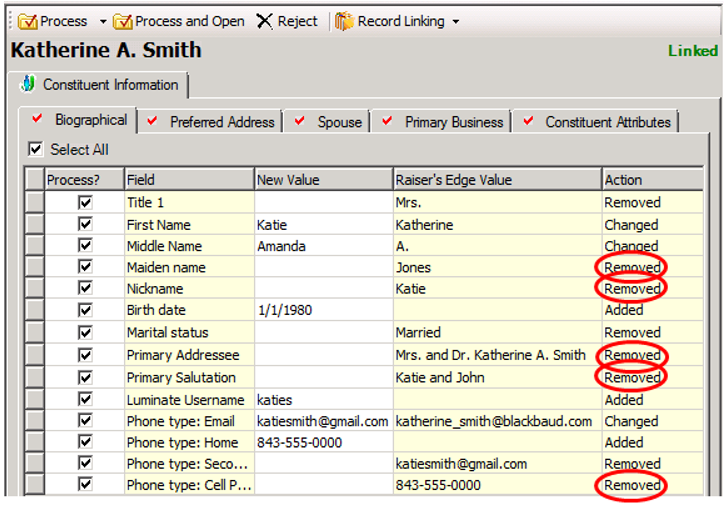
Depending on your org’s best practices and data entry procedures, it may be acceptable to remove some of these details. For example, the same phone number (843-555-000) has been added to both the Home and Cell Phone fields. Since Katie provided this phone number as a Home phone in LO.
After a user manually adjusts the Process and New Value columns, below is an example of what the plugin might look like:
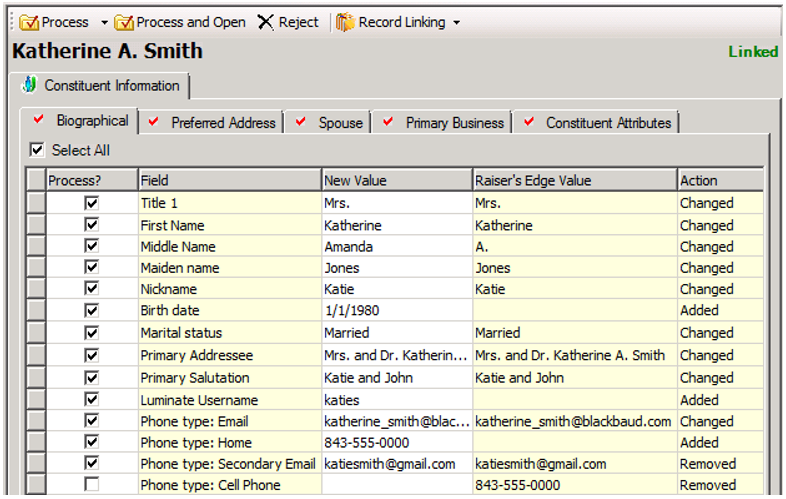
Notice that the Process? checkbox has not been unmarked for the values that the plugin attempted to remove. Rather, the value that the user wanted to keep have been added to the New Value column. Again, this serves two purposes:
-
Important details will be kept intact in RE.
-
These New Value details will be sent back to the linked LO record, ensuring the data in each system is the same, and preventing those differences from returning to the plugin in the future.
Note: Manually changing the New Value field to match the Raiser’s Edge Value will not adjust the corresponding action, even if the values are now the same (ex: Title 1).