Get Started with Branding Cards
Branding cards let you showcase your organization's mission and encourage donations by adding visual impact to your Optimized Donation Form. You can customize the default card or create a new one.
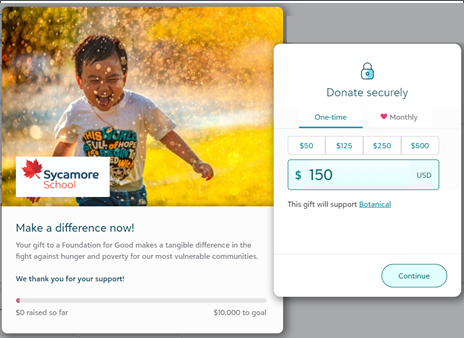
Create Card
-
From Online Giving, Branding cards.
-
Next, select New branding.
-
Enter the name of the card.
Tip: To edit an existing branding card, from Online Giving, Branding cards, select the card to edit.
Add Hero Image
The hero image is a banner image that displays at the top of the branding card. Use a high-quality image that represents your organization's mission.
-
Image dimensions should be approximately 600 pixels by 470 pixels.
-
The image file size shouldn't exceed 2 megabytes.
-
The best quality images to use are JPG and PNG.
To change the default image:
-
Delete the default image.
-
Select Attach file, to select your image.
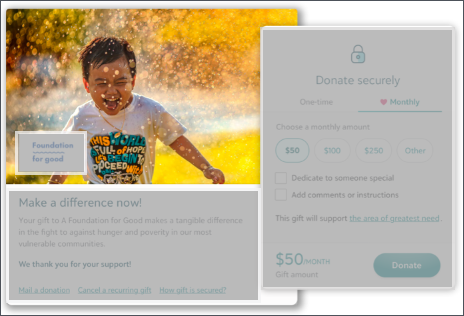 Hero image to the left of the form.
Crop Hero Image
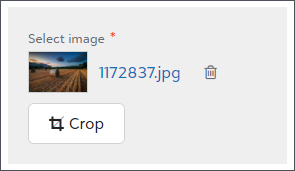
To highlight the key part of the image, you can crop it and change the area of focus.
-
Select Crop.
-
Drag the handles to change the amount of area you want to show in the image.
-
Move the frame to surround the most important part of the image.
-
Select Apply.
Add Logo
Your organization's logo should be recognizable to donors high quality.
Tip: To preview your logo on mobile devices, select Mobile. You can set the padding and background color for smaller devices.
-
Image dimensions should be approximately 140 pixels by 140 pixels.
-
The image file size should not exceed 2 megabytes.
-
Use JPG and PNG for the best image quality.
To change the default image:
-
Delete the default image.
-
Select Choose file, to select your image.
Tip: To change the location of the logo, select Reposition logo and drag it to the preferred position.
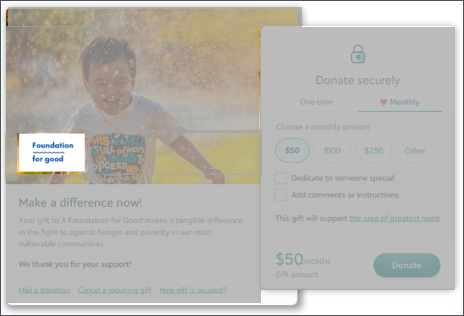
Add Padding
To create more space around the logo, select Logo padding.
Change Background Color
If your logo has a transparent background, you can change its background color from Logo background color.
Add Call to Action
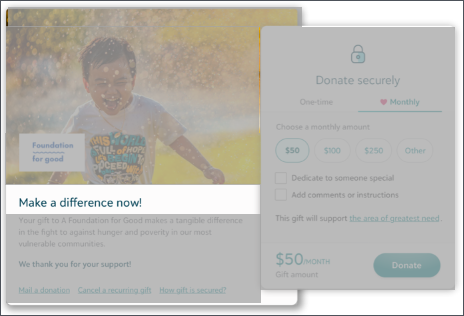
A call to action prompts donors to respond immediately. It should encourage donors to give without delay.
Examples include:
-
Help end hunger
-
Protect vulnerable communities
-
Make a difference now
By default, a placeholder call to action appears. To change it, enter your text in Heading under Impact statement.
Add Impact Statement
The impact statement describes how gifts support your organization's mission.
A placeholder impact statement appears by default. To update it, enter your text in the message editor under Impact statement.
Style text as bold, italic, or underlined, and include links when needed.
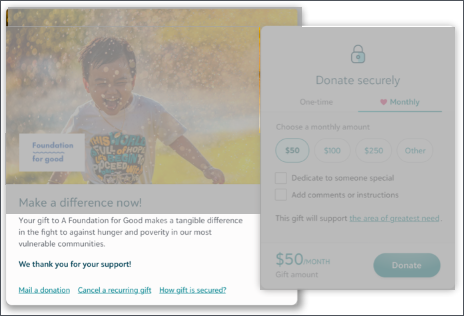
Mission statement appears after the call to action heading.
Add Goal Meter
To show donors the progress of your fundraising goal, under Goal meter, select Include goal meter and a color for it to use as it increases. Goal meters include donor cover fees and the only the first payment of a recurring gift.
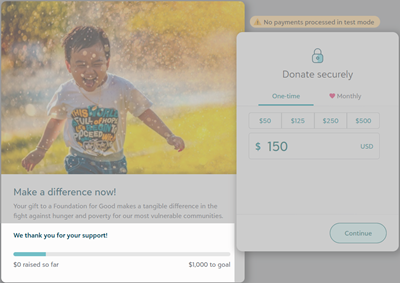
Note: The fundraising goal is set in the Optimized Form that uses the branding card. To learn how to set the goal amount and date, see Optimized Donation Forms.
Save Card
After you save the branding card, it will be available to use in your Optimized Forms.