Add User to Security Role (SKY UX)
Organizations that meet the prerequisite requirements can explore a live preview of the SKY user experience for their instance of Blackbaud CRM.
When the preview is enabled, users can switch between their "classic" user interface and a modern SKY user experience as desired, for any functionality that exists in both views. It's enabled for admins by default; admins can enable it for other users via a security roles for SKY. Create a role first; then add users to it.
Note: These roles only determine a user's ability to see the SKY user experience generally. To view specific information (such as addresses for constituents), you must also enable the corresponding permissions in the "classic" Blackbaud CRM. The SKY user experience respects the same security permissions as "classic" Blackbaud CRM. For details, see "Classic" System Roles.
-
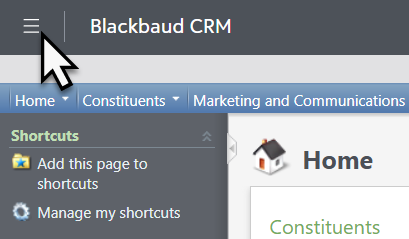
Select the service menu (icon of three horizontal lines, top left).
-
Select Admin.
-
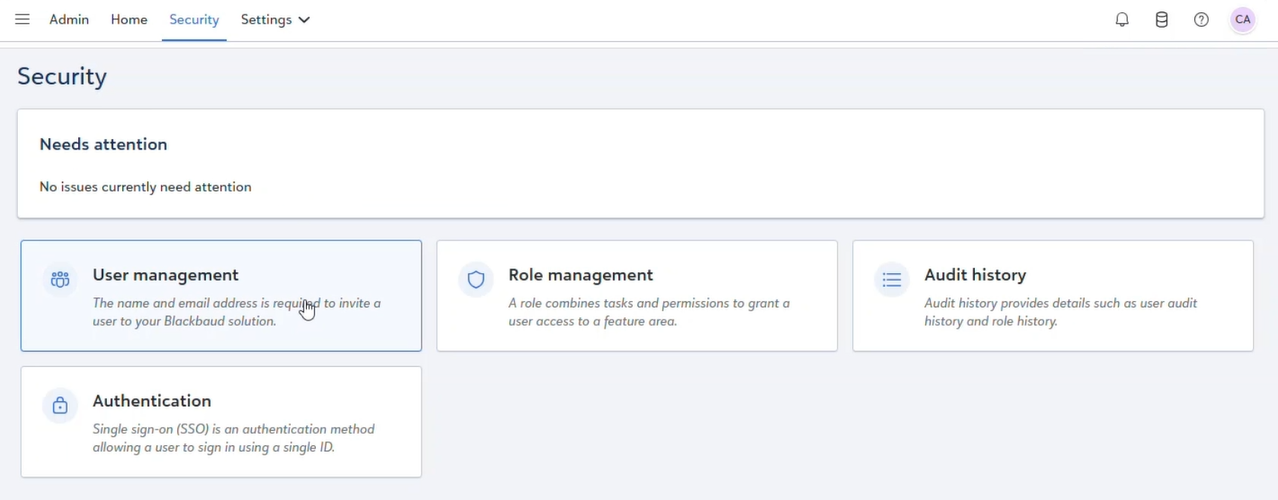
Select Security.
-
Select User management.
-
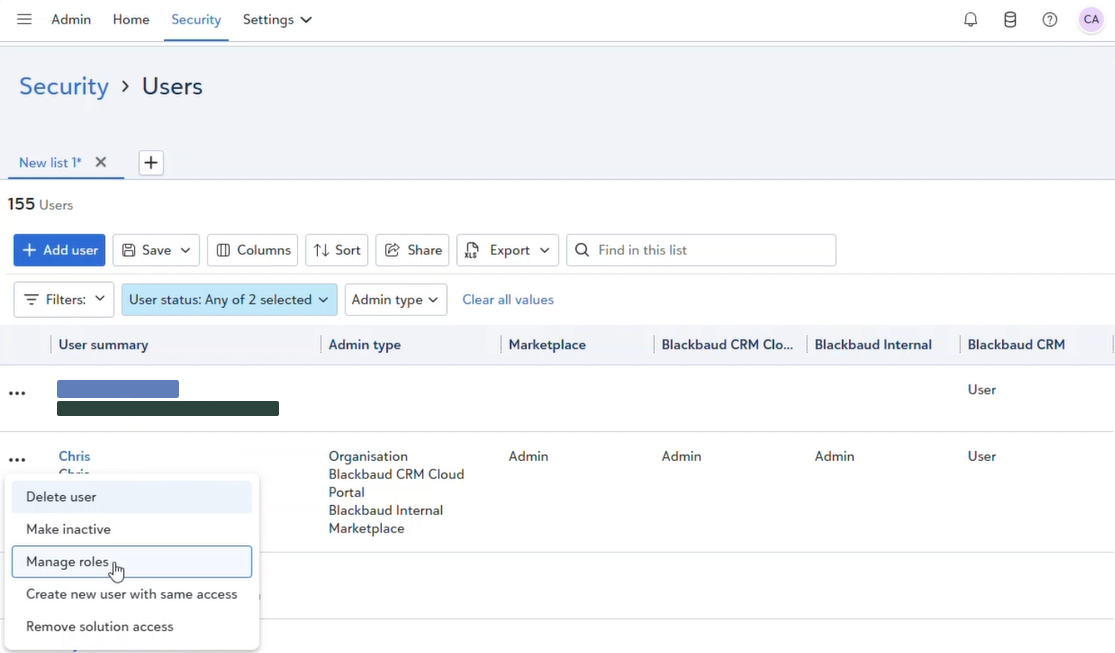
A list of existing users appears. You can find a user in the list or add a new user.
-
Search for an existing user. On their row, select the ellipsis (...) and then choose Manage roles.
-
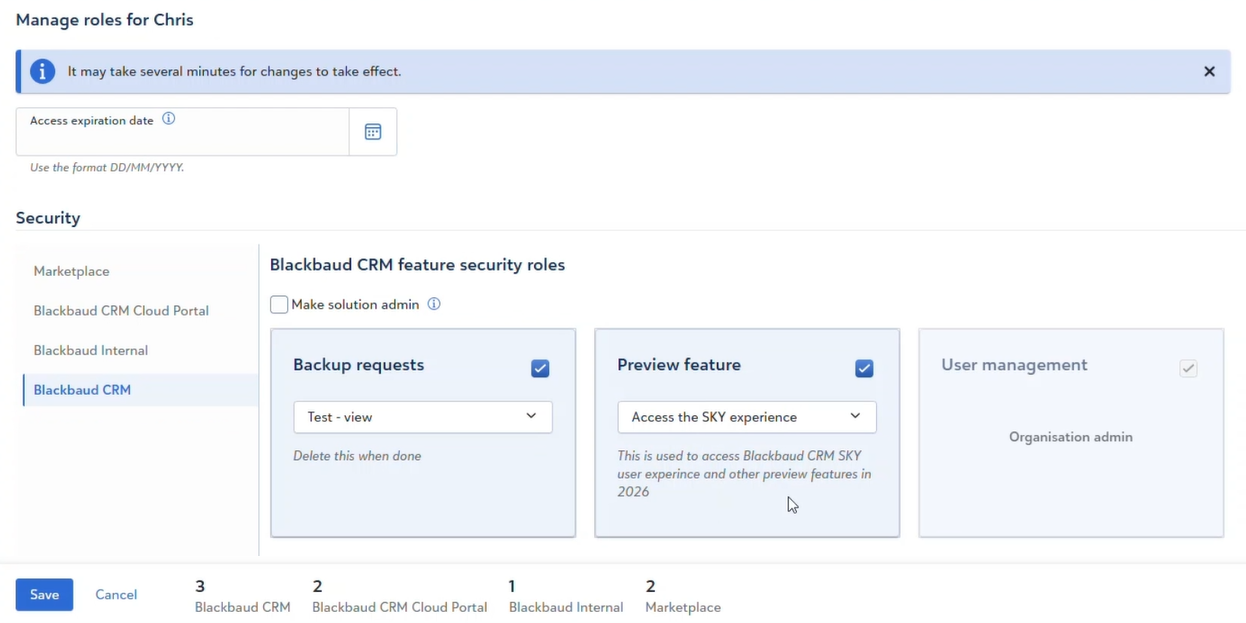
Available groups and roles appear. Under Security, select Blackbaud CRM.
-
Find the role for Preview feature, select Access the SKY experience, and enable the role.
Note: Need another role? Learn how to Create a role.
-
Select Save. Inform the users of the changes to their security roles.
Tip: Affected users may need to log out and log back in to see the results. For additional help regarding the Admin console, see Security