Configure your agent's email
Your agent needs an email address and configuration to send email messages from your organization's domain so that emails look legitimate and reach your constituents without being flagged as spam.
Note: You won't need to monitor this inbox, and we recommend not sending emails from it. Configure it as a forward-only inbox, if possible.
Create email address
Choose a permanent email address for your agent.
Warning: You cannot change this email address. Use your organization’s domain to reassure recipients that messages come from a trusted source.
-
In Development Agent email address, enter the address in the format of agent@yourdomain.com.
-
Select Next.
Inbox configuration
You won't enter information on this page — just share details with your IT team. Your IT team will configure email authentication by updating your domain's DNS records and routing so the agent can send messages from your domain.
Use the Copy buttons to easily share the values.
-
Email to forward inbox to (required): Forward incoming messages, such as replies, to this inbox provided.
-
DKIM configuration (required): Enable domain key signing to verify message integrity and authenticity.
-
DMARC configuration (recommended): Set a policy to monitor and protect your domain from unauthorized use.
-
Bounce domain (optional): Handle undeliverable messages.
The bounce domain is one part of SPF (Sender Policy Framework), which helps improve deliverability and reputation. Bottom line: Without SPF, your emails may be blocked; without a bounce domain, bounces go to the wrong place and SPF alignment can fail. Both are essential for reliable, deliverable email.
-
Track domain (optional): Enable engagement tracking.
If the track domain isn't configured, you won't get click or open rate tracking. With it in place, the links that are rewritten for click tracking point at your own hostname, which looks better to recipients and keeps link reputation tied to your brand.
-
SPF configuration (Only needed if you have an SPF record): Prevent spoofing by validating sources of emails for a domain. Include
exists:%{i}._spf.sparkpostmail.combefore~allat the end of your bounce domain record or in a domain's record that already defines it, such as:include:sparkpostmail.com.
Select Next, then close this page and wait until your IT team confirms that these configurations are complete before moving to the Test connection step.
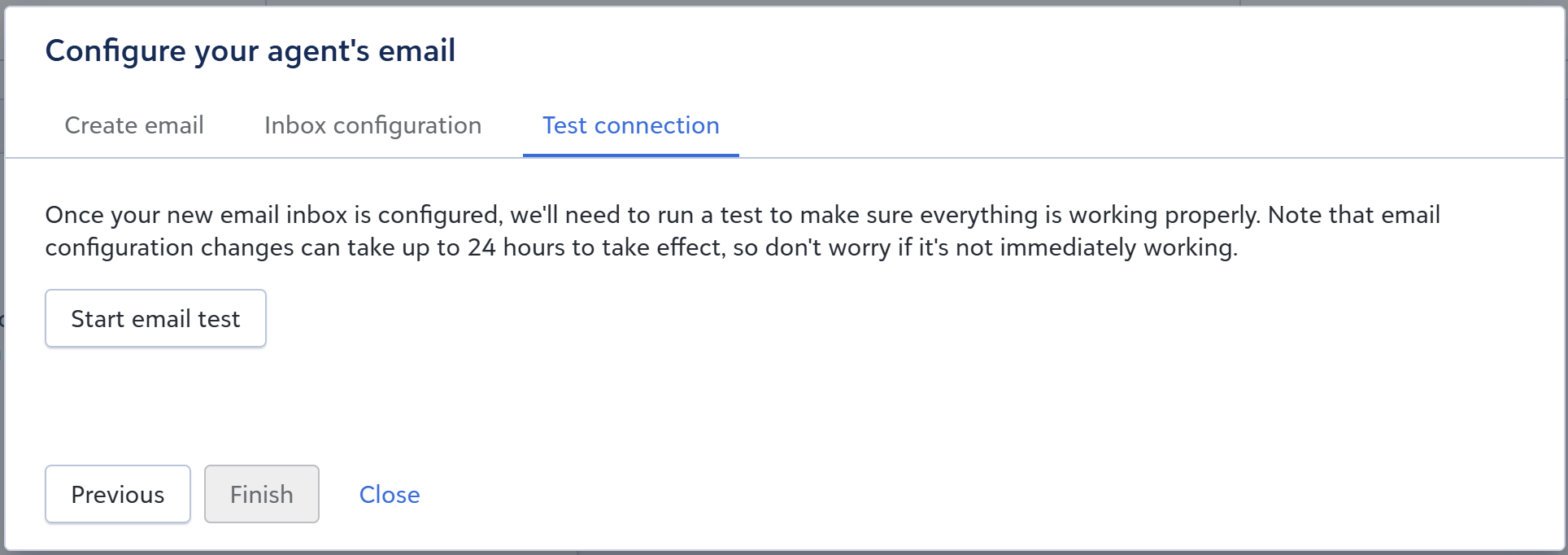
Test connection
After your IT team finishes configuration, run a test to make sure everything works.
-
Select Start email test.
-
Wait for confirmation that the test was successful.
If you see a failed response, inform your IT team. After correction, return to this step and select Retry email test.
Email configuration changes can take time, up to 24 hours or more to propagate. It’s possible for DNS records to validate correctly in public DNS tools while still failing the email test. If tests continue to fail after confirming the DNS setup and allowing sufficient time for propagation, report your issue to Blackbaud.
Once email provisioning is complete, including the email forwarding test, you can select the Get Started button and move through the workflow described in the Get Started with Development Agent. Email configuration will no longer be accessible since setup will be complete.
Delivery rate expectations
Even when DKIM, DMARC, SPF, Bounce domain, and Track domain are all configured correctly, no sender can guarantee a 100% inbox delivery rate. Providers such as Gmail and Yahoo run their own spam-filtering systems, and each weighs a variety of signals beyond your domain's authentication records, including:
-
Whether the recipient has previously sent or received mail from your agent's email address or domain.
-
The reputation of your sending domain, independent of the recipient's provider.
-
Whether other recipients have reported similar messages as spam.
-
Automated analysis of the message content itself.
Because each provider applies its own heuristics, whether a message lands in the inbox depends heavily on each recipient's individual email history and provider — proper configuration reduces the chance of spam filtering, but it can't eliminate it entirely.
Note: If a constituent marks a message from your agent as Not spam, it can take time and several more exchanges before that provider fully trusts your agent's address again. It's possible for later messages to keep landing in spam even after this correction.