Chat for Blackbaud AI
Schools participating in the Early Adopter Program (EAP) can enable Chat for Blackbaud AI for admin use.
Think of it as an assistant who's memorized almost every settings page, help topic, and KnowledgeBase (KB) article. Ask it your questions in conversational English, instead of navigating through menus or searching Help.
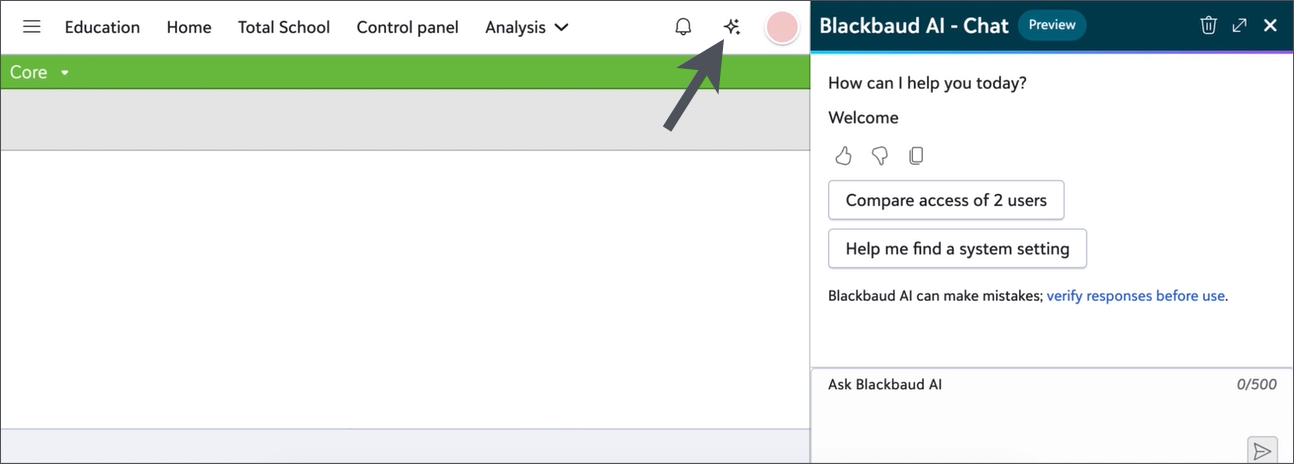
When enabled, a "sparkle" icon appears in the top navigation ("Omnibar") menu. It persists throughout your user experience. Find answers where you are, instead of losing your spot to search somewhere else.
For other artificial intelligence features, see Enable Artificial Intelligence (AI) Features.
This chat is not currently available for students,
Abilities
Consider asking the chat to:
-
Explain why something isn't working the way you expect.
-
Point you to the exact setting or page you need.
-
Walk you through how to complete a task.
-
Compare the access of two users.
Warning: Blackbaud AI can make mistakes. Treat its answers as a fast, well-informed starting point. Verify the information before you take action, especially for grades, enrollment, or student records.
Examples:
-
Why aren't Fall grades appearing on the transcript even though grades have been approved?
-
A parent gets the error 'Your BBID doesn't match a user in the system' when they try to log in. How do I help them?
-
I need to update our relationship types that are used on the contact card. Where do I find that?
-
Compare access of 2 users.
-
Help me find a system setting.
Future Possibilities
Chat isn't able to complete all actions or answer all questions you might have. But we're continuously working to improve its responses and expand its abilities. So things may become possible in the future, even if chat isn't currently capable of fulfilling every wish.
Chat can't (yet) generate new data lists, answer broad "summarize my data" questions, spot trends, or predict outcomes. Those analytics are planned for later, after additional supports are in place "under the hood."
If your request exceeds the chats current abilities, expect it to say it can't help, rather than guess.
Security
Your existing security permissions (roles, tasks, special access, etc.) likewise determine what chat can know and potentially do.
It doesn't give additional access to data or features beyond what you already have manually.
To use generative Artificial Intelligence (AI) features, your organization must enable them first in your Blackbaud environment.
When you enable Blackbaud AI at the organization level, you also enable external connectors to access to your data. Configure this in Admin, Settings, Blackbaud AI. You can disable generative AI for your organization at any time via these same settings.
For details and instructions, see Admin: Opt into Generative AI Features Globally.
Enable Chat for Blackbaud AI
-
Confirm your organization has opt-ed into using generative Artificial Intelligence (AI) features globally.
An organization admin can configure this.
-
Go to Admin and select Settings, Blackbaud AI.
-
Then select Manage Blackbaud AI to enable it.
-
Save the change.
This setting affects all solutions for your organization, not just Education management.
-
-
When Chat for Blackbaud AI is enabled for your Education management solution, it's automatically enabled for all solution admins as well.
You can grant it to other users via security roles. Create a role for artificial intelligence and assign users to it.
An organization admin can configure this.
-
Go to Control Panel and select Security, Roles.
-
Find Education roles.
-
Find the category for Artificial intelligence roles.
-
Select + New.
-
Add a role named "Chat for Blackbaud AI user".
For the role description, enter "Provides ability to use Copilot."
-
Under Blackbaud Copilot tasks, select to Chat to enable this permission.
Note: Don't see it? Select Show permissions.
-
Save the role.
-
-
Assign users to the role.
An organization admin can configure this, too.
-
Go to Control Panel and select Security, User management.
-
Find the user. On their row, select the ellipsis (...).
-
Select Manage roles.
-
Select Education.
-
Solution admins for Education automatically have access to Chat for Blackbaud AI, when it's enabled for your Education management solution.
-
For users who aren't solution admins, select the desired role ("Chat for Blackbaud AI user") under Artificial intelligence.
-
Save the change.
-
Next, ensure the user is Linked to an Education management user.
When linked, their username (email address) appears under Security groups, which also shows their other security roles (such as "system admin" or "platform manager").
-
Save the change.
-
-
Ensure the "Omnibar" is enabled for user roles.
-
As a platform manager, in Education management, go to Core and then select Security, Roles, Tasks.
-
Find the "Omnibar" task. (Task ID 55356).
-
Review the roles with this task enabled and disabled.
Update the roles and role membership as needed.
Tip: Consider cloning the "system admin" role (not "platform manager") if you need to create a new role for "Omnibar" access in Education management.
See Roles List and Tasks.
-
-
A sparkle icon will appear in your top navigation, visible anytime you're in Education management as your own user.
Select the sparkle to open Blackbaud AI - Chat. A chat panel appears.
Warning: When you impersonate or view-as another user, an alert banner appear instead of the Omnibar, to remind you of the impersonation or view-as session. Thus, Chat for Blackbaud AI isn't available when you appear as another user. See Impersonation.
Note: If something isn't working, contact Blackbaud Customer Support.
Best Practices
For the most useful results, consider the these tips:
-
When you create a prompt to start a chat, try to follow this pattern:
-
Describe what you're seeing (the symptom).
-
Describe what you expected instead (desire).
The chat can typically reason through "why is X not Y" questions and provide a specific settings or page to help, rather than generic resource.
-
-
Be specific.
Chat is good at diagnosing a specific symptom — give it one.
You'll get better results for "Why isn't
this student's grade showing on the transcript?" than "Grades aren't working." -
Be mindful of the size of the chat "context."
-
When you start a new subject, use the trash icon to clear the previous chat context.
-
If chat replies seem to "get weird" as if it's lost track of the topic, then the "context" may have grown too large. Use the trash icon to reset.
-
-
Try a follow-up suggestion.
After chat answers, it often suggests a couple related questions (such as "How do I approve grades in Grade Entry?"). If you're still troubleshooting, these are usually worth a try.
-
Rate the chat reply.
Select a thumbs up or thumbs down. Consider adding a comment too.
Blackbaud product development reviews this feedback. Your comments directly influence what we fix, improve, and enhance.
-
Verify before you act.
Your judgment as a "human in the loop" is very important, especially for sensitive changes to grade, enrollment, or student records.
Chat is a handy tool to get you oriented, but you should double check its work. Chat can make mistakes.
-
Remember the current limits.
If you're after a new report, a data export, or "show me trends in X," Chat isn't there yet,
Consider using Analysis and Insights instead.