Grading Data Import
Data managers can use the data import process to import a secondary host ID.
-
Select Core.
-
Select System tools.
-
Select Data import.
-
Select Create import job.
-
Select the "Grading" Category.
These Import types appear:
-
Skills
-
Award Types
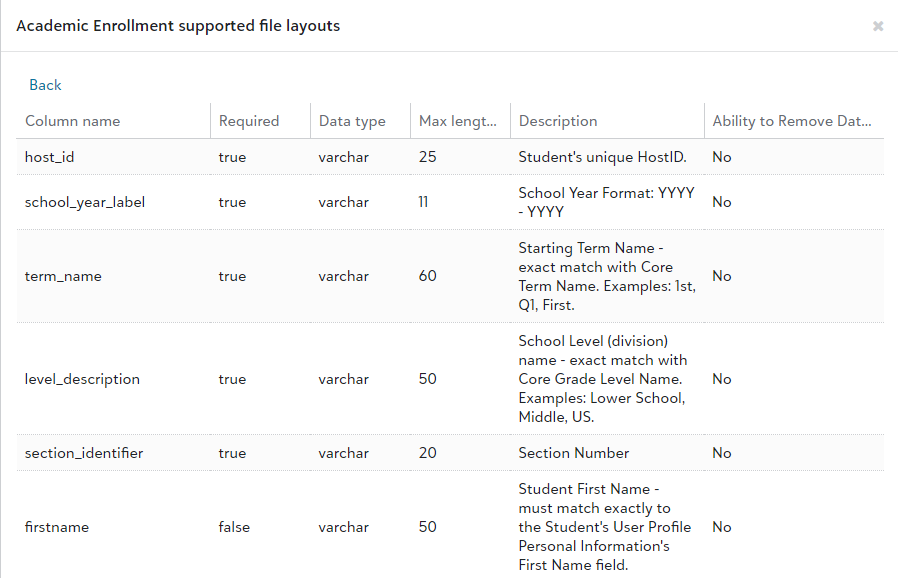
For a list of all import fields, requirements, data types, max length data, descriptions, and information on whether or not you can remove data from the field, open the detailed view screen by selecting the following on the import screen: Category > Import type > View file layout help (under File layout help) > Detailed view. A screen similar to the following displays.
Download Sample Import Layout File
You can view and download sample import files.
-
Select Core.
-
Select System tools.
-
Select Data import.
-
Select Create import job.
-
Select the Category and Import type of the information being imported.
-
Select View file layout help.
-
Select Detailed view to view the file layout fields; select Sample file to download a sample import file from which you can work to create your import file.
 Skills
Scheme 1
Use Scheme 1 for adding or updating skills. Required fields are: skill_id.
Tips for mapping skills to mastery skill equivalents via import
-
A skill can have only one mastery skill equivalent.
-
The mastery skill equivalent can be a Transferable skill, Transferable sub-skill, Content-area skill, or Content-area sub-skill.
-
Use Export in Skills to export the skill_id necessary for updating existing skills via import.
-
Use Export in Content-area skills list and Transferable skills list to export the mastery_skill_ids needed to map mastery skills to skills. Content-are skill or Transferable skill, use the exported parent_skill_id. To map a skill to a Content-area sub-skill or Transferable sub-skill, use the exported sub_skill_id.
Scheme 2
Use Scheme 2 to update skill statuses. Required fields are: skill_id, inactive.