Browse Groups
Note: For now, this feature needs to be activated before it can be seen. Platform managers can go to Core, Settings, and then Activate new features. From the Feature preview tab, select the New browse groups user experience option and enable it.
Browse Groups allows you to see and interact with all associated groups and classes from one location. You can get here through various ways including from the View Other Classes link from the Faculty Persona. In addition, use Find More from the Groups drop down through the Parent, Friend, and Alum personas as well.
 Working With Groups
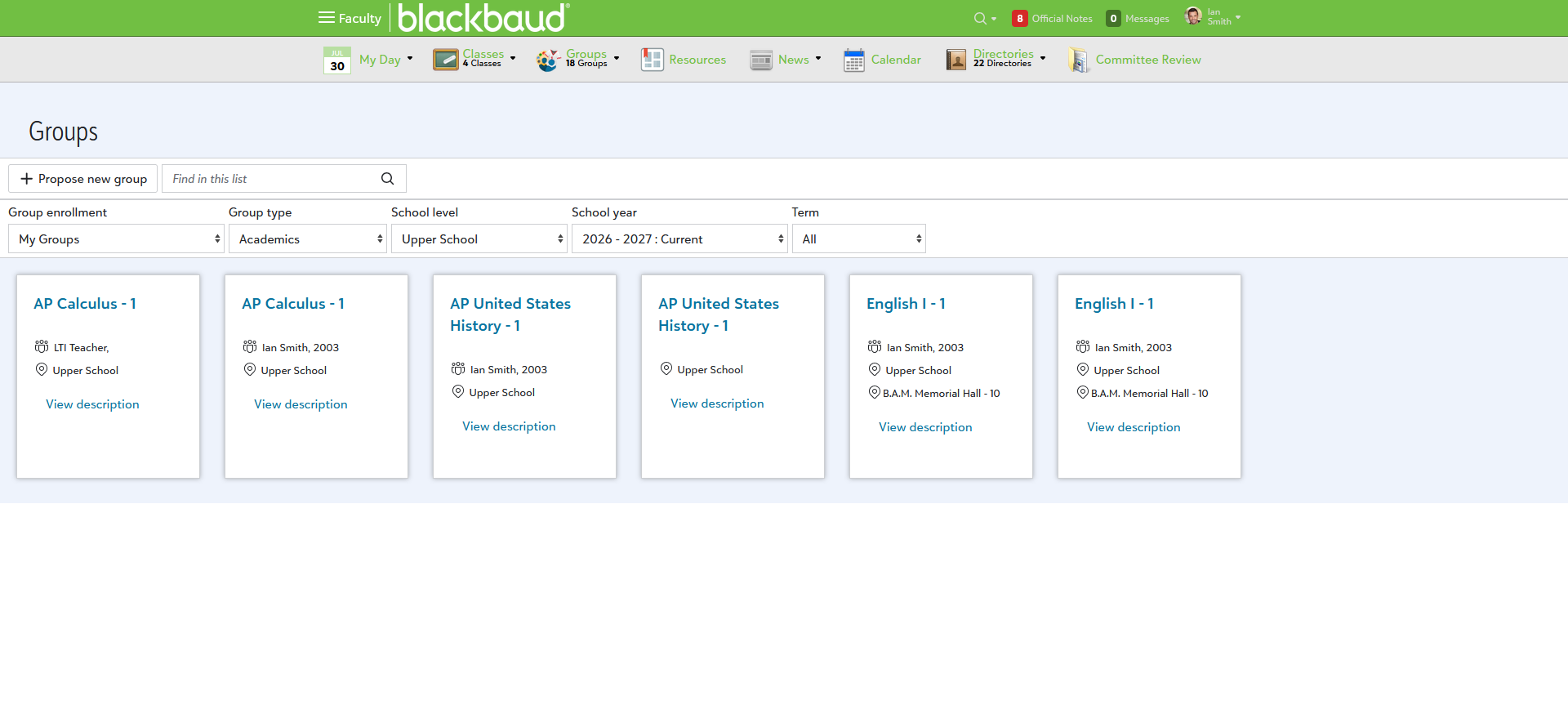
When the page loads, your associated active class and group tiles appear. Each tile displays information like the assigned group owner, the school level it is associated with, and a location if one has been entered. Select the group name in a tile to be taken to its specific page or View Description to read additional details.
Use the new filter options to refine which class and group tiles appear, or the search bar can be used to find something specific.
-
Group Enrollment – Changes which groups are displayed such as only your groups, all groups, or groups for specific individuals.
-
Group type – Which type of groups appear. Options include Academics, Community, and others.
-
School level
-
School year
-
Term
Add New Groups
To add a new group from this list, select +Propose new group to get started. A new modal appears allowing you to enter in relevant information.
-
Community group name – A required field that will be the name of the group in how it is displayed.
-
School level – Required field. Determines which school level (Upper, Middle, Lower) the group will be associated with. If needed, you can also select All school.
-
Purpose of group – Essentially a description of the group, helping others learn about what it is.
-
Description – Optional.
-
Membership – Set this required field to determine who gains access. You can pick different options like Invite Only, open to anyone, or needing permission before being admitted.
-
Category – Another required field that determines which groups this should appear for. While you can limit it to specific roles like Parents, Students, or Teachers, it can also use any custom group options your school has created already.
Press Save to add the group to the existing list or Cancel to go back without saving.