Chart Health Advisor Tutorial
Use Chart Health Advisor to assess the health of your chart organizer structure, identify issues that affect daily operations, and determine when larger structural changes may be required. Over time, you may inherit or build complex account segment structures. Even when those structures remain functional, they can introduce challenges such as slow reports, inconsistent coding, and data integrity concerns.
Video: Chart Health Advisor Overview
In this tutorial, you'll learn how to:
Open Chart Health Advisor.
Identify issues within your chart structure and understand their causes.
Apply supported remediations to improve reporting and reduce operational risk.
Expanded Data for Chart Health Advisor
Chart Health Advisor now evaluates additional data, such as never used accounts and projects, to provide a more complete assessment of chart quality. As a result, the chart health score will likely change as these factors impact the overall score.
Review Permissions
Permissions determine the actions you can complete in Chart Health Advisor.
View chart health score and run analysis — Requires View permission for accounts.
Apply remediations — Requires Edit and Delete permissions for each record, such as accounts and projects.
Open Chart Health Advisor
General ledger
You can open Chart Health Advisor from the following locations.
Home — Review your current chart health score, status band, and number of open findings. To open the full advisor, select View all findings.
General ledger — From General ledger, Overview, open the full advisor.
Chart Health Score
General ledger, Overview, Chart Health Advisor
The chart health score is a composite rating from zero to 100 that reflects the overall condition of your account structure.
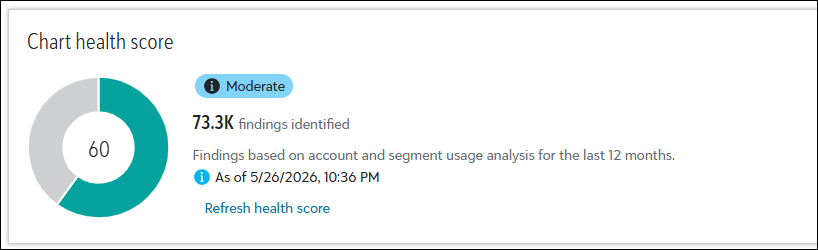
To learn more about your score, see Understand Your Chart Health Score.
Find Issues
General ledger, Overview, Chart Health Advisor, View all findings
Findings highlight specific issues that affect chart health and link to supported actions when available. Each finding helps you understand what is happening in your chart organizer structure and what you can do to reduce complexity and risk.
Tip: To view the latest analysis results, select Refresh health score. You can refresh the results every 30 minutes.
Dormant accounts
Dormant accounts are full account strings with no activity for 12 or more months and a zero balance. Lock these accounts to reduce clutter, simplify reporting, and improve long term maintainability.
Dormancy is calculated using posted general ledger distributions only. Accounts that use a Do not post subledger workflow are expected to appear dormant and do not indicate an issue.
Other dormant records
Lock other dormant records, such as funds, account codes, and projects, to further reduce clutter in your chart. Maintaining only active records helps streamline reporting, improves usability, and makes the chart easier to manage over time.
Low usage values
Segment values, such as a department code with fewer than five lifetime transactions. Inactivate these values without removing the segment.
Never used
Records and values that haven't been used for any transaction. Depending on the record or value type, you can lock it or make it inactive. You can also delete it.
Apply Guided Remediation Workflows
Chart Health Advisor page, Findings
Each finding guides you through a workflow change. For example, select the Accounts with no activity to view the list of accounts without activity in 12 or more months and a zero balance.
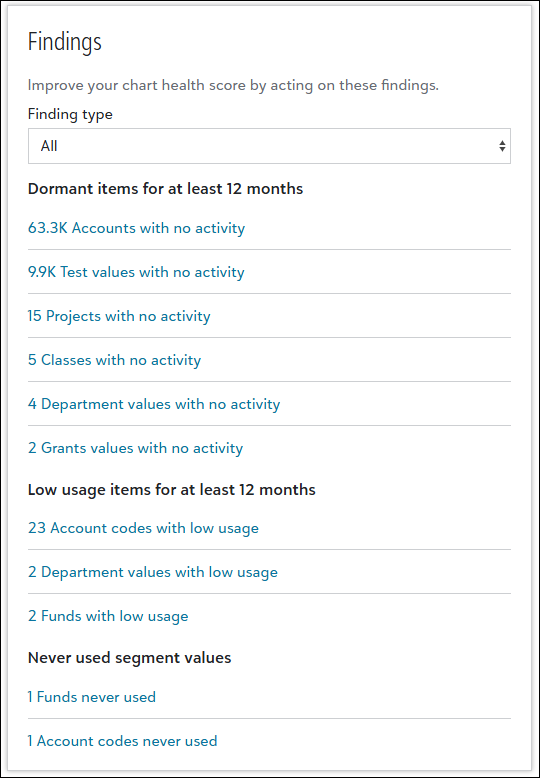
To lock these accounts so they become inactive and no longer appear in selection lists:
Select the checkboxes next to the applicable accounts.
Select Lock.
Review the analysis results.
Tip: When you apply a remediation step, the results refresh automatically. After 30 minutes, you can manually refresh the results by selecting Refresh health score.
Repeat these steps for the remaining findings. For example, you can lock projects, make classes and t-codes inactive, review low usage records with 1 - 5 transactions in the last 12 months, and delete funds and account codes with no transaction history.
It's important to remember Chart Health Advisor doesn't make changes automatically. Instead, it guides you through each action with:
Pre-populated suggestions based on your data.
Impact details that show how changes affect reporting.
Confirmation steps before changes apply.
Every change applied through Chart Health Advisor appears on the relevant record's History tile, including the user and timestamp, to support compliance and traceability.