Document Intelligence - Expense Management Tutorial
Note: To use Document Intelligence to generate invoice requests and upload receipts, your organization admin must first enable generative AI features in your Blackbaud environment. Learn how to opt in to generative AI features globally.
With Document Intelligence in Expense Management, Blackbaud Financial Edge NXT uses Microsoft's Azure AI Document Intelligence and Blackbaud AI to automatically extract key data from uploaded receipts and invoices so you spend less time entering data and more time on your organization's mission.
Video: Generate invoice requests with Document Intelligence
In this tutorial, you'll learn how to:
-
Assign the permission users need to generate invoice requests and upload charge receipts.
-
Configure Document Intelligence business rules in Expense Management.
-
Generate invoice requests by uploading receipts or invoices.
-
Upload credit card charge receipts and submit transactions for approval.
Assign Permissions and Roles
Financial Edge NXT> Security> Role management
Before users can generate invoice requests or upload charge receipts, a solution admin must assign them the Generate invoice requests task. This task is part of the Create WebPortal role.
-
From Security, select Role management.
-
Select WebPortal roles.
-
Under Accounts payable record tasks, confirm Generate invoice requests is included.
-
For Invoice requests, select the Generate permission, then save.
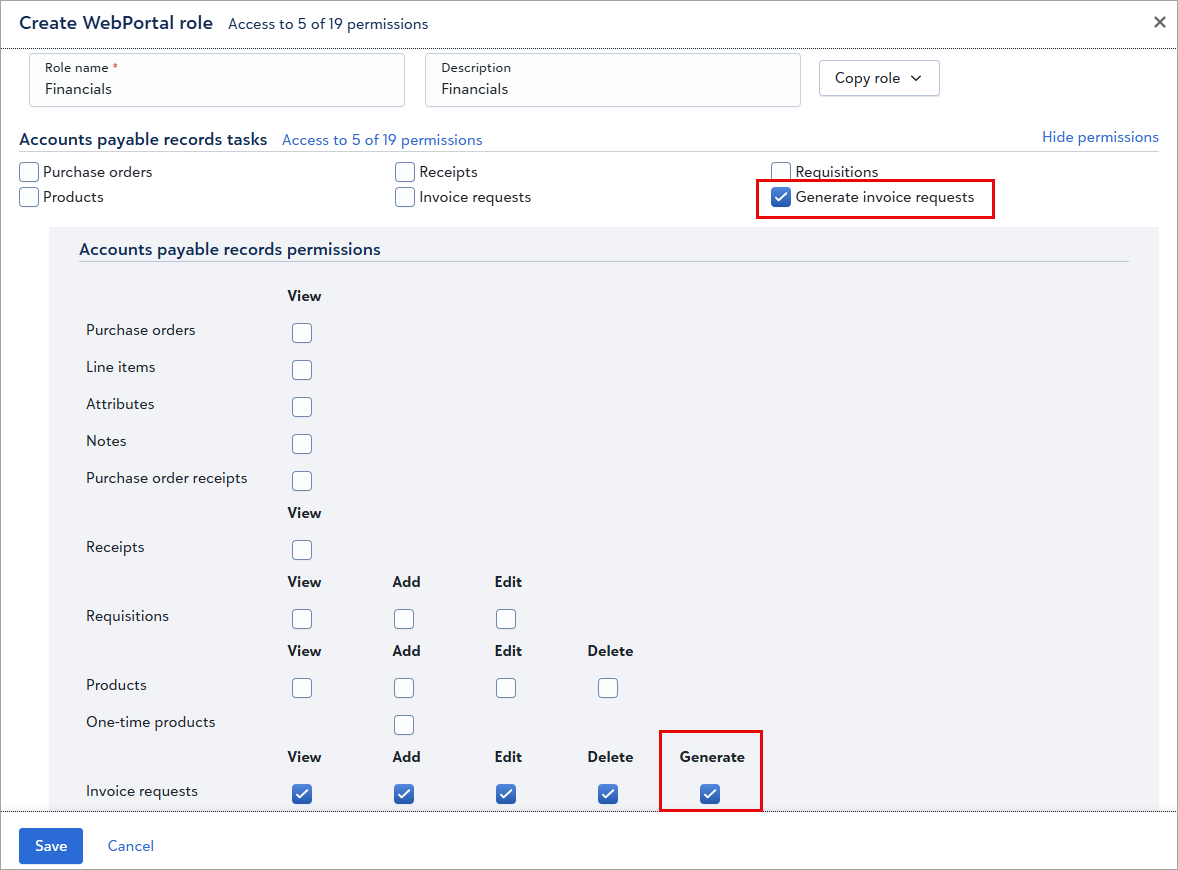
Note: Only users with the Generate invoice requests task can upload files to generate invoice requests or upload charge receipts.
Configure Document Intelligence Business Rules
Financial Edge NXT> Settings> Expenses> Business rules> Document Intelligence
Before users start uploading, admins can set specific rules to control how Document Intelligence handles data extraction and file uploads. These rules apply to both invoice request generation and credit card charge receipt uploads.
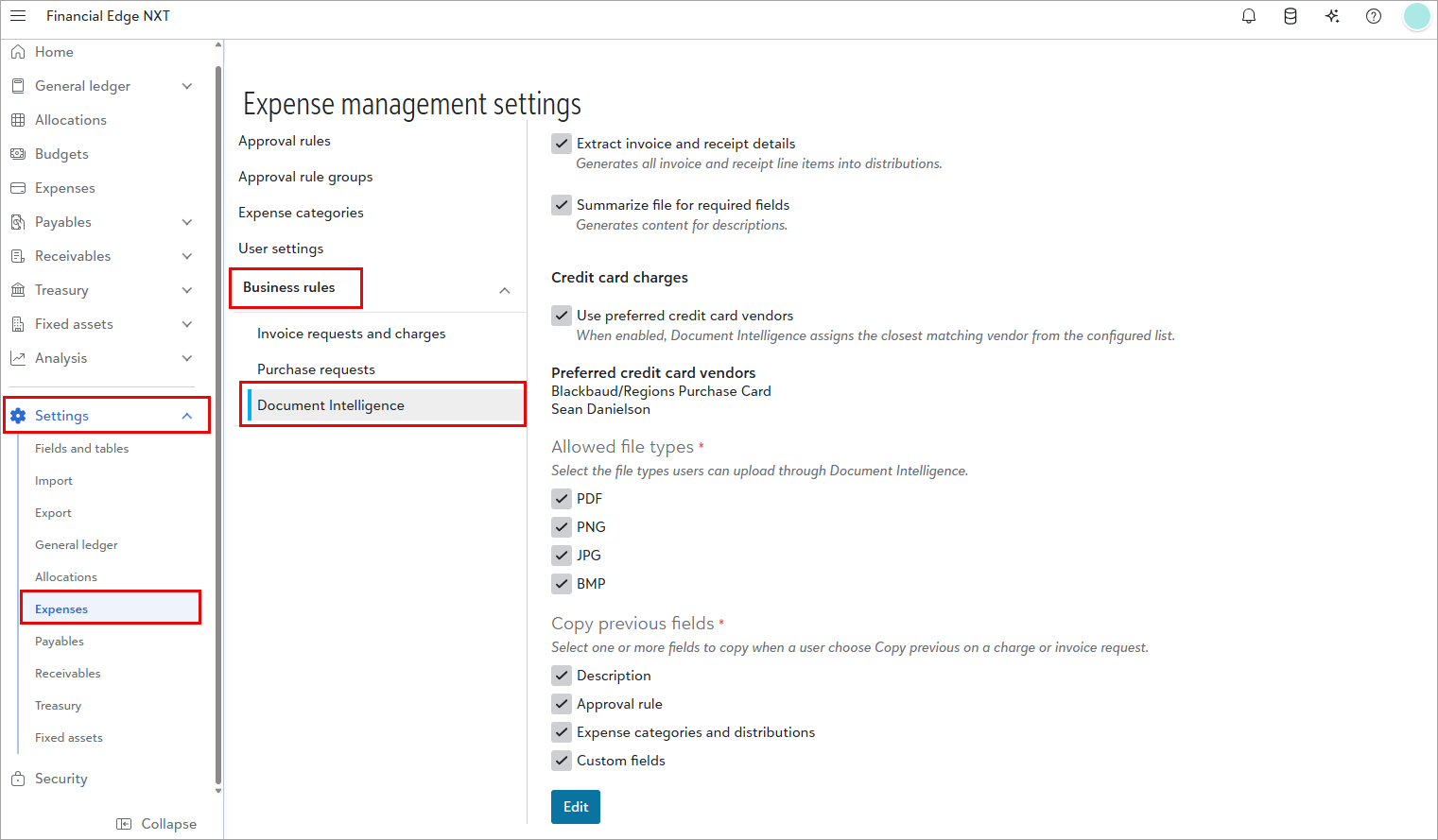
Select Edit, configure your preferences, then Save.
-
Extract details into distributions — Extract details from uploaded files to generate all invoice and receipt line items directly into distributions.
-
Automatically generate descriptions — Let AI generate descriptions based on the uploaded file content.
-
Preferred credit card vendors — Add preferred vendors for credit card charge processing. Document Intelligence analizes the attachment, identifies the merchant category, and automatically maps the expense to the closest matching vendor in this list. For example, preferred vendors may include entire categories such as "Hotels," "Restaurants," or "Purchase card."
-
Allowed file types — Select or clear each file type to control which types users can upload. By default, all types are selected.
-
Copy previous fields — Specify which fields to include when users copy previous invoice requests or copy previous charges. When copying, a message informs users that specific field values extracted during the generate process will be overwritten.
Tip: For details, review Expense Management business rules.
Generate Invoice Requests
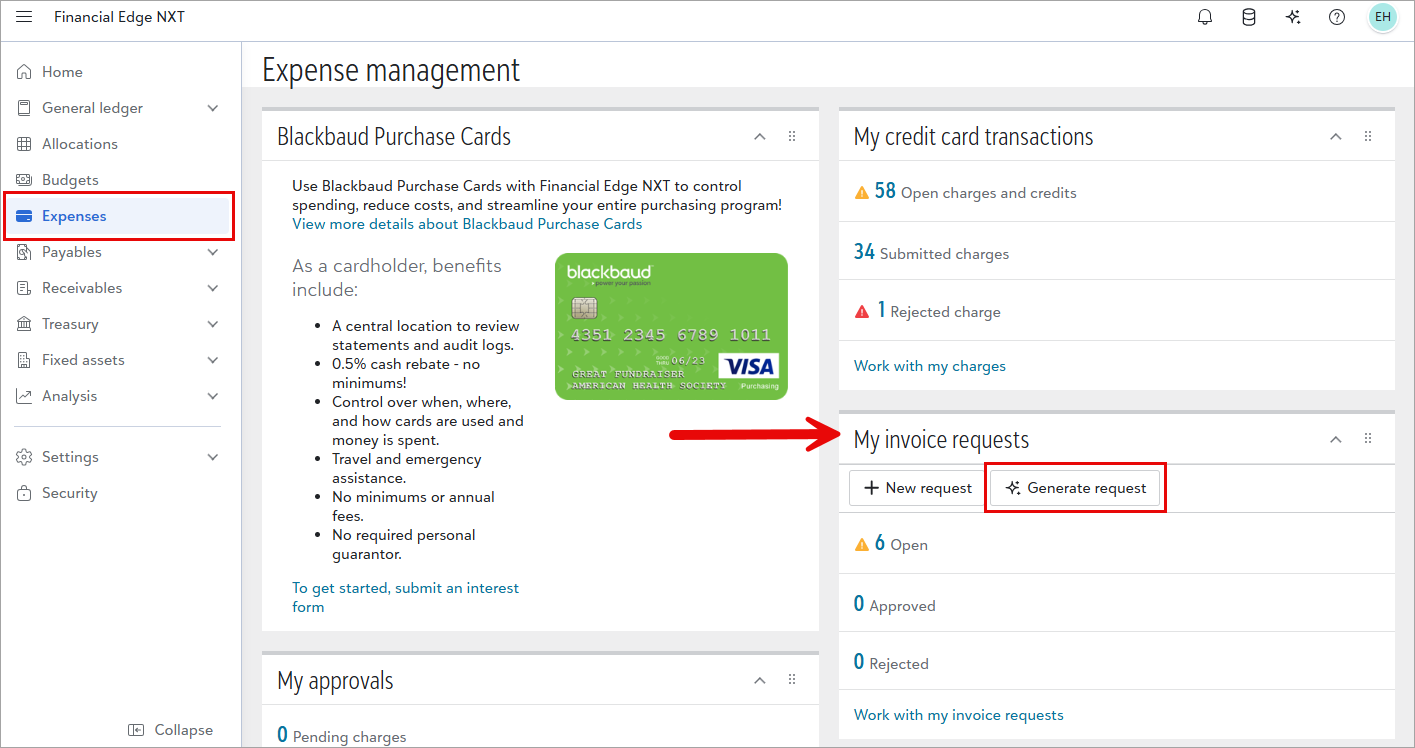
Financial Edge NXT> Expenses> My invoice requests
Instead of manually keying in every invoice detail, you can upload a receipt or invoice and let AI do the heavy lifting. Document Intelligence extracts key data points, including requestor, invoice number and date, description, expense detail and purpose, and expense category, and populates a new, open invoice request automatically. The uploaded file attaches to the request for a quick preview, and your business office manages it through the same approval workflow as any other request.
The result is less time on data entry, fewer errors, and a faster path to reimbursement, whether you're processing a hotel receipt, a vendor invoice, or anything in between.
Tip: On the go? Take a photo of your expense receipt or invoice and upload it directly from your device.
For details, learn how to generate invoice requests.
Upload Credit Card Charge Receipts
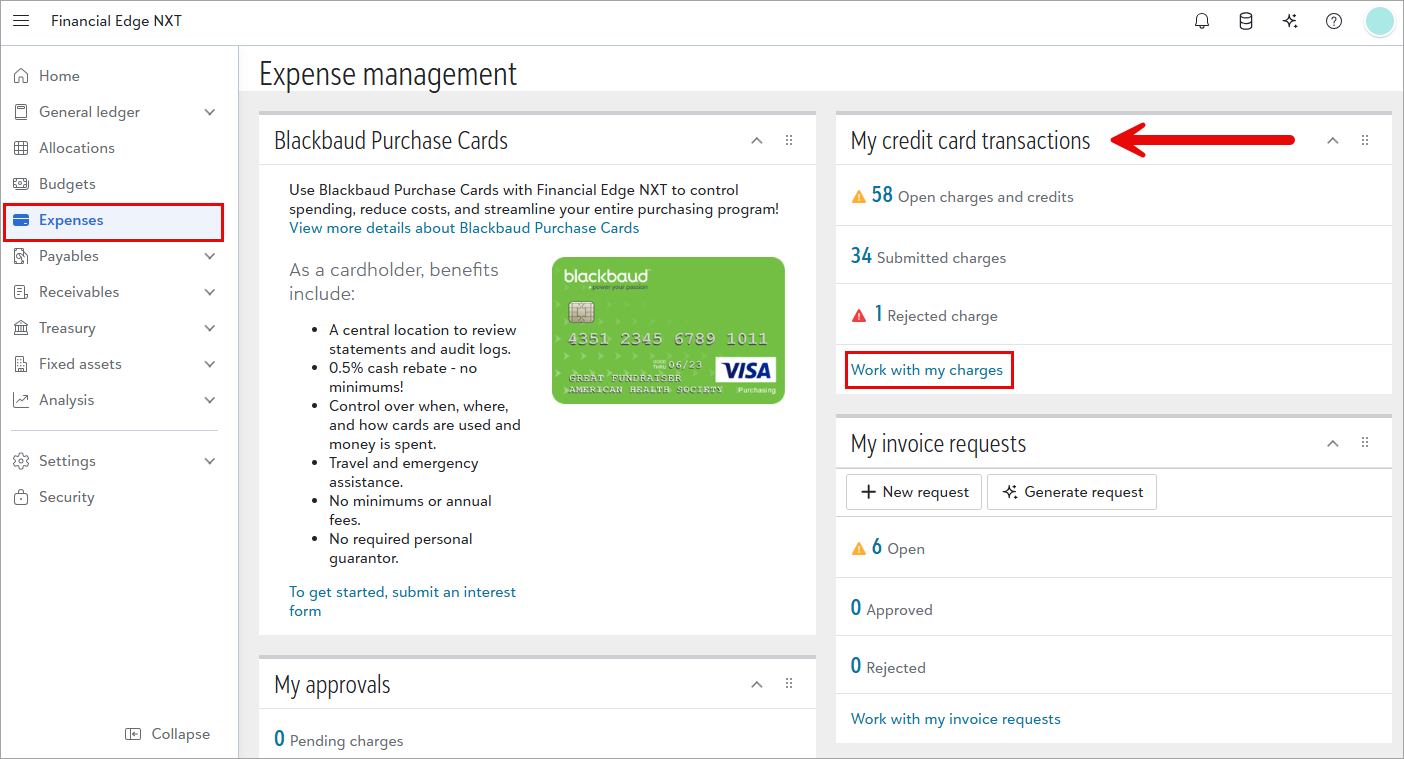
Financial Edge NXT> Expenses> My credit card transactions> Work with my charges
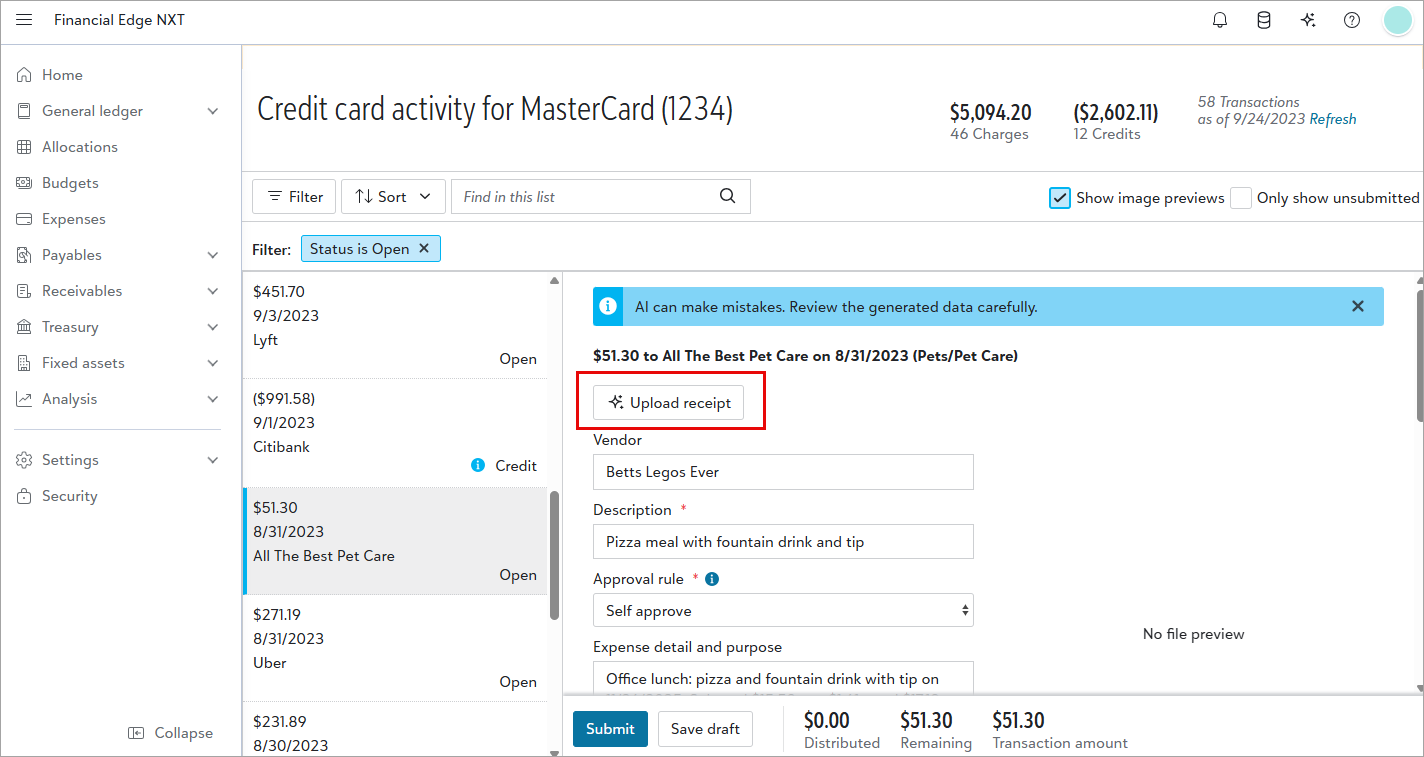
For credit card transactions, Document Intelligence removes the friction of manually entering charge details. From the Credit card activity page, you upload a receipt for a transaction and AI extracts the key data, including requestor, description, expense detail and purpose, and expense category, and maps it directly to the transaction. The receipt attaches automatically for easy reference, and you submit through your existing approval workflow.
This is especially valuable for high-volume card users: instead of manually reconciling every charge, you snap a photo or upload a file and let AI handle the categorization. Your business office processes charges the same way as before — just faster and with fewer manual touches.
Note: Credit card feeds don't need to be connected in Expense Management to use Document Intelligence.
For details, learn how to upload credit card receipts and submit for approval.
Next Steps!
Document Intelligence in Expense Management is part of a broader effort to make financial workflows faster and smarter. AI learns from the changes you make to extracted data. The more you use it, the more accurate it becomes over time.
For a deeper dive, explore these resources:
-
Document Intelligence for Expense Management - FAQs — Get answers to common questions about the AI technology, cost, and credit card feed requirements.
-
Expense Management business rules — Review all available business rule options for invoice requests, charges, and Document Intelligence.
-
Generate invoice requests — Step-by-step instructions for generating and managing invoice requests.
-
Upload charge receipts and submit for approval — Full details on uploading receipts for credit card transactions.
Video: Generate invoice requests with Document Intelligence