Accounts Payable (A/P) module
Note: Don't see this feature? Contact your sales representative to learn about our accounts payable options.
Accounts Payable (A/P) helps you share payment information with your accounting team and, when enabled, produce checks directly from your grant payment data.
Export to Accounts Payable (A/P)
Use Export to A/P to generate files that contain payment data for import into your accounting software, where invoices and checks are processed.
The available export types include Standard (.txt) and QuickBooks (.iif). Select the export type that matches your organization's accounting workflow.
-
Search for the payments you want to export with Quick Find, Full Search, or related lists, then select them in the results.
-
From the actions bar, select Export to A/P. Choose a File format, select Next, decide whether to Mark payments Paid, set the As of date, and select Next.
-
Review the validation results. Use the Ready, Warnings, and Errors filters to focus on the payments you want to review.
-
If invalid payments are listed, select Remove invalid payments.
-
Select Export to download the file.
For additional walkthrough detail, review the Export to Accounts Payable learning.
Import A/P Data
After checks are issued in your accounting system, use Import A/P data to bring check information back into Grantmaking and update payment records.
-
From the Payments search results page, select More, then Import A/P data.
-
Select Choose file and browse to the import file from your computer.
-
If appropriate, select Mark Payments 'Paid', then select Next.
-
Review any warnings or errors shown in the result column.
-
Select Import.
Note: If you mark payments as paid during import, repeat the process separately for any payments that should remain unpaid.
The imported summary values depend on the file type:
Standard A/P import file (.txt)
-
Date and time are read from the file header and displayed.
-
Check count and total amount are read from the footer and displayed.
Quickbooks A/P import file (.iif)
-
The date range comes from the second header line.
-
Time is hidden and not displayed.
-
The number of checks is calculated from the number of transactions in the file.
-
The total amount is calculated by summing the AMOUNT field values in the detail section and displaying the result as a positive number.
Standard A/P Import File Layout
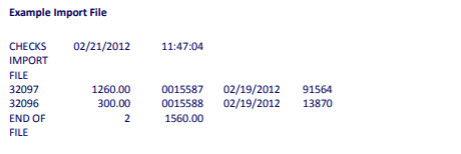
The standard Import file consists of the following sections in a text file.
Header
The header section includes the following fields:
| Field | Description |
|---|---|
| Title | The following text: CHECKS IMPORT FILE |
| Current Date | mm/dd/yyyy. |
| Current Time | hh:mm:ss format (military time). |
Details
For each Payment, the details section includes the following fields:
| Field | Description |
|---|---|
| Payment_ID | The ID of the payment that was exported from the GIFTS Online system. |
| Payment Amount | Amount, including decimal point. |
| Check # | The check number. |
| Payment Date | mm/dd/yyyy format. |
| Organization Vendor # | If the Organization associated with a Payment does not have a Vendor Number in GIFTS Online, this optional field is used to update the Organization's Vendor Number with the number assigned by your accounting department. |
Footer
The footer section includes the following fields:
| Field | Description |
|---|---|
| Label | The following text: END OF FILE |
| Number of Payments | Total number of payments included in the file. |
| Total Payment Amount | The sum total of the amount of the payments included in the file. |
Example Import File
QuickBooks A/P Import File Layout
This section details the ASCII file generated by the "GIFTS Export" report that users create in QuickBooks.
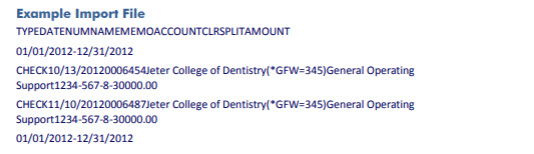
The Import file consists of a two-line header section, a detail section that lists each payment on a separate line, followed by a single-line footer section. Each line in the file is separated by a CR (carriage return) and LF (line feed). The fields within each line are separated by tabs.
Header Rows
The first line of the file is a header that consists of an empty field followed by fields containing the name of each field in the transaction records. The following is the exact format of this first line:
TYPEDATENUMNAMEMEMOACCOUNTCLRSPLITAMOUNT
The second line consists of the date range selected in the QuickBooks report, followed by ten blank fields. The date range in the header is not required. The format for the range is mm/dd/yyyy-mm/dd/yyyy. The following is an example of the second line:
01/01/2023-12/31/2023
Detail Rows
For each Payment, the detail section includes the following fields:
| Field | Description | Sample Data |
|---|---|---|
| [left margin] | Blank. | |
| TYPE |
NOTE: This field is not used during import. Indicates the transaction type. |
CHECK |
| DATE | Check date, in mm/dd/yyyy format. If the Payment is marked as Paid during the import, this is imported to GIFTS Online as the Payment Date. | 01/01/2024 |
| NUM | The Check Number, which is imported into the appropriate Payment record or records. | 0006454 |
| NAME |
NOTE: This field is not used during import. The legal name of the payee Organization. If the name in GIFTS Online was longer than 40 characters, it was truncated when it was exported to QuickBooks. |
Jester College of Dentistry |
| MEMO |
NOTE: This field is only used to get the Payment ID, otherwise it is not imported. The values in this field populate based on the 'Include Payment ID in Memo Field (required for import)' setting that was set on the export dialog. If set to checked (true) - This field is preceded by "(*GFW=[Payment ID])". The Project Title of the Request with which the Payment or Payments are associated. I set to unchecked (false) this value will be blank and the records will error out. |
(*GFW=345)General Operating Support |
| ACCOUNT |
NOTE: This field is not used during import. The QuickBooks Account Number entered into the A/P Module preferences. |
1234-567-8 |
| CLR |
NOTE: This field is not used during import. Can indicate whether the check has cleared. |
|
| SPLIT |
NOTE: This field is not used during import. Identical to the ACCOUNT. |
1234-567-8 |
| AMOUNT | The Payment Amount, prefixed by a minus sign (-). For Payments grouped by Request, this is the total amount of the Payments in the group. | -30000.00 |
Footer Row
The last line is identical to the second line of the header. As with the date range in the header row, the date range is not required in the footer row but if there is a date range in the header, there must be one here as well because the two rows need to match exactly.
Example Import File
Verifying a QuickBooks Import File
When a file is selected, GIFTS Online must detect the import file type and confirm all lines in the file match the appropriate layout and that the data is correct and can be used to update the appropriate field in Payment records.
If an errors are found, a process log opens detailing each line in error.
GIFTS Online reads the first line of the import file to decide on the file format. If the first line exactly matches the QuickBooks header first line format, then import process proceeds to parse it as a QuickBooks A/P import file layout.
The QB header is specified in the QuickBooks Header Row section.
The exact text to match is below:
TYPEDATENUMNAMEMEMOACCOUNTCLRSPLITAMOUNT
If the first line does not exactly match the text above, the import process assumes a standard A/P import file format.
Produce Checks
Note: You must have Check Writer enabled to use Produce checks.
Use Produce checks to merge payment data into a check template that downloads to your computer for printing on your own check stock. This process also updates the related payment records with paid status and check number information.
-
Search for the payments you want to include and select them in the results.
-
From the actions bar, select Produce checks.
-
Review the validation statuses and remove invalid payments if needed.
-
Select Next.
-
Select a Bank account and Check template. If needed, test template alignment, then select Next.
-
Enter the check details, including Check date, Next check number, and First check position, then select Produce checks.
A check-formatted Microsoft Word document downloads to your computer for printing. For a deeper walkthrough, see Check Writer - Producing Checks.