Customize Emails
Customize system email templates in Blackbaud Grantmaking to deliver clear, program-specific communication that reflects your organization voice and process requirements.
Use custom copies to standardize messaging, personalize content with tokens, and reduce manual communication steps across programs.
-
Align template language to program milestones and recipient actions.
-
Insert system data such as
{{APPLICATION_ID}}and{{PROGRAM_NAME}}into subject lines and message bodies. -
Support communication workflows with recipients, attachments, and optional merge documents.
-
Reuse approved templates to speed up future program setup.
To review template coverage before creating a copy, see Available templates by category.
Warning: Not all system emails can be customized. Administrative emails such as GC-2 Password Reset and GC-75 Verify Your Account are system-generated and cannot be edited. Templates that are deactivated or disabled at the client level are also unavailable for customization.
Step 1: Create a copy of a system email
-
Go to Applications > Form emails > System Emails.
-
Find the template you want to customize.
-
Select the ellipsis menu, then select Create copy.
Tip: You can also create copies during program communication setup. For details, see Set Up Program Emails.
Step 2: Update email usage
Use the Email usage field to identify purpose, program, or scenario for the copy so grant managers can select the right template quickly.
Note: The Email usage description is visible to Grant Managers only and is not shown to recipients.
Step 3: Update subject, header, and body content
-
Revise the Subject line so the purpose is clear and action-oriented.
-
Update the header text to match your program branding and message intent.
-
Edit the body content to include clear instructions, dates, and links.
For token usage guidance, start with How to Add Tokens to Content. For editor tools and formatting options, see Rich Text Editor Tools.
Step 4: Update button text (if available)
If the template includes a navigation button, update Button text to match the recipient's next action.
Step 5: Add CC and BCC recipients
Certain templates, such as GC-10 Request for Revision, support additional recipients.
-
Add recipients in CC and use Add BCC when needed.
-
Separate multiple addresses with commas or by pressing Enter.
-
Enable the option to let users update CC/BCC recipients during send, if appropriate.
Note: Use CC for external recipients. BCC does not support external email addresses.
Step 6: Add a mail merge template (optional)
For supported templates, you can include a merge document so each email sends with an automatically generated file and stores that file in the application record. See Add Merge Documents to Applications.
Warning: Merge documents are available only for specific system emails. Confirm eligibility in the System Emails FAQ, and create source files first in Document Templates.
-
Select a template in Mail merge template.
-
Set Document visibility for grant manager access scope.
-
Enable Applicant can view document if the document should be visible to applicants.
Step 7: Add attachments (optional)
Use Add attachment to include files such as guidelines, agreements, or external letters with each send.
Tip: Recipients and staff can review sent attachments in application communications. See View Application Communications.
Note: Manual attachments added during a one-time send apply only to that send and are not saved to the template copy. For manual send workflow details, see Notify Applicant of Status.
Step 8: Save and activate the email copy
Select Create to save the copy. The new version appears under the source template in System Emails.
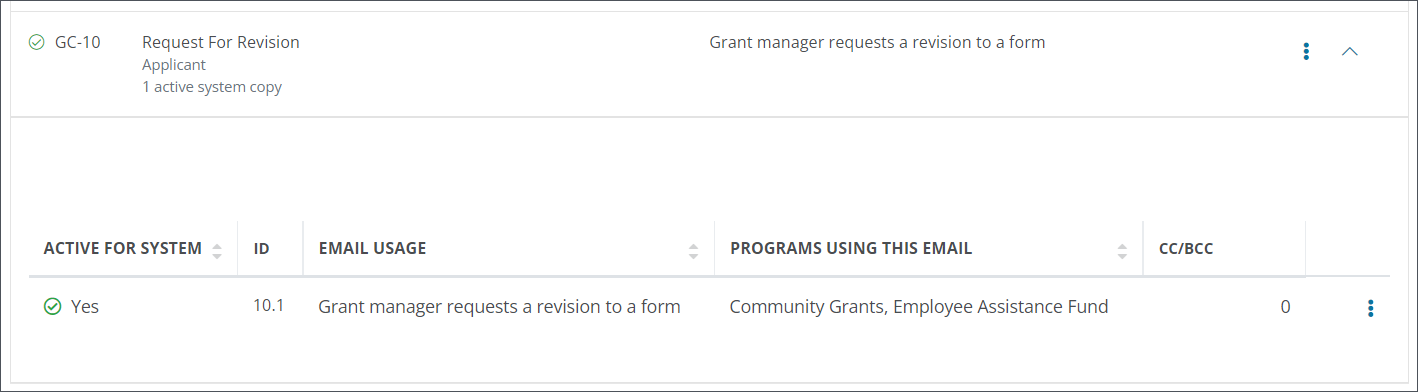
Warning: New copies are inactive until activated. If inactive, they are not available when configuring program communications. Activate copies in Manage Custom Emails, then assign them as needed in Set Up Program Emails.