Unblock a downloaded file
When you download a template from Document Template Manager, your operating system may flag the files as coming from another computer. This security behavior can prevent Microsoft Word from opening or linking the template correctly.
Both the .doc file and the related .mrg file may need to be unblocked or granted access before the template works as expected.
Unblock the Downloaded .doc and .mrg Files on Windows
-
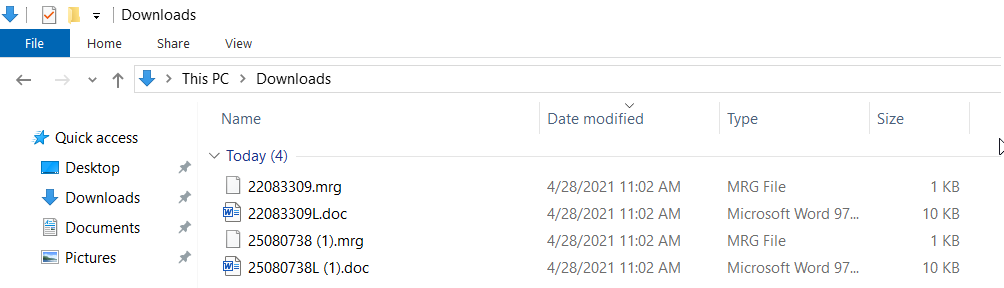
Before you open the .doc file, open the Downloads folder on your computer.
-
Find the downloaded .mrg file.
-
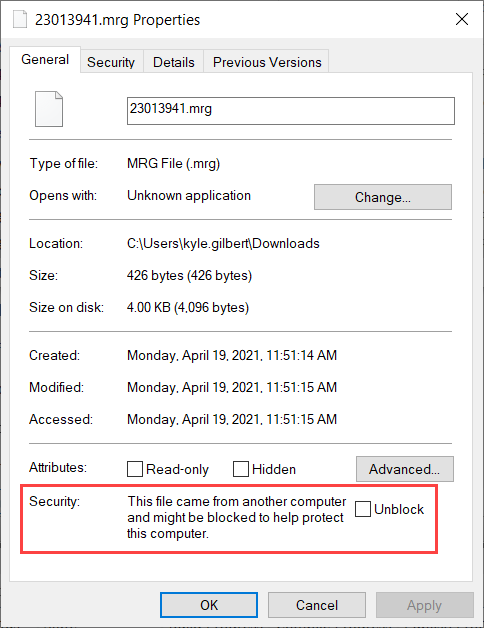
Right-click the file and select Properties.
-
At the bottom of the General tab, select Unblock, then select OK.
-
Return to the Downloads folder and repeat the same process for the downloaded .doc file.
-
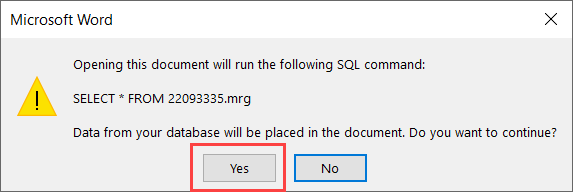
Open the .doc file in Microsoft Word, select Enable editing, and then select Yes for any additional prompts.
Grant Access to the Downloaded .doc and .mrg Files on Mac
-
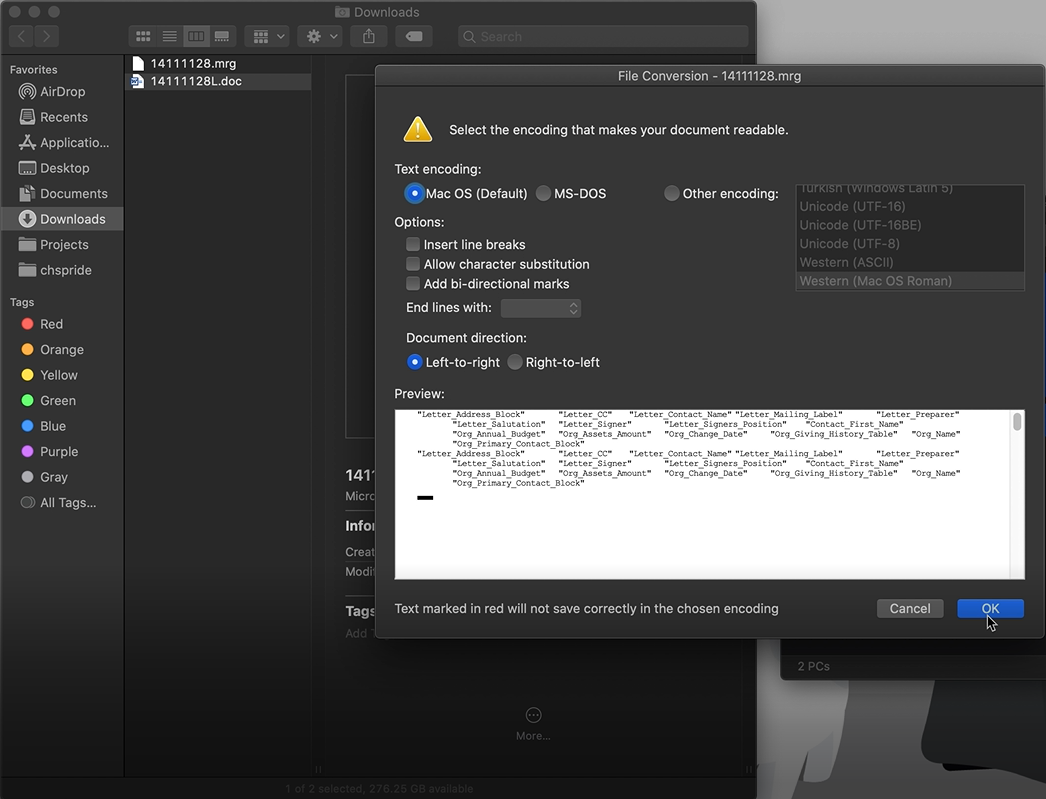
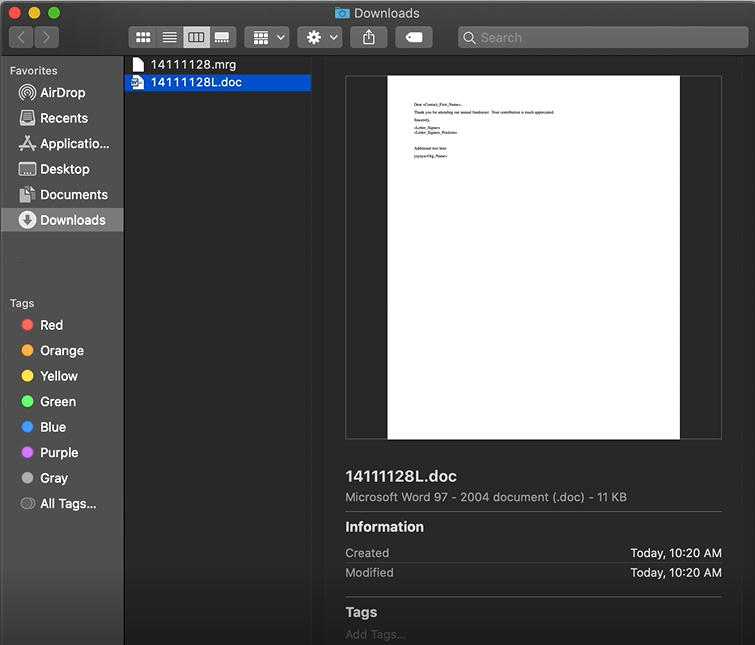
Before you open the .doc file, open the Downloads folder on your computer.
-
Find the downloaded .doc file and open it.
-
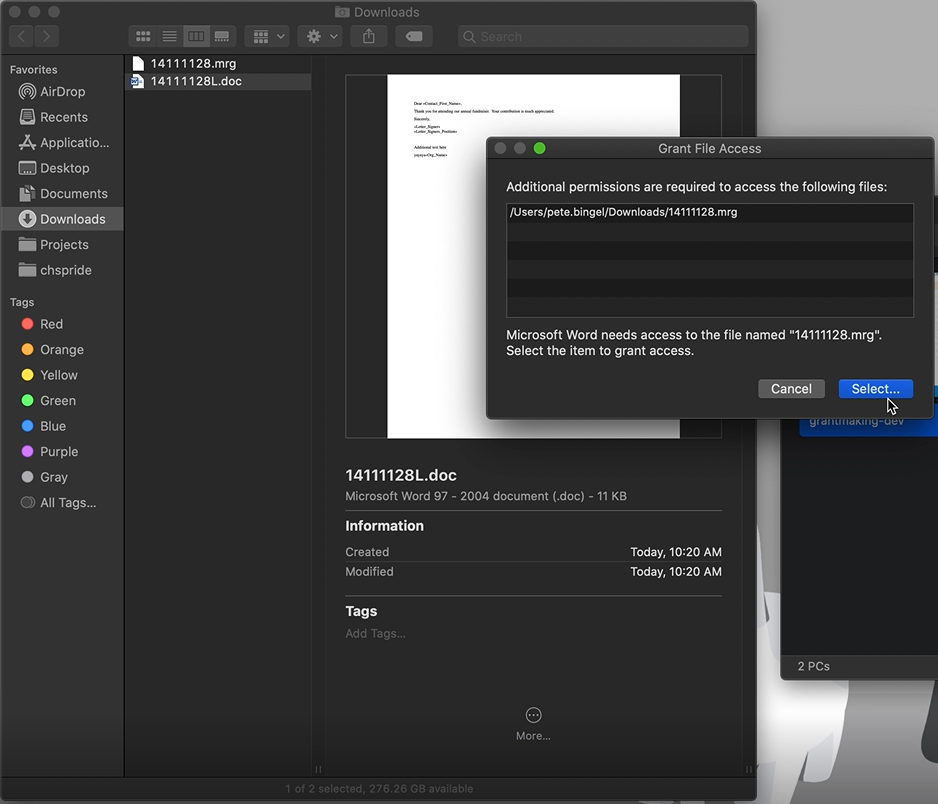
In the Grant File Access window, select Select to choose the related file that Word needs permission to access.
-
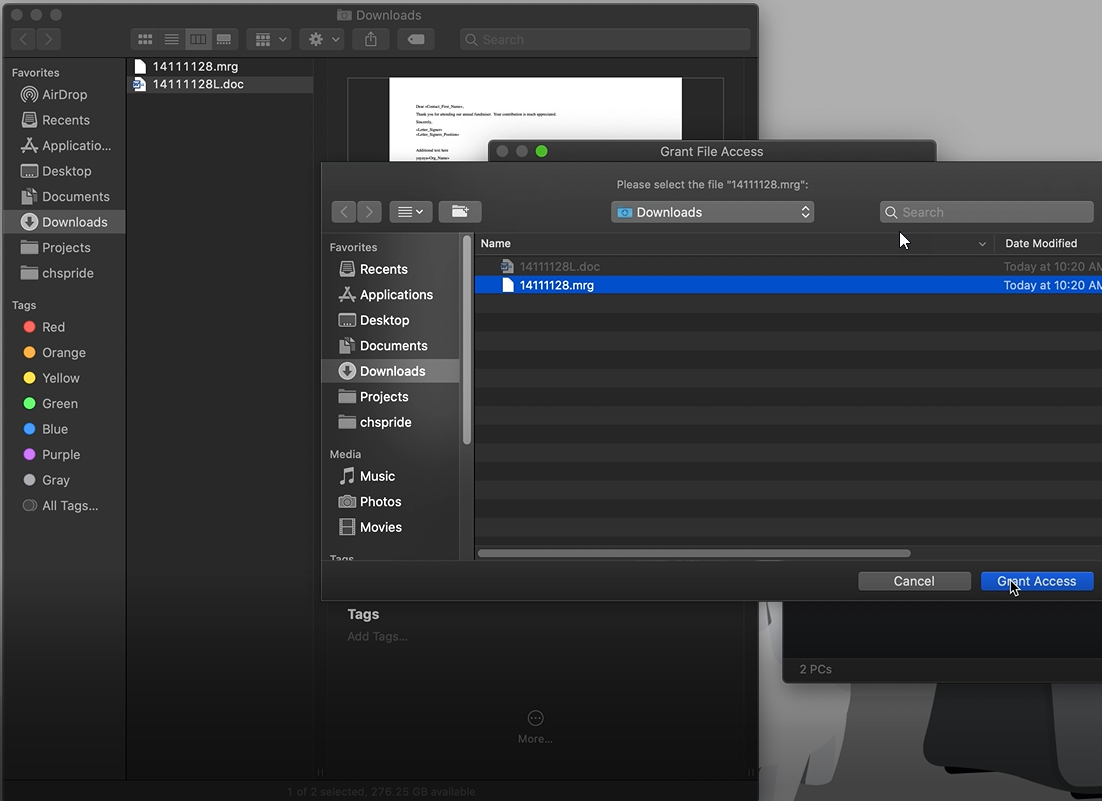
Select the .mrg file, then select Grant Access.
-
In the File Conversion window, select Mac OS (Default), then select OK. The .doc file then opens in Word.