Form Intelligence with Blackbaud AI
Use Form Intelligence in YourCause GrantsConnect to improve application forms with artificial intelligence (AI). The Make suggestions tool in the Form Builder identifies spelling, punctuation, and grammar issues, and recommends updates for clarity.
What to expect
-
Use with all form types, including applicant and grant manager forms
-
Evaluates text in field labels, descriptions, and layout components
-
Does not evaluate elements like HTML and custom data tables
-
Shows suggestions in a flyout with tabs for spelling and clarity
-
Generates suggestions only when fields match the form’s language
-
Available to grant managers with System – Can Manage Forms or System – All permissions
Tip: This tool is turned off by default. Contact your Account Manager or CSM to turn on.
How to use this feature
-
Sign in to the Grant Manager Portal – Go to yourcausegrants.com or your organization's URL. Sign in using your Blackbaud ID (BBID) or Single Sign-On (SSO) credentials.
-
Open the Form Builder – From the side navigation, select Program Setup, then Custom Forms. Create a new form or edit an existing one.
-
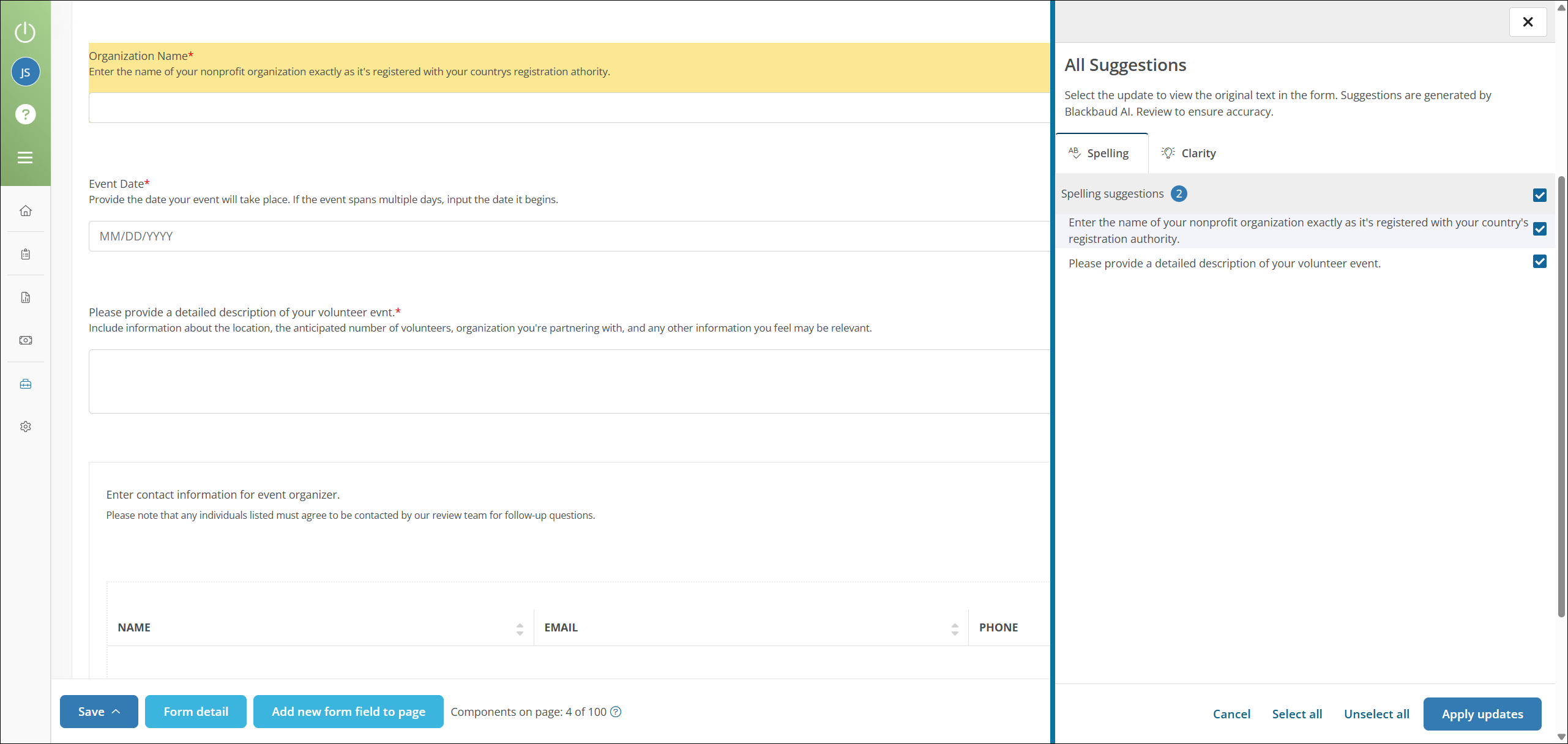
Identify text improvements – In the Form Builder, select Make suggestions. The All Suggestions flyout opens with tabs for Spelling and Clarity.
-
Spelling: Shows corrections for spelling, punctuation, and grammar. Fixes typos, capitalization, and missing punctuation.
-
Clarity: Suggests improvements for clarity and conciseness.
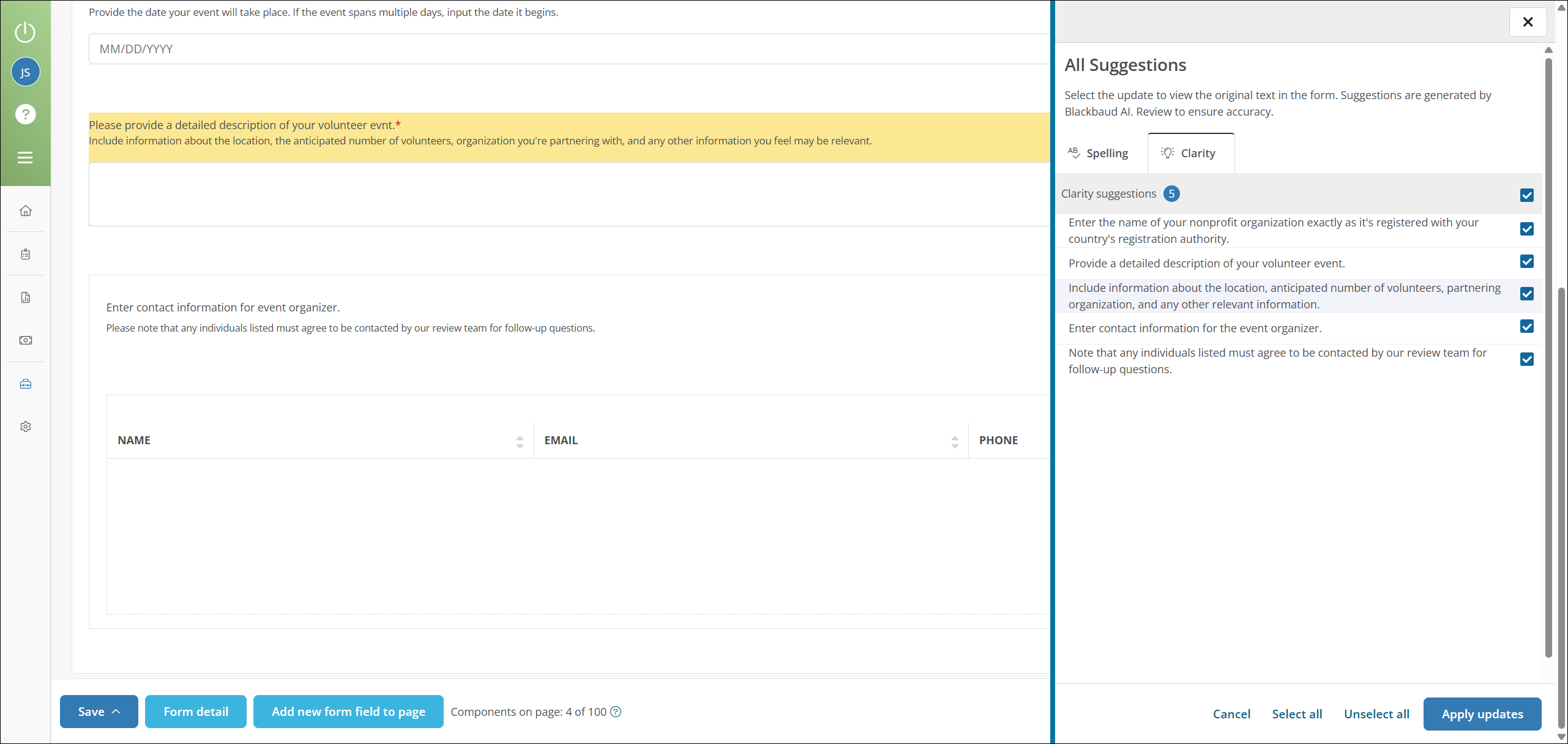
Tip: Select a suggestion to navigate to the related field.
-
-
Apply updates – Select the checkbox next to the suggestions you want to accept. Then select Apply updates.
Tip: Updates apply to the active tab. To apply remaining suggestions, select Make suggestions again.
-
Save updates – Save the form to finalize changes.
FAQs
 What field types and components are supported?
The Make suggestions tool evaluates text in field labels, descriptions, and placeholders.
It does not support:
-
Custom data table options in field types like Picklists or Select boxes
-
Field group options
-
Table field column names
-
In-kind items
-
Custom error messages
-
Form names
-
HTML in custom content, form descriptions, and form signature descriptions
What criteria are used to evaluate spelling, grammar, and clarity?
The tool uses the following criteria to evaluate text:
-
Checks for standard spelling, punctuation, and grammar rules
-
Preserves the original tone and intent
-
Identifies opportunities to improve clarity and conciseness
-
Prioritizes action-oriented language (Enter your name, etc.)
-
Removes conversational fillers (please, thank you, etc.)
-
Removes redundant phrases
-
Preserves text like placeholders or tokens ({{OrgName}}) and legal or compliance phrases
Does the tool update the default label when applying changes?
No. Updates apply only to the current field label.
Note: For instructions on updating the default label, see the Update Field Labels and Descriptions help.
Note: See the Blackbaud Terms and Conditions (AI Terms). for terms applicable to all Blackbaud solutions and services where you use AI.