When potential duplicates do appear to match, you can merge the two records into one online master. During the merge process, you will be able to view all constituent data fields and the entries in those fields for both records. You can then choose which values from each potential duplicate to include in the merged master record. When the merge is complete, the duplicate record will be removed from the Constituent360 database (if potential duplicates were both online records).
-
Access the Resolve New Registrations list page.
-
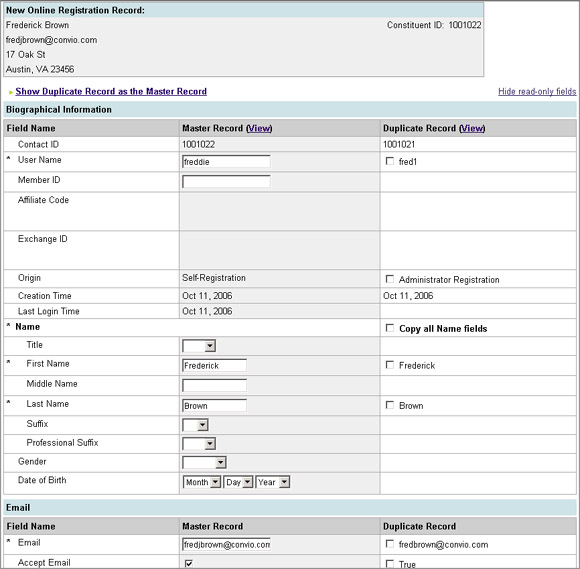
Select the Merge action between the two records that appear to be a match. This Merge action will open a page where you can select the data for the master (merged) record. The new registration record is shown at the top of the page, while the Master Record fields and the Duplicate Record fields are shown beneath it.
Note: The record shown initially as the Master Record is the online record having the most recent login date (usually, but not always, this is the new registration). If neither record has ever logged in, then the new registration will appear as the Master Record.
-
Prepare the final Master (merged) Record, taking advantage of any of the following:
-
To access the actual contact record in either column (available for online records only):
-
Select View at the top of the column. This action opens the record in a new window.
-
Close the record when finished.
-
-
To display the potential Duplicate Record entries as the Master Record entries (and vice versa), select the Show Duplicate Record as the Master Record link above the columns. Again, this action is only available if both records are online records.
Tips for deciding which record to display as the Master Record:
-
The record with the most recent activity is often the best choice as the initial Master Record.
-
If the recent activity is similar for two records, a record that represents a Self-Registration may be preferable to show initially as the Master Record (rather than an Administrator Registration) because the registrant would have knowledge of the username and password associated with that record and may have a "cookie" on his computer that allows him to access your site easily.
-
If the recent activity is similar for two records, you may also want to consider the number of transactions associated with each record in determining which record to display initially as the Master Record.
-
-
To copy individual field entries from the Duplicate Record into the Master Record, check the box for that field in the Duplicate Record column.
-
To copy all of the fields of a certain type from the Duplicate Record for example, all the Name fields or all the Address fields check the appropriate box in the Duplicate Record column.
-
Some information about the records is shown even though it cannot be changed so that you are better informed for the merging process. To hide this information, select the Hide read-only fields link above the Duplicate Record column. The link will change to Show read-only fields so you can display it again if needed.
Tip: This action serves to shorten the page.
-
-
Scroll down through the fields to be certain you have handled all available data.
Note: If for any reason you have additional data available or note an obvious error, you can edit the fields in the Master Record.
-
When you are ready to accept the Master Record, select the Finish button at the bottom of the page. You will return to the list of potential duplicates where the records that you just merged will no longer be listed. The master record, however, will be available in your Constituent360 database. The duplicate, if it was an online record, will be removed.