Manage Branding Cards
Use a branding card to display an image, logo, and impact statement alongside your form. This helps build donor trust and reinforce your organization’s identity.
Note: All custom images uploaded are kept private and tied directly to your unique environment ID.
Assign a Branding Card
To display branding assets on your form:
-
Select Branding card or Search.
-
Select a card from the list.
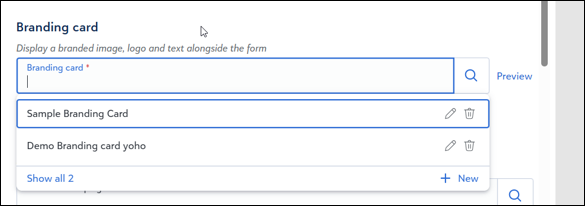
Create or Edit a Branding Card
Create a new card or update an existing one:
-
Select + New, or select the Edit (pencil) icon next to a card.
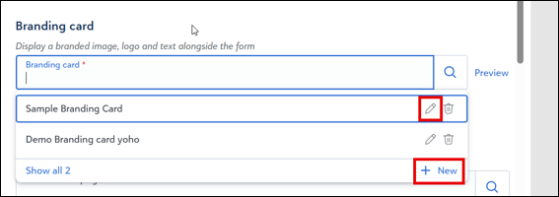
The branding card designer opens to Desktop by default.
-
Enter a Card name. This is a mandatory field.
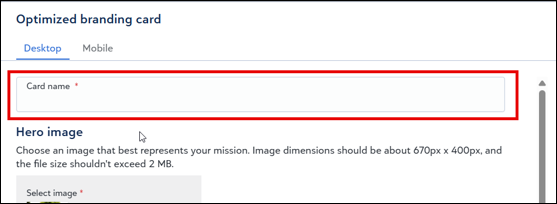
-
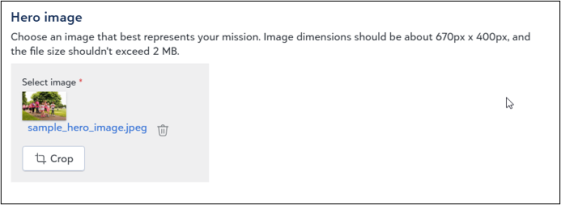
Select Select image to upload a Hero image (approximately 670 px by 400 px, with a maximum file size of 2 MB).
-
(Optional) Select Crop to adjust the image.
-
Upload a Logo (approximately 670 px by 400 px, with a maximum file size of 2 MB).
-
(Optional) Configure mobile settings:
-
Select Mobile.
-
Select Set a different padding and background color for mobile.
-
Select a value for Logo padding.
-
Select a value for Logo background color, or select Delete to clear the value.
-
-
Enter an Impact statement:
-
Enter a Heading (up to 50 characters).
-
Enter a Message.
Tip: Use the formatting options to style text.
-
-
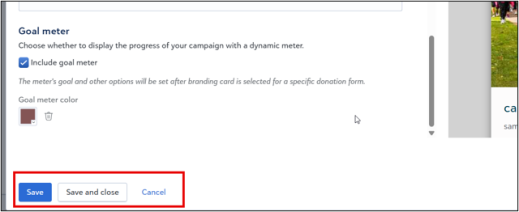
Select Include goal meter to show progress.
Note: When you include a goal meter, the Goal amount field appears on the main donation form page.
To customize the goal meter:
-
Select a color and select Apply.
-
Select Delete to restore the default color.
-
-
Select one of the following:
-
Save and close to apply changes.
-
Save to continue working.
-
Cancel to discard changes.
-
Preview or Delete a Branding Card
To preview a card:
-
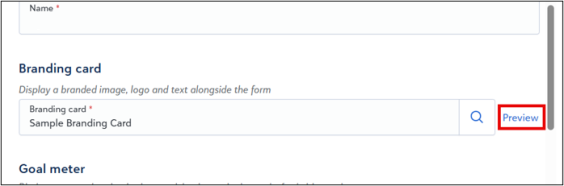
Select a branding card.
-
Select Preview.
-
Select Close.
To delete a card:
-
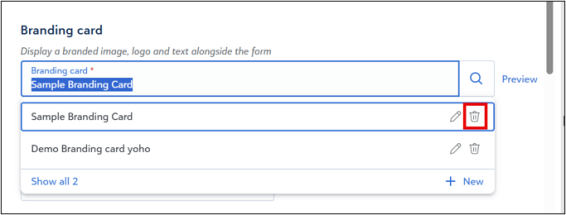
Select Branding card and locate the template.
-
Select Delete.
The system shows a confirmation message:
-
Success: Branding card deleted successfully.
-
Failure: The system cannot delete the card. This can occur if another form uses the card.