Bulk Update Links
-
Run the Link Manager task.
-
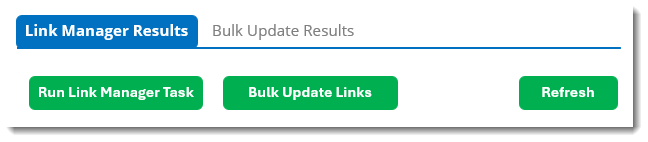
Select Bulk Update Links.
-
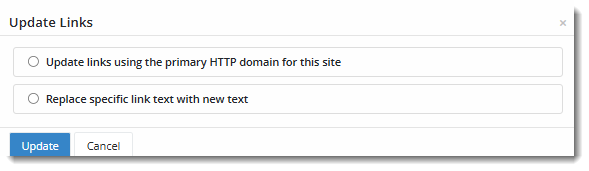
Select Update links using the primary HTTP domain for this site.
-
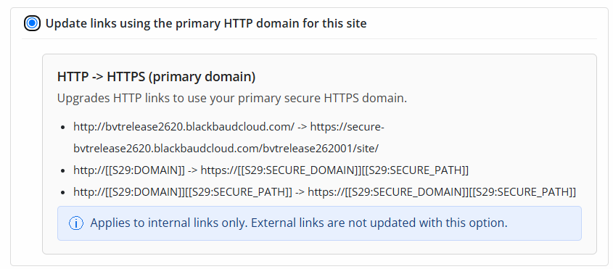
The option expands to show you examples of the types of changes that will be made. Select Update.
-
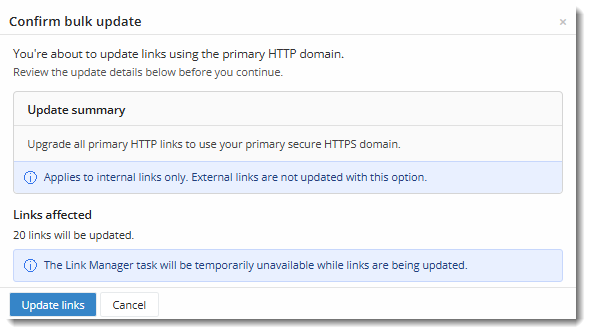
Review the summary of the changes to be made and select Update Links to confirm your choice.
-
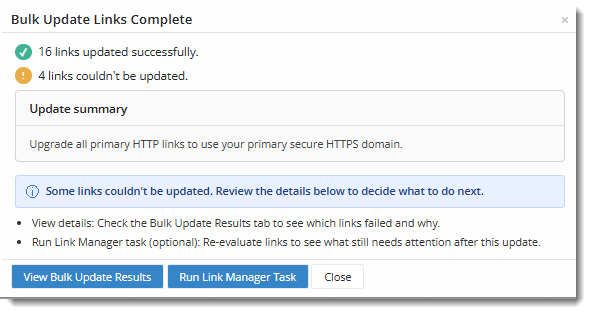
Review the results of your update.
If you want to review the details of the link updates, select View Bulk Update Results. If you want to see the updated HTTP scan results, select Run Link Manager Task. Otherwise, Close the modal.
View and undo bulk updates
-
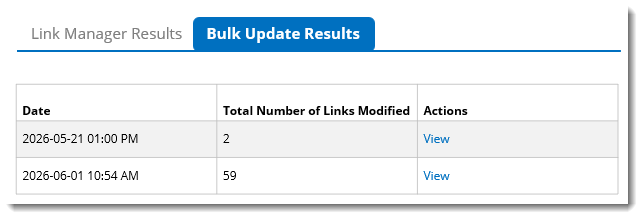
From Link Manager, select Bulk Update Results.
-
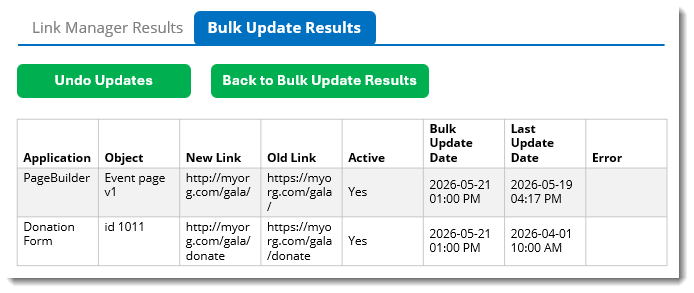
Choose an update from the list and select View.
-
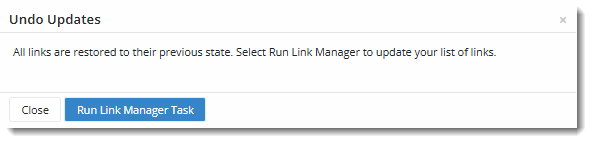
To undo the bulk update, select Undo Updates. This applies to all links in that set of updates.
-
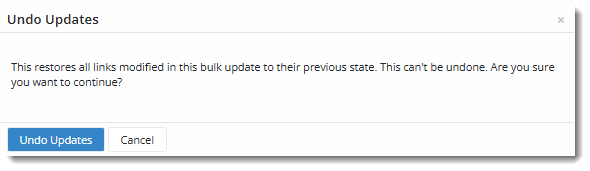
To confirm your option, select Undo Updates.
-
If you would like to refresh your Link Manager scan results, select Run Link Manager Task. Otherwise, Close the modal.
Bulk update options
Most customers will see only two bulk update options.
-
Update links using the primary HTTP domain for this site – Upgrades HTTP links to use your primary secure domain. For custom domains, this simply replaces HTTP with HTTPS. For non-custom domains, this also updates the URL to use the secure Luminate domain format.
-
Replace specific link text with new text – Replace part of a link URL with different text. This option functions as an exact find-and-replace tool and is restricted to users with Super Administrator access to update external links.
For example, an organization references a set of guidelines at HTTP://good-practices.org. But now the organization needs to direct people to HTTPS://better-practices.org.
Depending on your site's configuration, you may see additional options when selecting a bulk link update:
-
Update links using a secondary HTTP domain for this site – This option is only available for multi-domain customers. It allows you to update secondary or sub-domains from HTTP to HTTPS.
-
Update links from one HTTPS domain to another for this site – Move links from a non-custom domain to a custom domain. This option is for customers who have purchased a custom domain and want to update their existing links (which use the default secure Luminate domain) to use their new custom secure domain. It is only available for sites configured with multiple secure (HTTPS) domains.
For example, this updates links from https://secure2.convio.net/[site short name] to your new custom branding, such as https://[custom_domain].