Create and Send a Text Message
Use this page to create, preview, and send a text message to your selected audience with Nuclavis in Luminate Online.
-
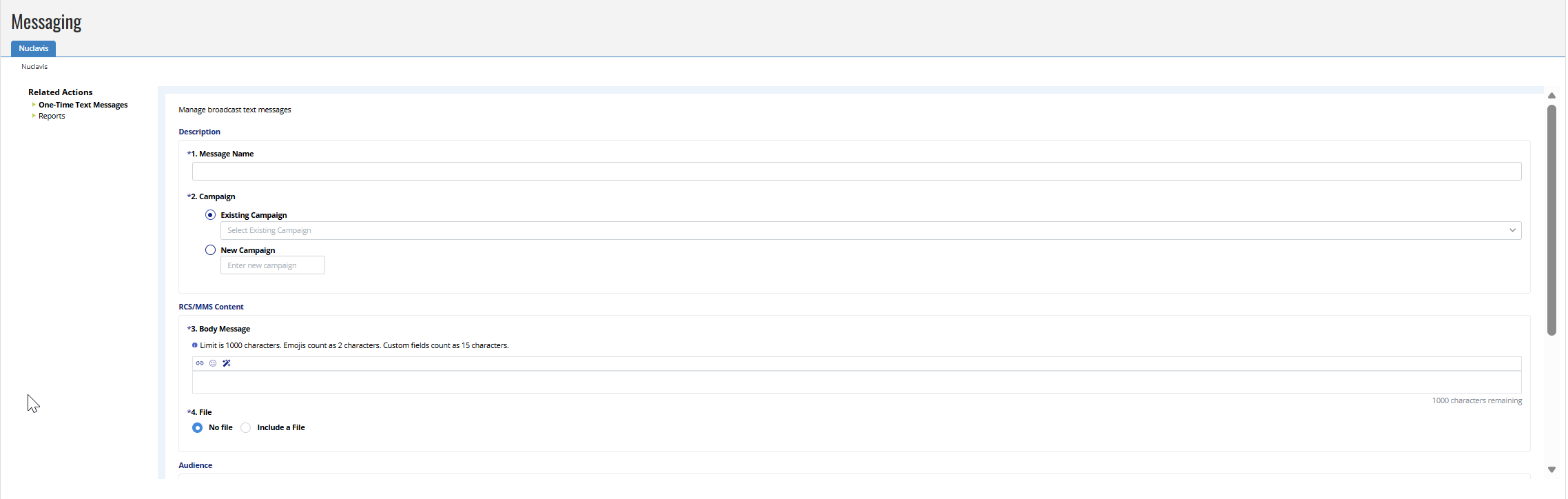
Under Related Actions, select One-Time Text Messages, then select Add Text Message.
-
Enter a Message Name. Use this name for internal tracking and reporting.
-
Select a Campaign. Select Existing Campaign and choose a campaign from the list, or select New Campaign and enter a name.
-
Enter a Body Message of up to 1,000 characters. Emojis count as two characters each. Personalization fields and URLs count as 15 characters each.
-
Select the link icon to insert a URL.
-
Select the smiley face icon to add emojis.
-
Select the magic wand icon to insert Personalization.
Note: The link and personalization options are configurable during your onboarding with Nuclavis.
-
-
File: Select Include a File to upload an image, video, or audio file, or select No File to skip this step.
-
The maximum file size is 1MB.
-
Use the recommended image size of 1,140 x 764 pixels.
-
Leave about 25% padding at the top and bottom of the image and 10% padding on each side to prevent cropping.
-
-
Select recipients for your message based on Group ID:
-
Target Group ID: Select one or more groups from the list.
-
Suppress Group ID: Select one or more groups from the list.
-
-
Select Send Now to send the message immediately, or select Schedule to choose a future date and time. Scheduled messages use Central Time (CT).
-
Select Preview to verify how the message will appear. Use the preview to:
-
Review the message body with personalization fields populated.
-
View the attached media, if included.
-
Verify that personalization fields appear as expected.
-