Update Your Blackbaud ID
This tutorial covers managing your personal Blackbaud ID account settings—your sign-in credentials that work across all Blackbaud products. Use this to update your name, email, password, language preference, or sign-in method.
Note: Your Blackbaud ID is separate from your Blackbaud Verified Network profile. If you need to manage your profile information, see Update Your Nonprofit Profile.
Update Your Name in Blackbaud ID
-
Go to app.blackbaud.com and sign in with your email and password.
-
Select Personal Information from the main menu or dashboard.
-
Look for your name field. Select the pencil icon next to your name to edit it.
-
Update your first and last name as needed.
-
Select Save. Your name is updated immediately in Blackbaud ID and across Blackbaud products.
Tip: To view the updated name in Blackbaud Verified Network, sign out and then sign in again.
Change Your Email Address in Blackbaud ID
Important: When you change your Blackbaud ID email, it becomes your new sign-in email across all Blackbaud products. Make sure this email matches the one you use for Blackbaud Verified Network, or you won't be able to access your nonprofit.
-
Go to app.blackbaud.com and sign in.
-
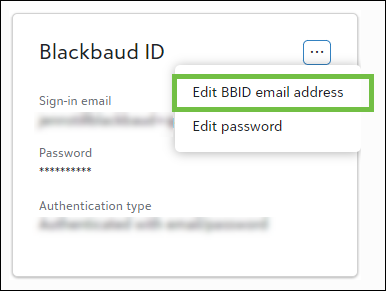
Select the ellipsis (three dots) or menu icon in the Blackbaud ID section.
-
Select Edit BBID email address.
-
Confirm your identity. You may be asked to enter your current password or answer a security question.
-
Enter your new email address. This must be different from your current email.
-
Select Send confirmation code.
-
Open your email inbox (the new email address you just entered) and look for a message from Blackbaud with a confirmation code.
-
Return to the browser and enter the confirmation code. Select Confirm.
-
You're signed out automatically. Sign back in using your new email address.
Tip: After changing your email, wait 30 minutes before signing in again with the updated address.
Reset Your Password in Blackbaud ID
-
Go to app.blackbaud.com and sign in.
-
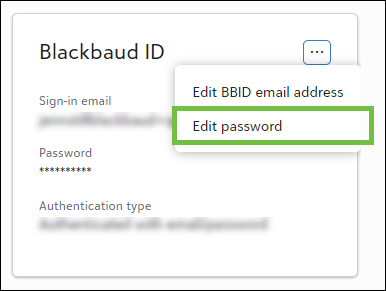
Select the ellipsis (three dots) or menu icon in the Blackbaud ID section.
-
Select Edit password.
-
Confirm your identity by entering your current password or answering a security question.
-
Enter your new password. Follow the password requirements shown on the screen (usually a mix of uppercase, lowercase, numbers, and special characters).
-
Select Save. Your password is updated immediately.
Tip: Create a password that is easy for you to remember but difficult for others to guess. Avoid using your name, nonprofit name, or easily available information.
Change Your Language Preference
You can set your preferred language at sign-in or after signing in.
-
At sign-in: On the Blackbaud ID sign-in page, look for a language selector (usually a globe icon or dropdown). Select your preferred language.
-
After signing in: Open your account menu and select My account or Language Preferences.
-
Choose your language from the list and select Save.
Manage Google or Apple Sign-In
If you use Google or Apple authentication instead of email and password, update those accounts directly in Google or Apple. The email address you use must match your Blackbaud Verified Network account.
-
To update your Google sign-in: Go to your Google Account settings (myaccount.google.com) and update your email and password there.
-
To update your Apple sign-in: Go to your Apple Account settings and update your information there.
Note: Make sure the email address in Google or Apple matches your Blackbaud Verified Network account email. If your Google or Apple email is different from your Blackbaud Verified Network email, you won't be able to sign in to your nonprofit. Sync these emails to access your organization.