View Agent Actions
If you'd like to review your development agent's planned or completed activity, you can review the actions in Work Center. However, you can also create an action list to see activity.
View Actions in Work Center
The Actions tab in Work Center shows a history of actions the agent has taken, organized by constituent and date. Go to Portfolio, Work center, then select the Actions tab.
View Actions in Action List
The steps below outline how you can apply filters in Action lists to view the dates, statuses, and action types taken by your agent.
-
Go to Portfolio, Action lists.
-
Select Build a new list. (If this is not your first list, select the + tab, then select Build a new list.)
-
Next to Filters, select the Filters icon.
-
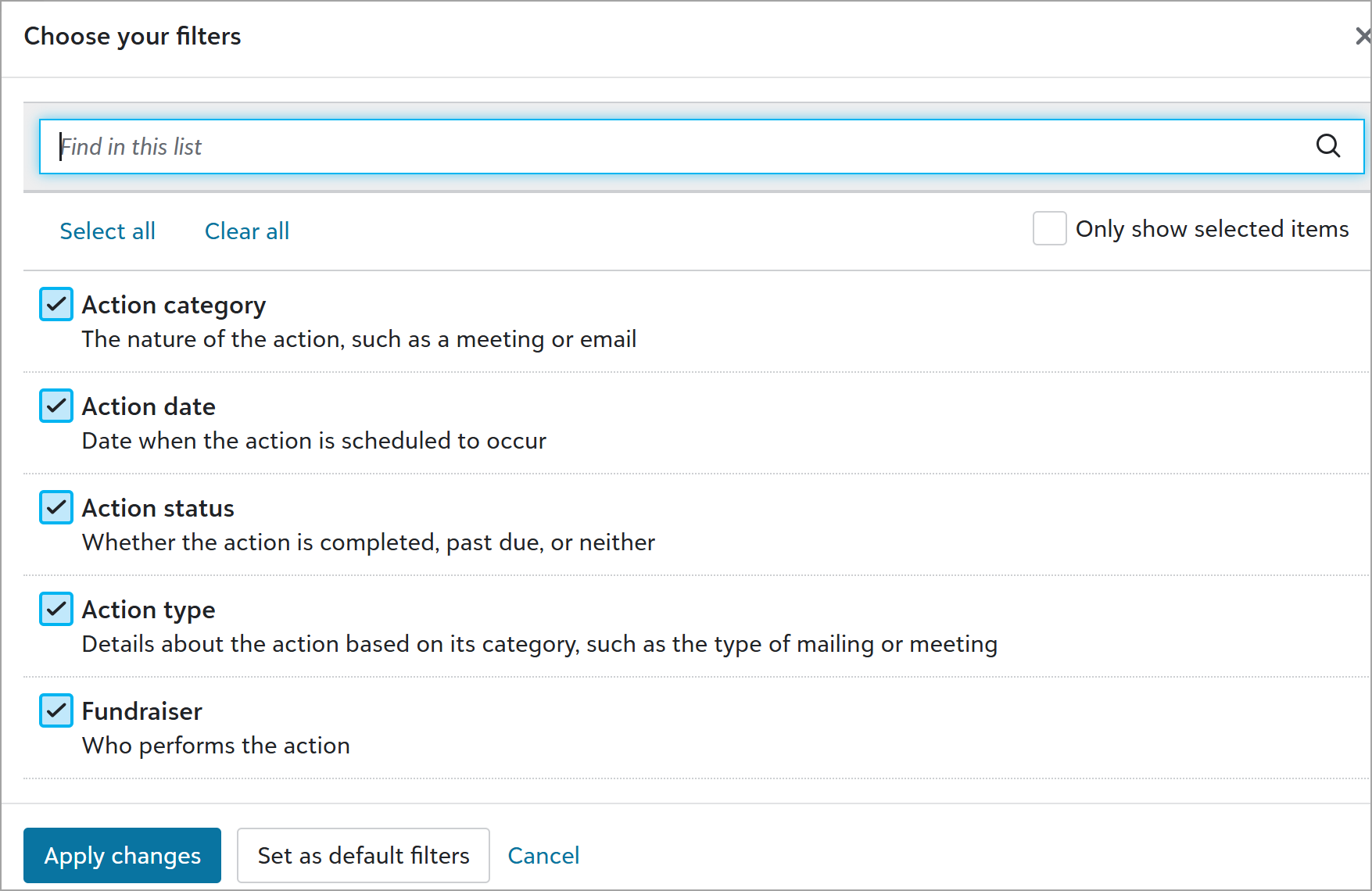
Select these filters: Action category, Action date, Action status, Action type, and Fundraiser.
-
Select Apply changes.
-
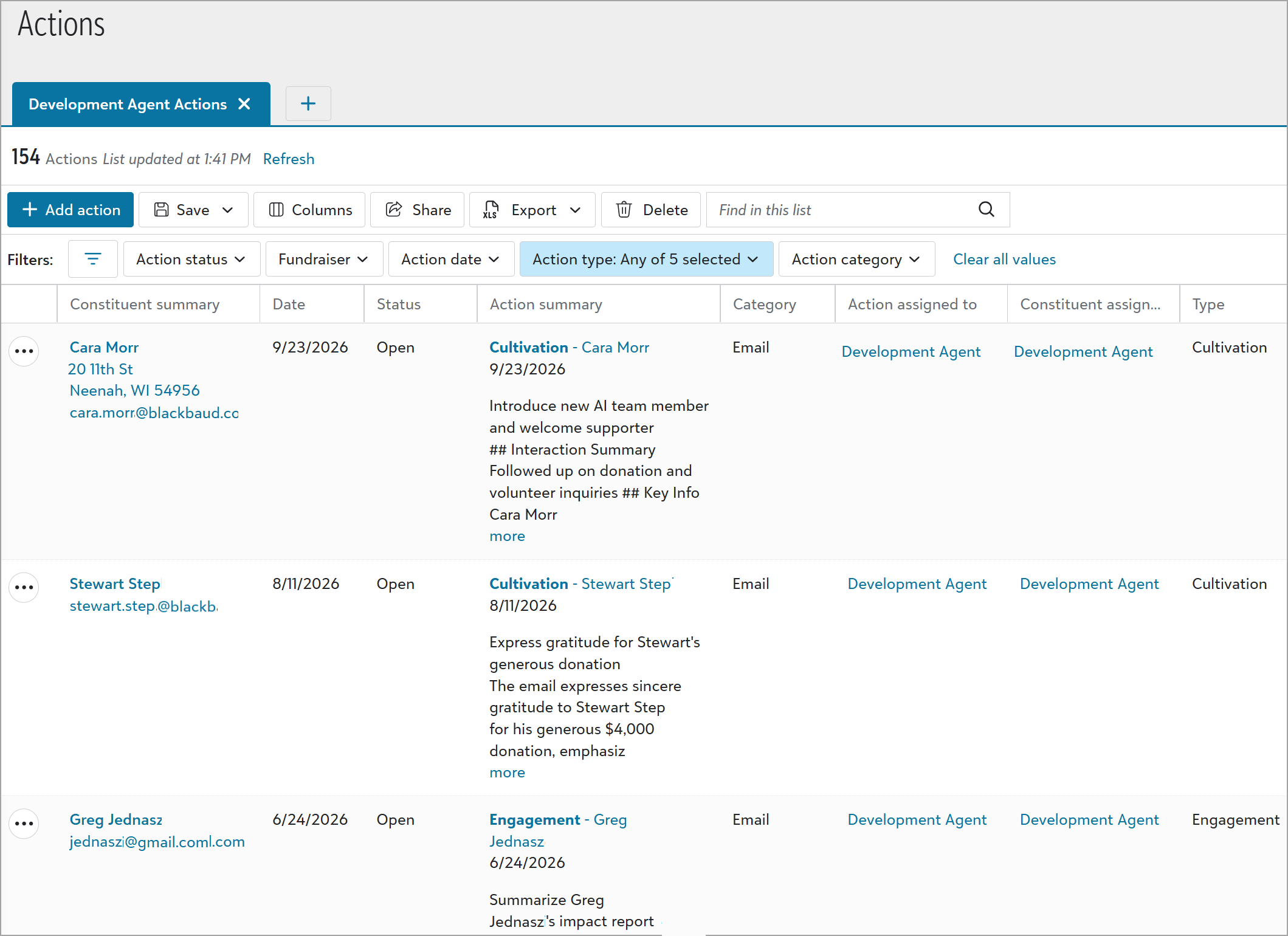
In the Action type filter, choose the action types mapped for your development agent (for example, your organization could have named these Cultivation, Engagement, Information Update, Solicitation, or Stewardship), and select Apply.
-
In the Fundraiser filter, select Development Agent and select Apply.
-
In the Action status filter, select any option you want to include, such as Open or Completed and select Apply.
-
Review the actions.
Tip: See Lists for more help with using a list.