Segment Prospect Pools with Prospect Insights Pro
Identify Prospect Insights Pro Candidates Using Lists or Queries
This tutorial explains how to use lists or queries to identify Prospect Insights Pro candidates who meet specific criteria. In particular, we'll create lists and queries to find candidates that fit the criteria for the following scenarios:
Note: This tutorial only applies to web view.
Check permissions
To view, create and export data from lists and queries, you must have the correct permissions.
List permissions
To view, create, and export list data, you must have the List tasks and permissions detailed in the following table. Most of the task and permissions are available from the Fundraising role, as seen in the following figure.
List tasks and permissions
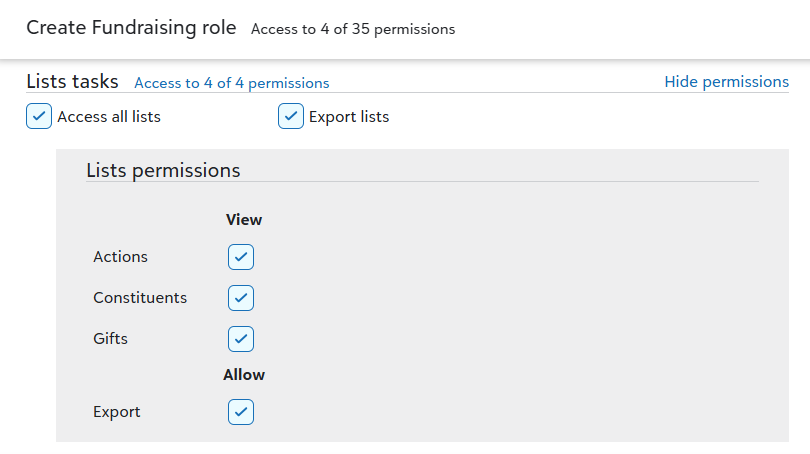
To check if you have list view permissions, navigate to Constituents, Constituent lists. If you can view the page, you can create and view constituent lists.
If you can't access the page, contact your solution admin.
Query permissions
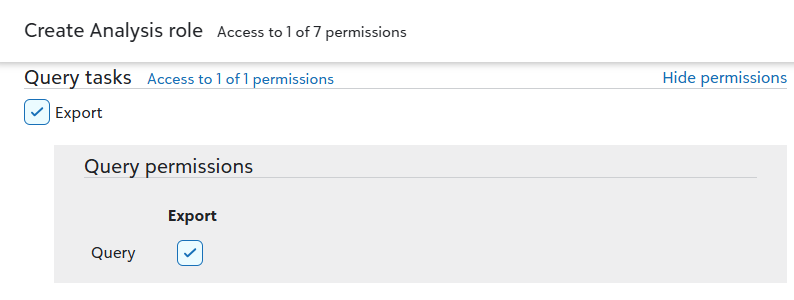
To create queries, you must have the ratings permission, which is only available from database view. To export query output data, you must have the export permission. The export permission is available from the Query task of the Analysis role, as seen in the following figure.
Use lists to identify prospects
Ask Blackbaud AI: Create a list of prospects with a Giving Likelihood of Excellent.
Lists are the best option for basic list-building and analysis. Let's look at how to use lists to identify Prospect Insights Pro prospects.
Step 1: Create a base list
Let's create a list that shows the data for Prospect Insights Pro models. We'll use this list as the starting point for two different candidate scenario lists we'll create in the next step.
For detailed information on creating lists, see Lists.
 Create a base list
-
From Constituents, Constituent lists, select Add, Build new list.
-
Select the columns to display.
-
Select Choose columns.
-
Make the following selections:
-
From Constituent basics, select Clear all and then select Assigned to and Constituent summary.
-
From Giving, select Clear all.
-
From Actions, select Clear all.
-
From Wealth & ratings, select the PI Pro columns.
-
From Marketing, select Solicit codes.
-
Select Apply changes.
-
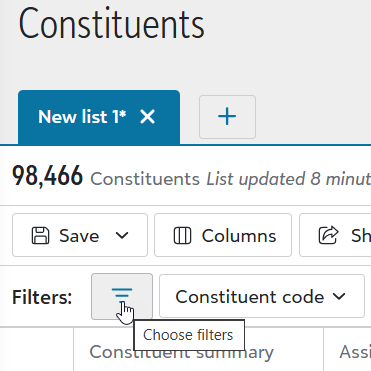
Select the filters to display.
-
Select Choose filters.
-
Make the following selections:
-
From Constituent basics, select Clear all.
-
From Giving, select Clear all.
-
From Location, select Clear all and then select Address radius.
-
From Wealth & ratings, select Prospect Insights Pro.
-
Select Apply changes.
-
Save the list.
-
Select Save, Save as a new list.
-
For the purposes of this tutorial, save the list using the name PI Pro base list. For the description, enter Initial Prospect Insights Pro list displaying all Prospect Insights Pro columns.
-
Select Others can view.
-
Select Save.
-
Review the list, particularly the Prospect Insights Pro columns, to see the information available for each Prospect Insights Pro model.
Tip: Search for PI Pro to quickly locate the Prospect Insights Pro columns.
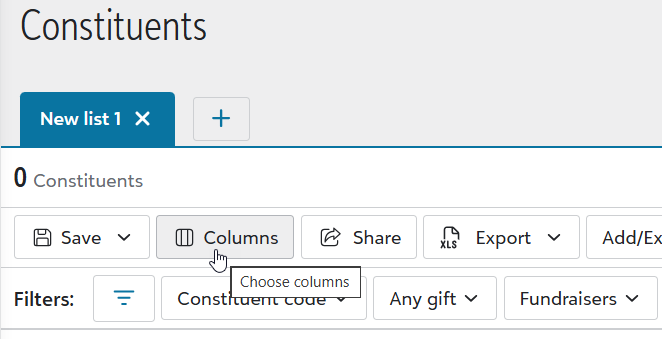
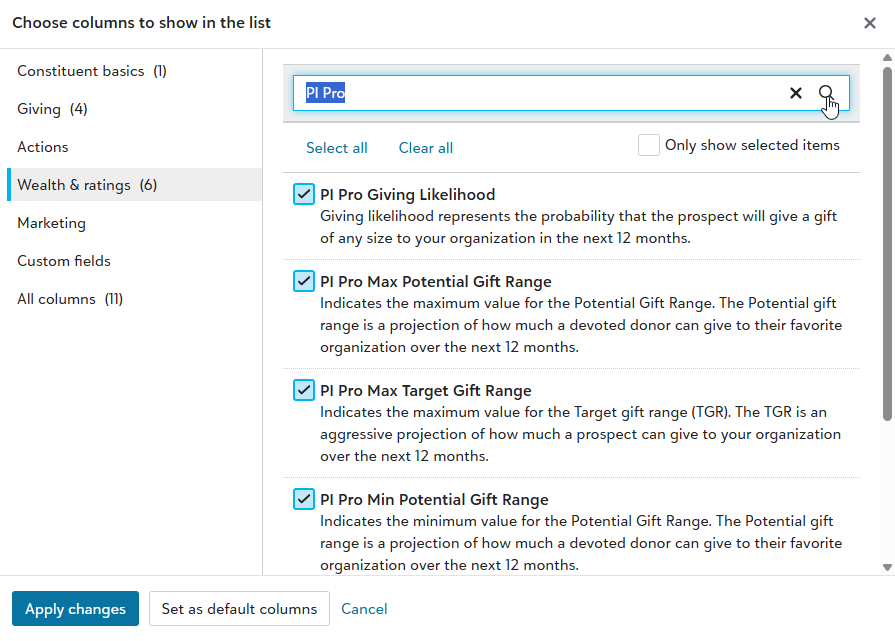
Note: Dates in the Prospect Insights Pro columns indicate the date that a model was published, not when the data was refreshed, which happens weekly. If a refresh doesn't result in a change in a model's score, then the model is not re-published and the date remains unchanged.
Step 2: Refine candidate lists
Using the list that we created in Step 1 as the starting point, let's create two more lists, each with additional candidate criteria.
List 1: Prospects with a target gift range above $50,000 that live near a specific location
Use this list to identify candidates who live in area a representative may be visiting soon or to target your outreach with details specific to the candidate's locale.
Create the list
-
Open the base Prospect Insights Pro list we created in the prior step.
-
Set the target gift range filter.
-
From Filters select Prospect Insights Pro.
-
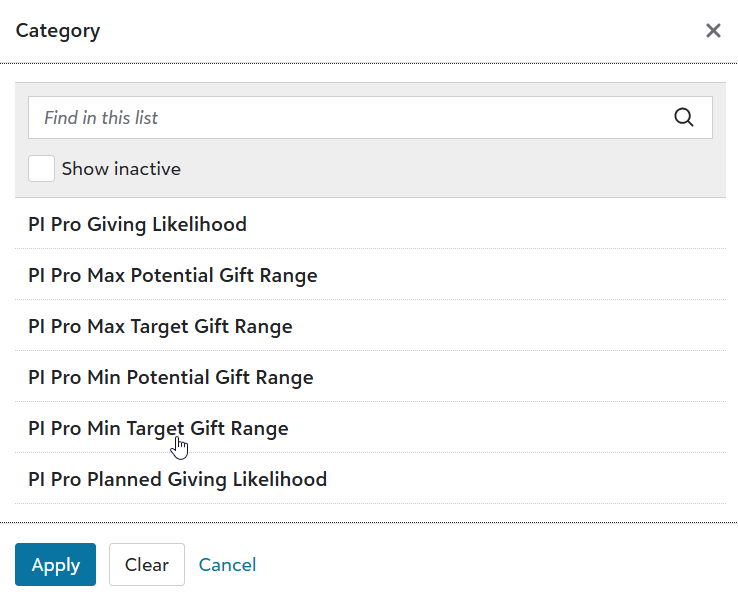
Select Add category.
-
Select PI Pro Min Target Gift Range and then select Apply.
-
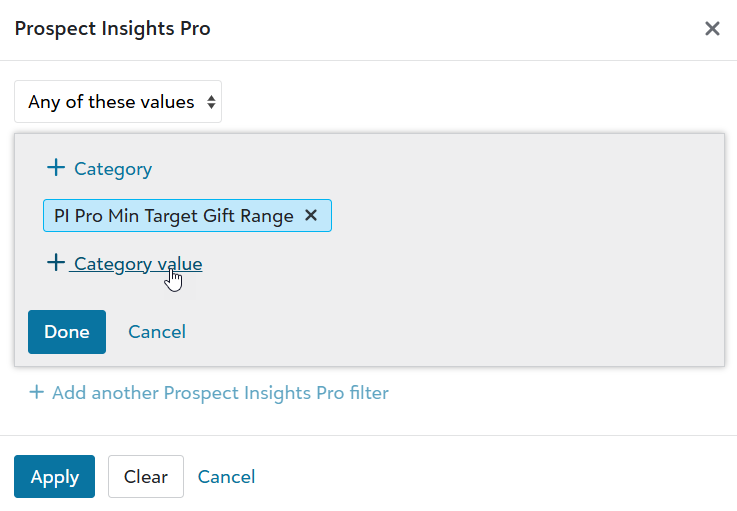
Select Add category value.
-
Select Greater than, then enter 50,000 and select Apply.
-
Select Done, then Apply.
-
Set the location filter.
-
From Filters select Address radius.
-
Enter a zip code or city.
-
Enter a value for the radius if you want to include constituents in the surrounding area.
-
Select Apply.
-
If the resulting list is too small, modify the target gift range, the location radius, or both.
-
Save the list.
-
Select Save, Save as a new list.
-
Enter a name for the list that indicates that the list includes candidates with a target gift range of over $50,000 who live in a specific location. For example: PI Pro TGR 50k, Portland
For the description, add more detail, so you can quickly see the list's purpose. For example: Prospect Insights Pro candidates with a target gift range over 50K within 100 miles of Portland.
-
Select Save.
List 2: Identify Top Prospects that haven't been contacted recently
Use this list to find candidates who are likely to give and where no action has been taken in the past 90 days.
Create the list
-
Open the base Prospect Insights Pro list we created in the prior step.
-
Select Add, Open a saved list,
-
Select PI Pro base list.
-
Set PI Pro Queue category filter.
-
From Filters select Prospect Insights Pro.
-
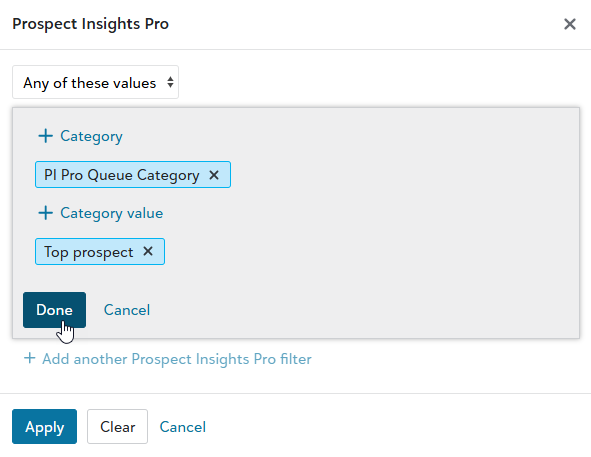
Select PI Pro Queue category and then select Apply.
-
Select Add category value.
-
Select Top prospect and then select Apply.
-
Select Done.
-
To identify constituents that haven't been contacted in awhile, use the Tags filter. To add it:
-
Select Choose columns.
-
Then, from Constituent basics select Tags.
-
Select Apply.
-
Select the Tags filter.
-
Select No contact.
-
Select Apply.
For more information on tags, see Tags and Recommendations.
-
-
Save the list.
-
Select Save, Save as a new list.
-
Enter a name for the list that indicates that the list identifies top prospects who haven't been contacted in some time. For example: PI Pro Top prospects with no recent actions
For the description, add more detail, so you can quickly see the list's purpose. For example: Prospect Insights Pro Top prospects who haven't been contacted in over 90 days.
-
Select Save.
-
Step 3: Export your list
To export a list, open the list you want to export to a CSV file. Then, select Export, Start an export. For more information about exporting list, see Export Lists.
Tip: Don’t see this option? Contact your solution admin for rights to export lists.
Use queries to identify prospects
Queries are the best option for scenarios with complex criteria and the ability to show more columns. Let's look at how to use queries to identify Prospect Insights Pro prospects. We'll create two queries; the first is a standard query and the second applies criteria operators.
For detailed information about using queries, see Query and Query Editor.
Query 1: Identify the funds where emerging prospects donated
Use this query to discover interest areas of emerging prospects to better target your ask to their area of interest.
Create the query
-
From Analysis, Query, select New query.
-
For query type, select Constituent and for format select Dynamic, so that whenever you run the query, the results include new and updated records. Then, select OK.
-
Set the criteria for inclusion in the results. From Criteria:
-
Clear Deceased constituents to exclude them from the results.
-
From Available fields, select Prospect, Ratings, Specific Sources, PI Pro Queue Category, PI Pro Queue Category PI Pro Queue Category. To include only candidates identified as an emerging prospect:
-
For the Operator, select Equals.
-
For the Value, select Emerging prospect.
-
Select OK.
-
From Available fields, select Gifts, Funds, Description. To include only prospects who have given to a fund:
-
For the Operator, select Not blank.
-
Select OK.
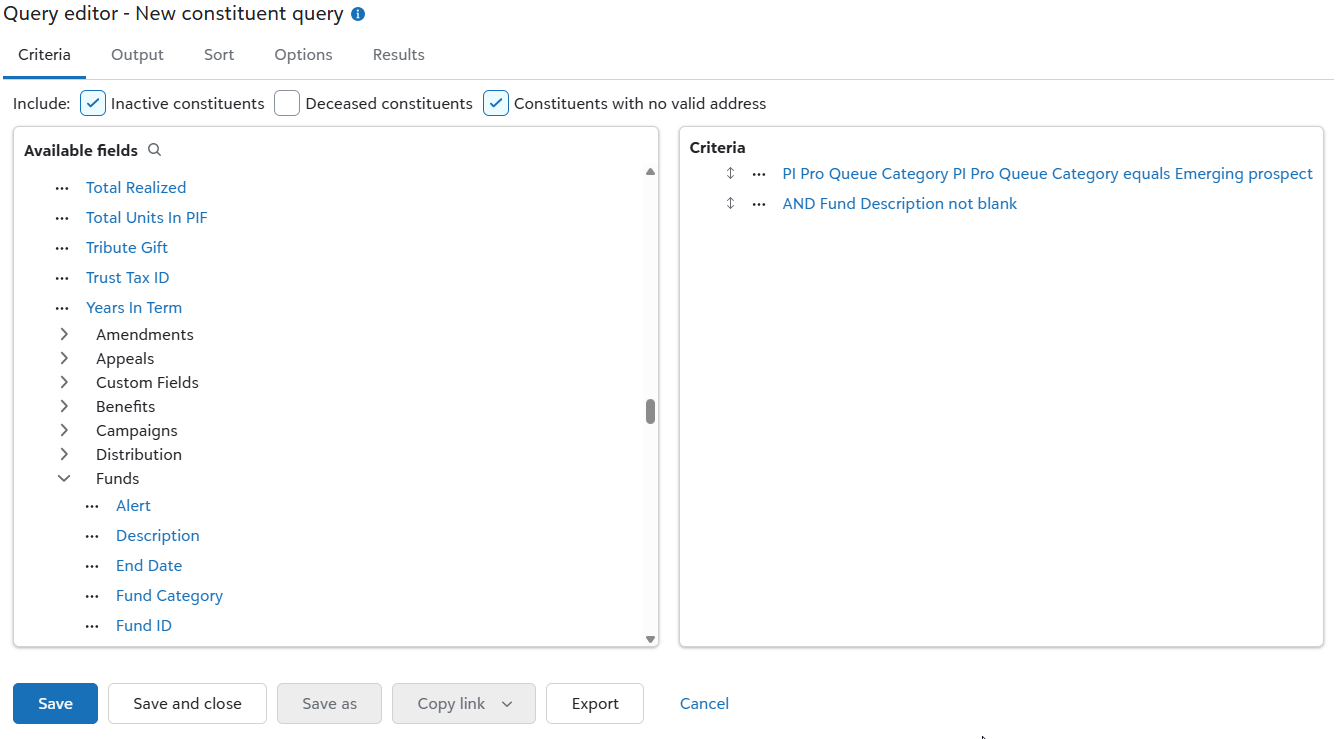
Query criteria Tip: Select the image to view the full field selection path.
-
-
Select the fields to include in the output. From Output, select the following fields:
-
Constituent information, First Name
-
Constituent information, Last Name
-
Query fields, Description
-
Gifts, Funds, Fund Category
-
Query fields, PI Pro Queue Category PI Pro Queue Category
Note: Any field used in the query is available for selection from Query fields.
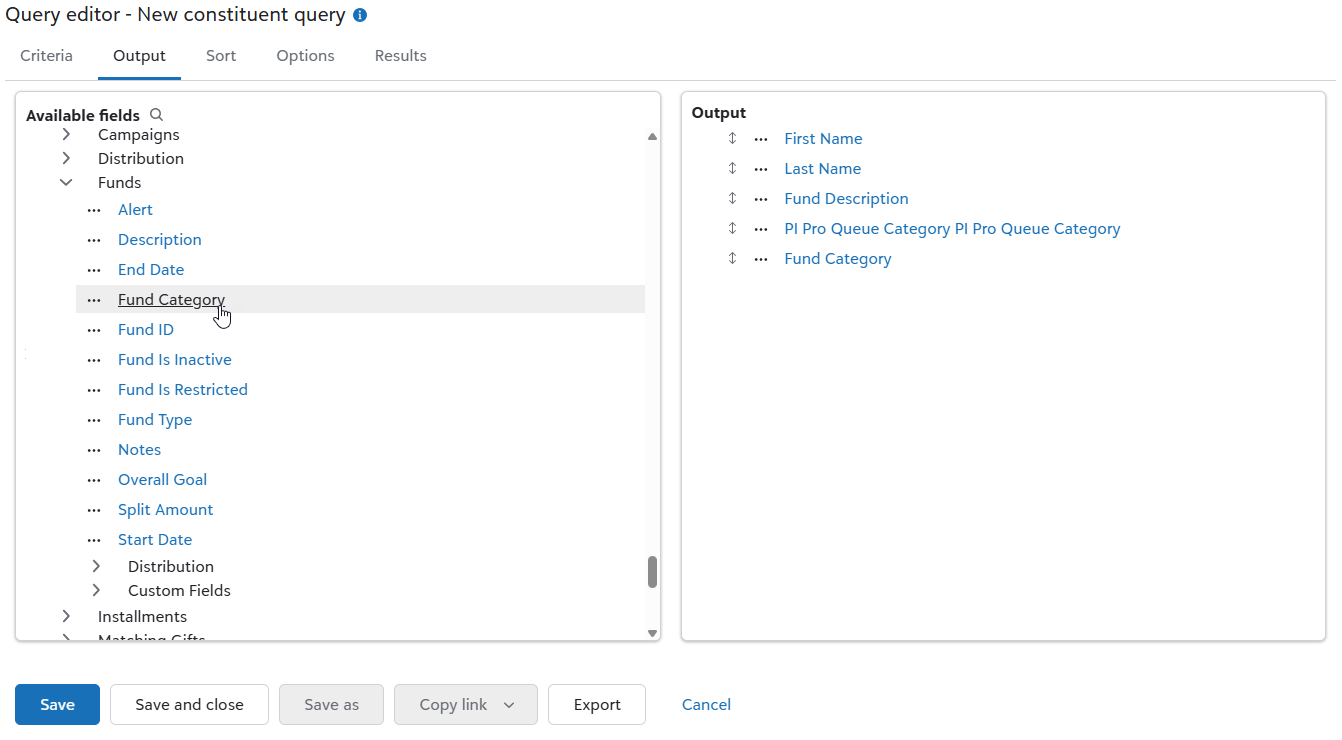
Output selections -
-
From Results, review the query results.
-
Save the query.
-
Select Save.
-
Enter a name for the query that indicates that the query includes emerging prospects. For example: Emerging Prospect Insights Pro prospects
For the description, add more detail, so you can quickly see the query's purpose. For example: Emerging Prospect Insights Pro candidates with fund descriptions and categories
-
Clear Others can modify.
-
Select Save.
-
-
Select Export to export the data to a CSV or Excel file.

Note: There may be duplicate listings for prospects if they've given to more than one fund.
Query 2: Find planned gift prospects that attended a recent event
Use this query to identify candidates that attended a recent event so your planned giving officer can follow up with them. This query example illustrates how to use criteria operators.
Create the query
-
From Analysis, Query, select New query.
-
For query type, select Constituent and for format select Dynamic, so that whenever you run the query, the results include new and updated records. Then, select OK.
-
Set the criteria for inclusion in the results. From Criteria:
-
Clear Deceased constituents to exclude them from the results.
-
From Available fields, select Event Participations, Event, Start Date. To set the Start Date:
-
Select Greater than and then choose Last calendar year to include events that occurred this year.
-
Select OK.
-
Set the PI Pro Planned Giving Likelihood criteria by adding two criteria.
-
From Available fields, select Prospect, Ratings, Specific Sources, PI Pro Planned Giving Likelihood, PI Pro Planned Giving Likelihood PI Pro Planned Giving Likelihood.
-
From Operator, select Equals.
-
From Value, select Excellent. Then, select OK.
-
Again, from Available fields, select Prospect, Ratings, Specific Sources, PI Pro Planned Giving Likelihood, PI Pro Planned Giving Likelihood PI Pro Planned Giving Likelihood.
-
From Operator, select Equals.
-
From Value, select Very good. Then, select OK.
-
To ensure that the query includes candidates who attended the event and have a planned giving likelihood of excellent or very good, edit the criteria.
-
Select Edit for the first PI Pro Planned Giving Likelihood PI Pro Planned Giving Likelihood criteria and select (.
-
Select Edit for the second PI Pro Planned Giving Likelihood PI Pro Planned Giving Likelihood criteria and select ).
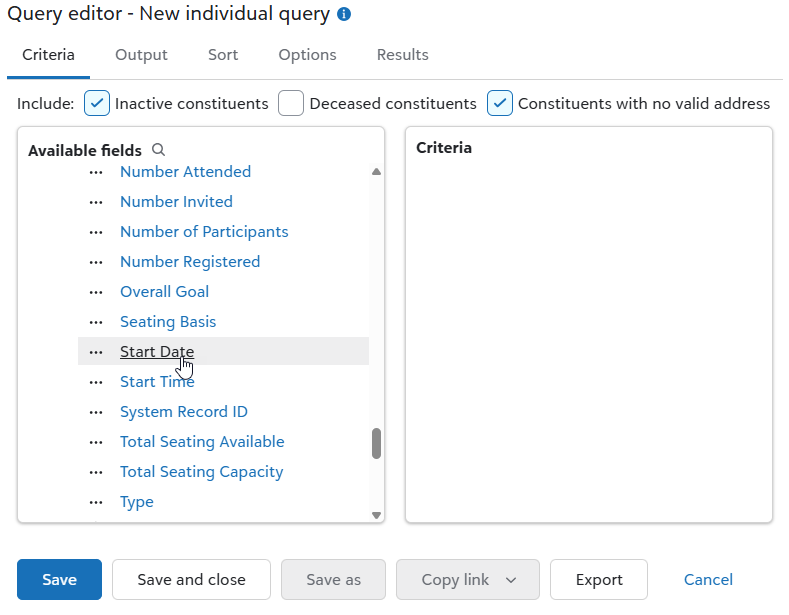
Query criteria: event start date Tip: Select the image to view the full field selection path.
Your criteria should appear similar to the following figure.
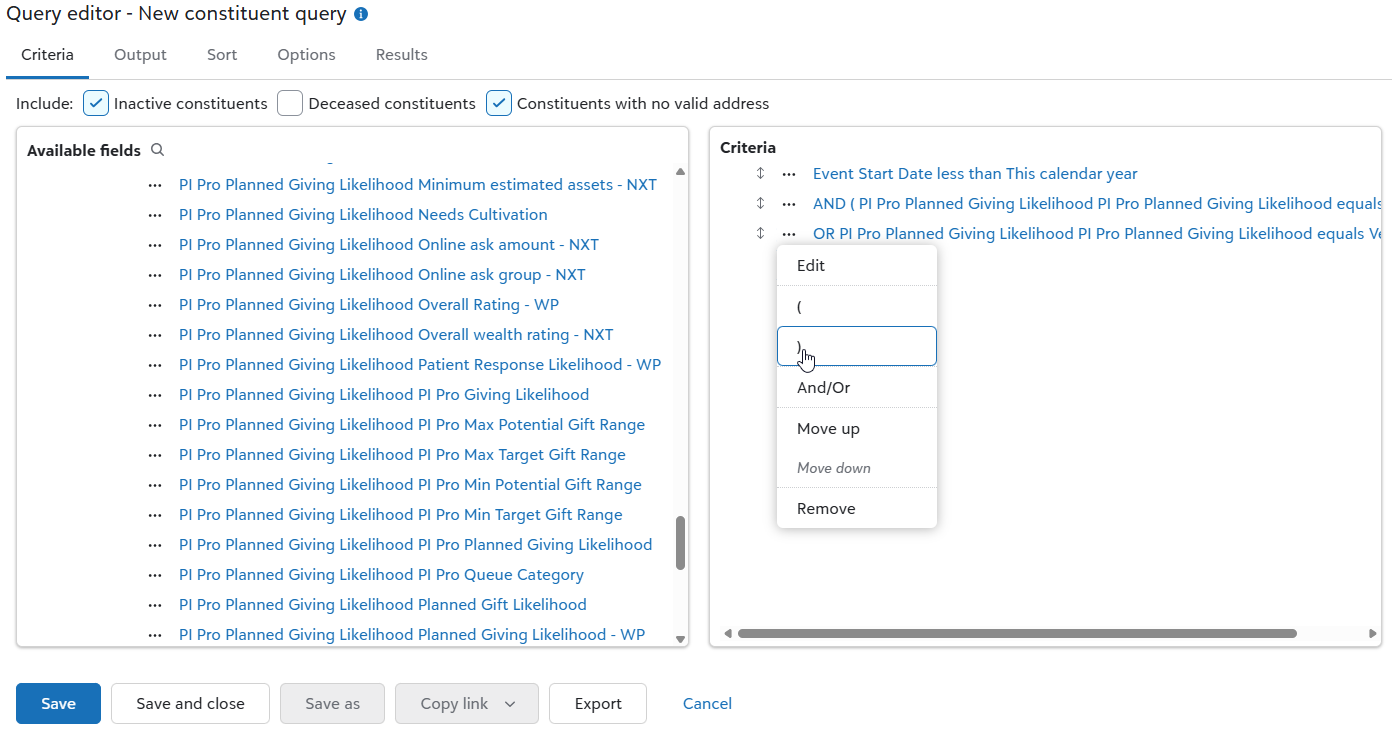
Query criteria Tip: Select the image to view the full field selection path.
-
-
Select the fields to include in the output. From Output, Available fields, select the following fields:
-
Constituent information, First Name
-
Constituent information, Last Name
-
Query fields, Event Start Date
-
Event Participations, Event, Event Name
-
Event Participations, Event, Category
-
Query fields, PI Pro Planned Giving Likelihood PI Pro Planned Giving Likelihood
Note: Any field used in the query is available for selection from Query fields.
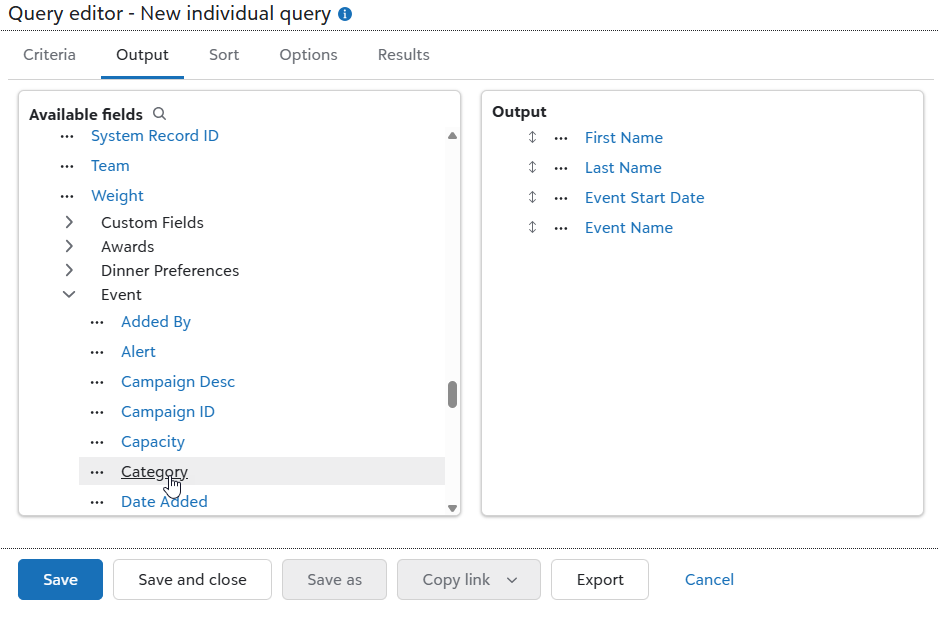
Output selections -
-
From Results, review the query results.
-
Save the query.
-
Select Save.
-
Enter a name for the query that indicates that the query includes planned giving who attended a recent event. For example: Planned giving candidates at recent events
For the description, add more detail, so you can quickly see the query's purpose. For example: Prospects with Prospect Insights Pro Planned Giving rating who attended recent events
-
Clear Others can modify.
-
Select Save.
-
-
Select Export to export the data to a CSV or Excel file.

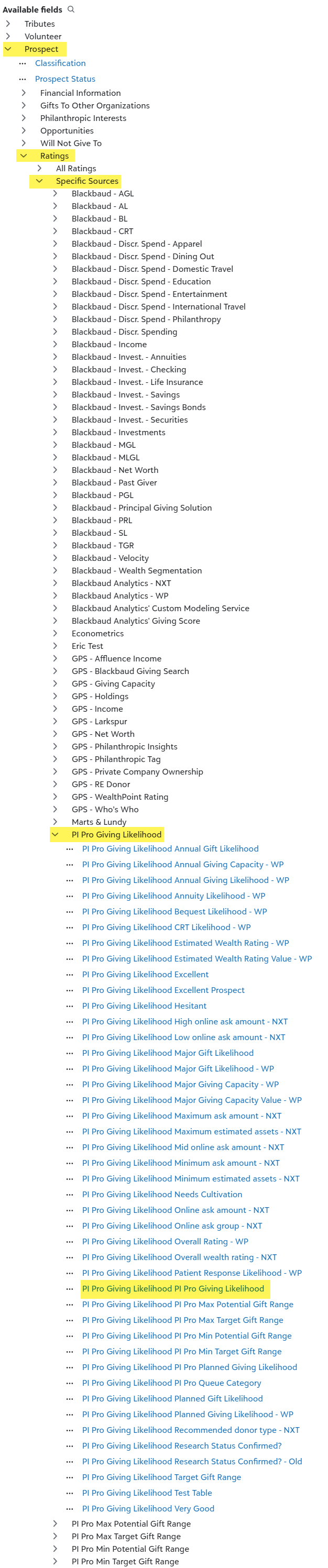
Note: There may be duplicate listings for prospects if they've attended more than one event recently.