|
|
Guides (SDK /API) | Technical Reference | BBDN | How-to Documentation |
Create a Part Based on a Custom Part Type
Note: These steps assume you have supervisor access to a working installation of Blackbaud Internet Solutions. For information about setting up a development environment, see Development Environment. The purpose of this procedure is complete the minimal steps to add a create a part based on a custom part (type). For a more in-depth discussion about designing in BBIS, see Website Design Guide. For instructions about how to add custom parts (types) to a Parts project and to BBIS, see Add a Custom Part to a Parts Project and Add a Custom Part to BBIS.
Tip: Sometimes part types are referred to as parts. But parts are instances of part types. Custom parts are actually custom part types. You can create a part based on a custom part (type).
-
Click Create > New part.
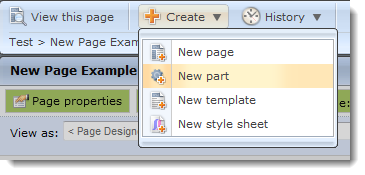
The New Part Webpage Dialog appears.
-
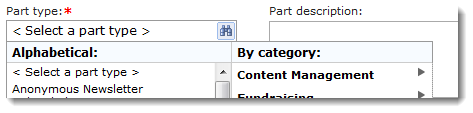
From Part type, click the binoculars. Selections for part (type) appear.
-
Scroll or browse to the custom part (type).
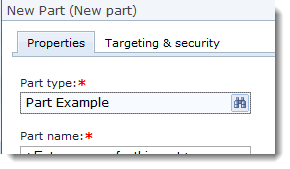
-
Enter a name for the new part. Do not use the same name as the custom part (type). The name must be unique.
-
Click Next. A tabbed set of options appears. You can adjust those as necessary. For more information, see Website Design Guide.
Warning:
If the version of the reference to BBNCExtensions.dll in your parts project does not match the version of the BBNCExtensions.dll used the compiler (BBIS), you may get an error like this:
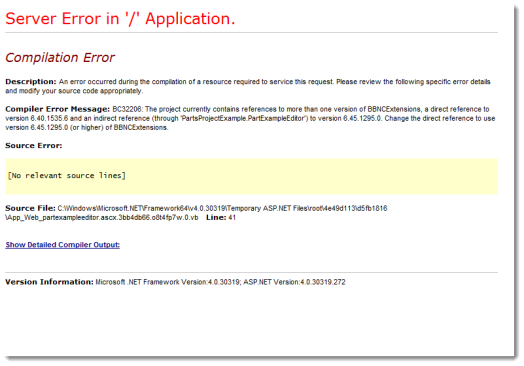
To correct this error, you can change the reference in your parts project to the copy of the DLL used by the compiler (BBIS). For more information, see Change the Reference for BBNCExtensions.dll.
-
Click Save. The new part is created.