Engagement Details
Upcoming communications are available for review for 7 days before they're sent to constituents. Timestamps appear in your local time zone and adjust automatically based on browser settings. Scheduled times indicate when a communication is eligible to send. Delivery may occur shortly after the listed time.
Note: Thank You communications are scheduled to send 48 hours after a donation, leaving 48 hours for review.
Standard Reviews
To access upcoming engagements, select Scheduled communications under Related Links from the main Development Agent page. Use the Context Menu to select from four options:
-
View - Opens up more details on the engagement.
-
Send now - Sends the engagement immediately.
-
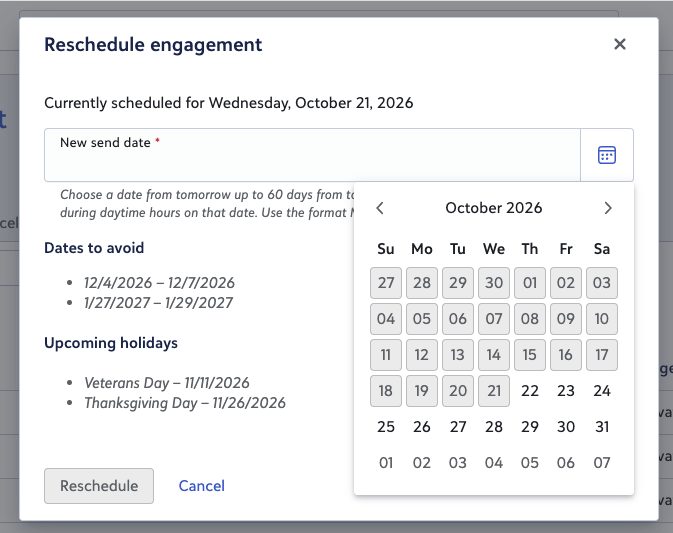
Reschedule - Opens a modal that allows you to select a New send date using a date picker. The first available date will be the following day. Keep in mind that Dates to avoid will still be respected as the Agent will double check against the dates and reschedule to the next best option.
-
Cancel engagement - Removes the engagement.
From the menu to the left of each message, select View. Review content, then scroll to the bottom where you can:
-
Give a thumbs up or thumbs down to indicate if the message is well written.
-
Select Regenerate to draft a new version if the message isn’t effective.
-
Cancel the message and move it to the Complete and cancelled tab.
When you choose to Regenerate content and provide written feedback, you can choose whether feedback applies only to this message or also to future engagements by selecting Apply this feedback to future engagements. Keep in mind that selecting this option will only apply the changes to future email messages not yet generated.
 Where Feedback Can't Be Applied
Some parts of every email are set by the system, so feedback can't change them, even when Apply this feedback to future engagements is selected. However, feedback relating to tone, length, word choice, formatting, subject lines, facts about your organization, or content for a specific email type still applies. If a comment mixes both, the part that can be applied will be adjusted.
-
Greeting - The opening line that greets the recipient by their salutation, such as "Dear (person's name),".
-
Signature and Footer - Everything after the closing line: the AI team member's name, the organization's name, the "Powered by Blackbaud AI" line, the logo, the unsubscribe text and link, and, when SMS is turned on, the invitation to opt in to text messages. You can still choose the brief closing word, such as "Warmly," but nothing can be added after it, such as a P.S.
-
Sender - Emails always come from the organization's email address, with the organization's name as the From name.
-
AI Team Member Name - Its name, and that it introduces itself as an AI team member only in the Introduction email. You can still shape the wording and tone of the Introduction.
-
Links - Which links appear. A donation link is only included in solicitations, introductions have no links or buttons, and feedback can't add links or specific web addresses. You can still choose where a link sits and its text.
-
Email Type - What each type of email is for. For example, an Introduction never asks for a gift, and feedback can't stop a type of email from being sent. You can still shape the content within that purpose.
-
Compliance Checks - Messages can't be mostly capital letters or include a full phone number, and text messages must be 160 characters or fewer and include the STOP keyword.
You can Close the message and select Send now from the menu to send the message immediately.
If needed, feedback can also be applied to past messages the agent sent as well as cancelled messages. However, for past/cancelled messages, you can't cancel or regenerate them.
Note: Some engagements may be escalated to require human review. See Escalated Actions.