Grading Setup for Managers
Throughout this guide, you will explore the steps required to prepare grades for an upcoming school year. The guide will lightly explore each step in preferred order and rely on existing documentation to elaborate upon each step.
Schools may not follow every single step in this guide as stringently as others depending on their grading structures. For example, if a school does not use numeric, percent-based grades, and instead opts for more a skill-focused system, then they will need only part of this guide. It is still suggested you read through each piece in a linear manner to ensure the relationship between each area is understood.
Upon this guide's completion, the user should be equipped to establish grades and confidently make decisions regarding that process going forward.
Note: Always work alongside your Blackbaud Software Consultant before making drastic changes to your school's grading setup if you are unsure of the results.
Establishing a Grading Foundation
Academics > Grades > Grading setup > Grade translations
Grade Translations
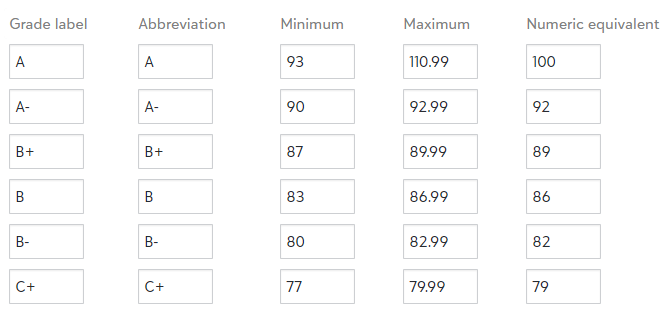
Grade Translations are your grades (A+, B+, C, D, etc) and the criteria associated with each grade for use in GPA calculations.
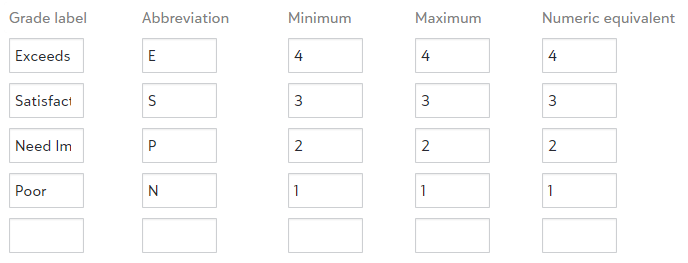
If your school does not use GPA calculations or a numeric grading schema, then Grade Translations can be used to describe skills (Exemplary, Satisfactory, Improving, etc).
Courses rely on Grade Translations to determine what grade options are available and what those grade options equate to.
Grade Translations are tied to Grade Categories and allow grading managers to determine whether a teacher records a raw score or sees a Grade label. They also determine whether the raw score or grade label will appear on the report card or transcripts.
Grade Translations are largely comprised of the following parts:
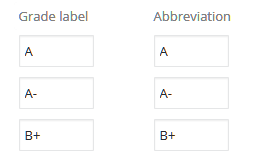
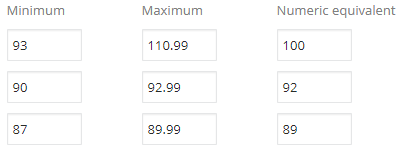
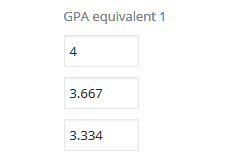
Traditional Translations
Skills-Based Translations
|
|
Grade Translations apply to non-numeric grades and accommodate for skill-focused grading needs typical of Lower or Elementary school levels. Grade Labels, in this instance, are phrases that can be associated with skills to define student performance. Create a Skills-Based Translation table for each unique instance of grading requirements. If different Skills-Based courses require different sets of Grade Labels to describe the grade, then create a Grade Translation table for each instance. |
Alternate Grades
|
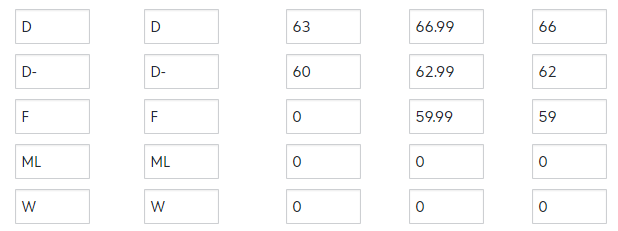
There may be instances where a student withdraws from a course and is unable to complete it. In these instances, your school may deem it inappropriate to assign a grade point calculation value to a grade. Add Alternate Grades to existing Traditional or Skills-Based Grade Translation tables. By doing so, a teacher will be able to easily select W (for Withdraw) or ML (for Medical Leave) when recording grades. Note: Alternate Grades are best used if teachers record letter grades and display letter grades on report cards. |
|
Tip: Read more about Grade Translations
Grade Categories
Academics > Grades > Grading setup > Grade categories
Grade Categories are used to determine how your Grade Translations appear on report cards. In addition, they allow teachers to add comments onto a progress report or report card.
Grade Categories are linked to courses through Marking Periods, and thus the Grade Group containing the Marking Period.
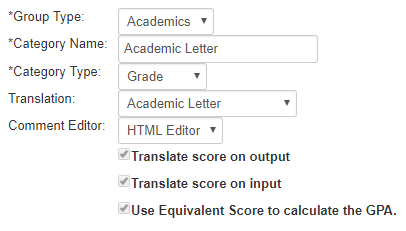
Create a Grade Category for each Grade Translation table. There should be a 1:1 relationship between Grade Translation tables and Grade Categories.
For Grades
|
|
For Comments
|
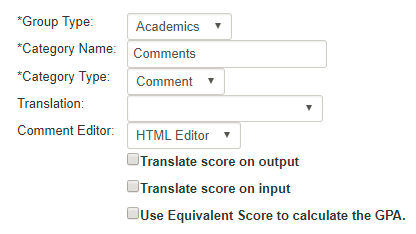
Grade Categories can be used to collect comments from teachers. Comments can appear on report cards. Comment Grade Categories do not need a translation table associated with them. Create one Grade Category called Comments if you record comments; the Comments Grade Category can be used across multiple Marking Periods. Note: If your teachers copy and paste comments, then ensure Plaintext is selected for Comment Editor. Tip: Read more about Grade Categories |
Transcript Categories
Academics > Grades > Transcripts setup > Transcript categories
|
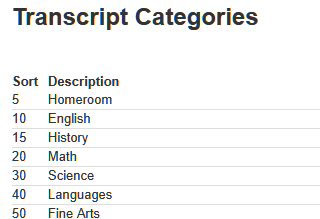
Transcript Categories allow you to take courses grouped by a common factor, and then use those categories to determine how they are arranged on a transcript. Visual Arts, World Languages, English, History, and so forth, are examples of categories you will place courses in. Transcript Categories also allows for credit calculation for a certain subject (ex. how many English credits does a student have?). 9 total categories can fit on a transcript. Create a Transcript Category for each course category. Transcript Categories will also determine the order in which courses appear on transcripts, and on hybrid and standard report cards. Tip: Read more about Transcript Categories |
|
Skills-Based Setup
Skills-Based Grading Periods
Academics > Grades > Grading setup > Skills-Based grading periods
|
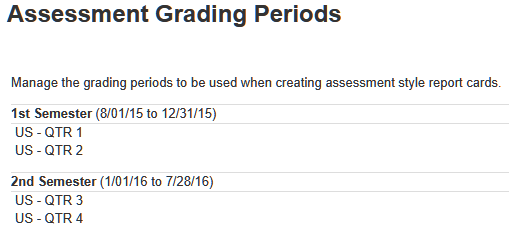
The Skills-Based Grading Period is the link between the grades you record in courses and the report card itself. When creating a Skills-Based Report Card, you will specify a Skills-Based Grading Period to draw data from. Create a Skills-Based Grading Period for each instance during the semester where Skills-Based report cards are issued; if you issue Skills-Based Report Cards once a quarter, and you have four quarters in a school year, then create four Skills-Based Grading Periods. |
|
However, if you have Skills-Based Report Cards with different header and footer text (for example, if Grade 1 and Grade 2 use different Grade Translations, resulting in different headers), then you will need a Skills-Based Grading Period for each instance.
Additionally, if your school wants to include Q1 grades, but not Q1 comments on their Q2 report cards, then they would need to create both a Q1 and Q1 comment Skills-Based Grading Period.
Skills-Based Report Cards contrast with Traditional Report Cards in that they are used to display skill-focused grades, and not numeric-focused grades.
Skills-Based Grading Periods are tied to Marking Periods, which are explored in a later step. Marking Periods allow you to determine the periods when grades are recorded and the specific grades you are capturing.
Tip: Read more about Skills-Based Grading Periods.
Skills
Academics > Grades > Grading setup > Skills
Skills are qualitative methods of assessing a student. Each Skill is a phrase to describe an area of potential growth.
Consider the following examples of Skills:
Social Skills
|
Literature Skills
|
Fitness Skills
|
Skills can be used on multiple Marking Periods; Settings > Skills is a master list of all of the skills for all marking periods at the school (regardless of school level/grade).
Create Skills to describe every skill-based metric required from your courses.
Tip: Read more about Skills and linking them to mastery skill equivalents.
Setting up Your School Year
Now we need to set up the periods throughout your school year where grading takes place. By this point you must consider the following organizational questions:
-
How many times per year do teachers grade?
-
During each grading period, will I need progress reports? A report card?
-
At what point in the semester will grades be used to award credit?
-
What types of information should I be collecting for each grading period? Do I collect only grades, or do I want teacher comments, too?
These questions are explored across the following areas:
Grade Groups
Grade Groups are used to link courses with marking periods. A Grade Group can contain several marking periods. Grade Groups must either be defined as standard (typically used for letter/effort grades and comments) or skills-based (typically used for skill-based grading and comments). Each class can be attached to one standard marking period and one skills-based marking period if your school uses a hybrid report card. Create Grade Groups based on the needs of courses. For example, if a set of courses require a different grading scale than a standard set (ex. AP/Honors), you would need to create Grade Groups to accommodate for each course type. |
Marking Periods
Marking Periods are the periods during a school year where grading takes place. They are effectively time-sensitive buckets that teachers drop grades into. Create a Marking Period for each period when you want teachers to record grades specific to a term. Examples of grading periods could be Q1 Report Card, Q1 Progress Report, Tri 2 Report Card, and so forth. |
Grade Columns
Grade Columns are what you allow teachers to record for that period, whether that be a comment or a traditional grade. If Marking Periods are akin to buckets, then Grade Columns are the contents of those buckets. Grade Columns are linked to your Grade Categories and, therefore, your Grade Translations, are added to report cards and transcripts. |
Grade Groups: Skills-Based vs Traditional
Academics > Grades > Grading setup > Grade groups
There are two categories of Grade Groups: Skills-Based and Traditional. Each type has a different purpose for associating a different set of information with a course. Grade Groups are unique to School Level; you cannot associate a Middle School Grade Group with Upper School courses.
TraditionalUsed to associate letter, numeric-based grades with a course. Only Traditional Grade Groups will contribute to GPA calculation. Linked with standard, AP, and honors courses. |
Skills-BasedUsed to associate Skills (i.e. Working with others) with Grade Translations. Does not contribute to GPA calculation. Linked, often, with Lower School courses. |
Creating Grade Groups (traditional)
|
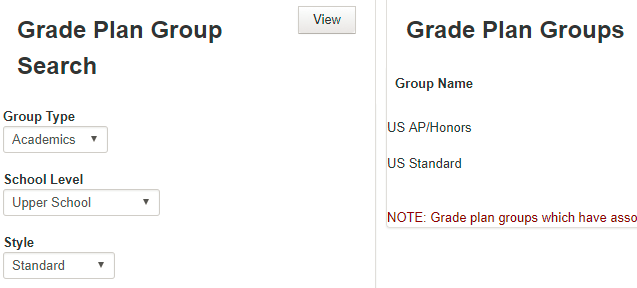
Create a Grade Group for each instance where a course requires unique grading parameters. For example, if all your Upper School courses use the same Grade Translation table for determining letter grades, then create one Grade Group.
|
|
For example, if you offered Honors and Traditional courses, and each of those course types use a different Grade Translation table, and are segmented into Multi-term and Single-term courses, then you would need 4 traditional grade Groups: Single-term Honors, Single-Term Standard, Multi-term Honors, Multi-term Standard.
Tip: Read More about Grade Groups
Creating Grade Groups (skills-Based)
|
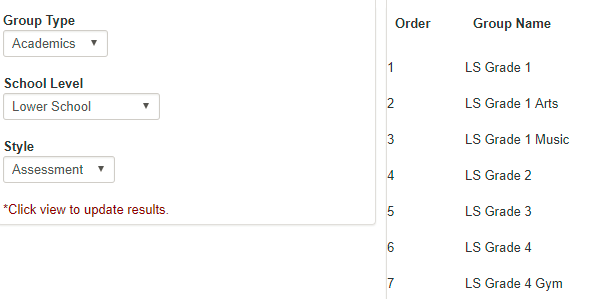
Create a Grade Group for each instance where a course requires unique grading parameters.
Tip: Read More about Grade Groups |
Marking Periods: your Grading Periods
Academics > Grades > Grading setup > School year setup
|
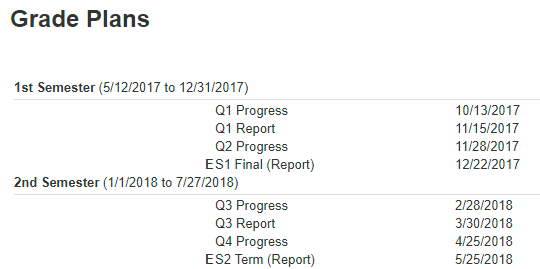
Create a Marking Period for each period when grading occurs. For example, assume you have two semesters throughout your school year. During those two semesters, you may have four quarters. Within those four quarters, you may record grades for a progress report and then a report card. To follow the above example, we would need 8 Marking Periods added to the Grade Group where grades are collected. The Marking Periods for Semester Term 1 and 2 can be created to calculate the End of Term grade, which is the appropriation of credits and the calculation of GPAs based on grades within that term. Tip: Read More about Marking Periods |
|
Grade Columns: The Information You Collect
Academics > Grades > Grading setup > Grade columns
|
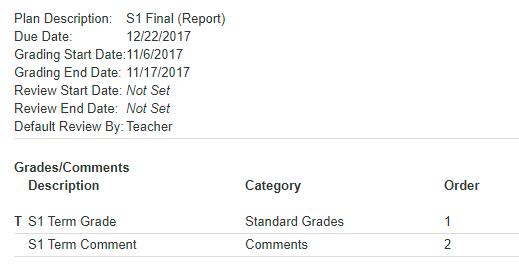
Grade Columns are the links to the Grade Categories/Translation you created. Grade Columns are what teachers record – both grades and comments. Grade Columns are tied back to the Grade Categories created earlier in the setup. Grade Columns are added directly into Marking Periods; The Marking Period determines when a teacher has access to recording grades, and the Grade Column determines what exactly is being recorded. Tip: Read More about Grade Columns |
Grade Column Formulas
|
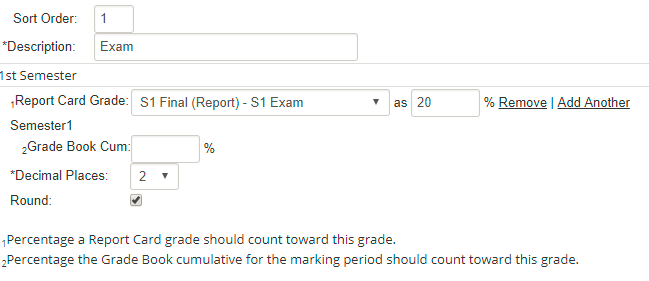
Grade Columns can pull from other Grade Columns when calculating a grade. For example, if a teacher records a numeric final exam grade in the Marking Period, that grade can be factored into the final grade calculation. Additionally, Grade Columns can draw from the Grade Book Cumulative of each course. This allows teachers to neatly and uniformly apply grades based on a formula determined by the Grading Manager. Tip: Read More about Marking Period Formulas |
|
For example, if final exams count as 20% of the semester grade, you can add the final exam as a numeric Grade Column and create a formula which pulls 80% from the gradebook cumulative and 20% from the exam grade. If some teachers do not give a final exam, you can make the exam grade optional in the Marking Period and the formula will ignore the grade if it is blank – leaving 100% of the semester grade pulling from the gradebook. If some departments or teachers use different formulas when calculating the semester exam you can add multiple formulas to account for those differences. You might end up with a formula that factors in the exam grade as 15% or 25%. If you do not enter a formula teachers will be able to create their own formulas; they cannot do this if a formula has been created by the Grading Manager.
End of Term and Final Grades
Grade Columns can either be marked as End of Term or Final in Marking Periods that have End of Term enabled. All schools will use Term Grades if credit is awarded.
For schools that record Final Grades:
-
Single term courses credits are calculated using term grades.
-
Multi-term courses credits are calculated using term grades.
-
The credit for term grades can be used to calculate a GPA using the final grade instead of term grades.
-
Credits will not display on a transcript until the Final grade is recorded
For schools that do not record Final Grades, the End of Term grade is still when both single and multi-term courses calculate and award credits.
Skills
|
Skills are what Skills-Based Marking Periods rely on to determine what skills are associated with courses. They are structured in the same manner as Grade Columns in that they rely on Grade Categories to determine what grading scale is associated with each skill, and that Comment Grade Categories are also required to add comments. |
|
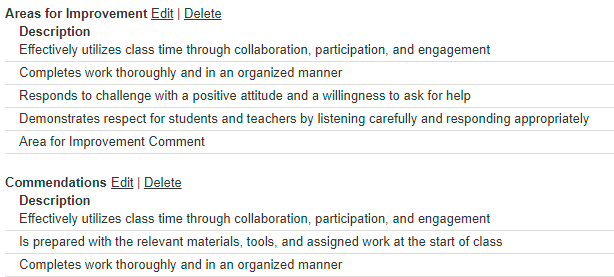
However, when you add a Skill to a Marking Period, you assign it to a category; a skills-based category contains a similar set of skills for organization purposes when recording grades and when added to report cards. If you create report cards that draw from two marking periods - effectively two grading periods - then the Sort Order of each skill determines how they will appear on the report card.
You can add a Skills-Based Category for comments and allow teachers to record comments for the marking period. Add a Comment Grade Category to each Skill group as needed.
Tip: Learn More about Skills
Gpa, Ranks, and Academic Performance
Creating Grade Averages
Academics > Grades > Grading setup > Calculations > Grade averages
Creating GPAs is a multistep process.
Think of the process as revolving around these three components:
|
Create Your GPA Formulas
A formula is an equation used to calculate grade point averages. The formula draws data from several different areas to perform this calculation. |
Pull From Marking Periods
Courses that are placed within the Marking Periods that you associate your GPA calculation with will follow that formula. |
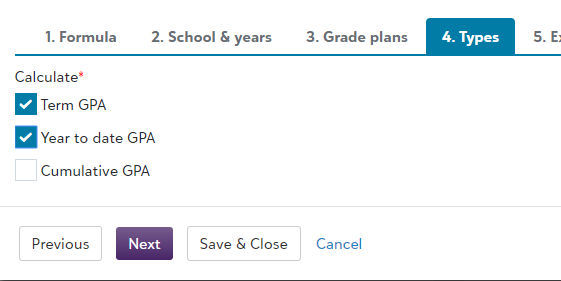
Determine GPA Types
Select which GPAs you wish to calculate for. These options can appear on report cards and transcripts. |
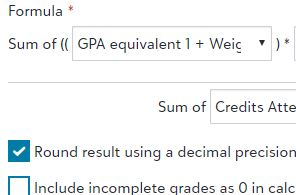
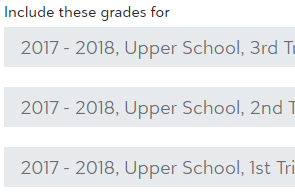
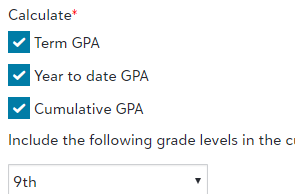
Note: A formula can be reused each academic year; this is accomplished by associating the new school year's Marking Periods in the formula.
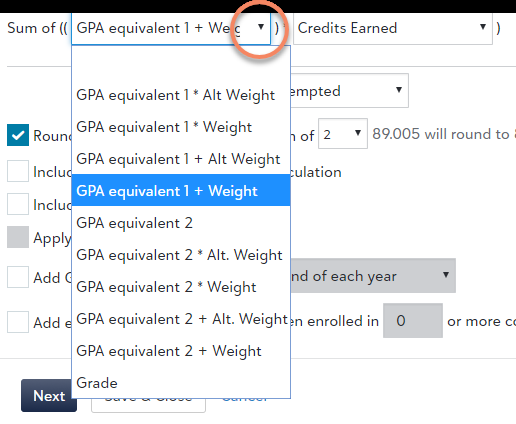
Step #1: FormulaThe Formula is the equation used to calculate students' grade point averages. Create a formula that follows your criteria for calculating grade averages, noting the following:
Create as many formulas match your school's precise needs, such as having them for Quarters, Mid-Year Cumulative, Final GPAs, and so forth. You may also need separate formulas for weighted and unweighted calculations, and term and final. Additional formulas might be needed for academic performance and honor rolls. |
|
Step #2: school YearsSelect the School Years you want to include in the GPA calculation. If you want final transfer grades to be included, check the include transfer grades checkbox. |

|
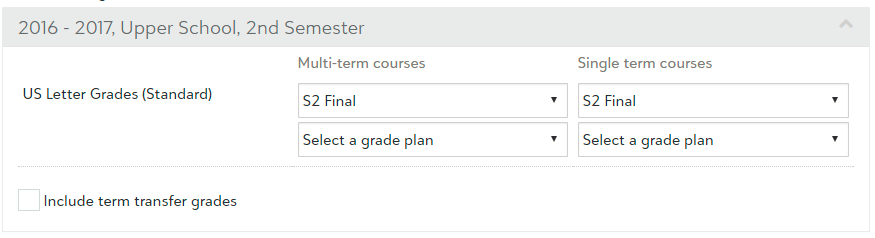
Step 3#: marking PeriodsIf your Grade Groups are not differentiated by term (for example, multi-term and single-term Grade Groups), then simply select the Marking Period to be used in determining the GPA for both the Multi-term courses and single-term courses columns. If you'd like to include term transfer grades check the box for Include term transfer grades. |
|
|
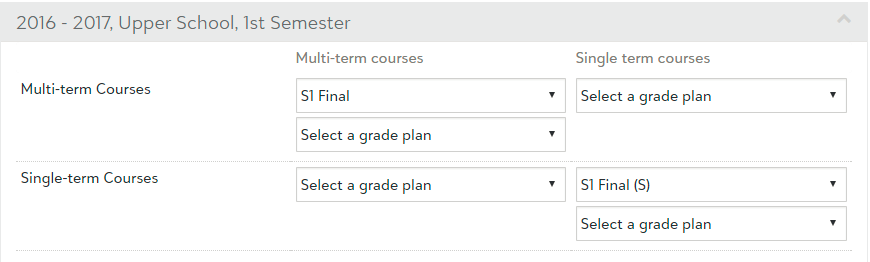
If you follow a Final Grade setup and have courses that are segmented into Multi-term and Single-term Grade Groups, then you must ensure that you only select a Marking Period within the corresponding column. For example, in the row containing your Multi-term Grade Group, under the Multi-term courses column, select the Marking Period that contains your Final Grades. Repeat the same steps, but for your Single-term Grade Group next. Tip: Read More about GPA Calculation Formulas |
|
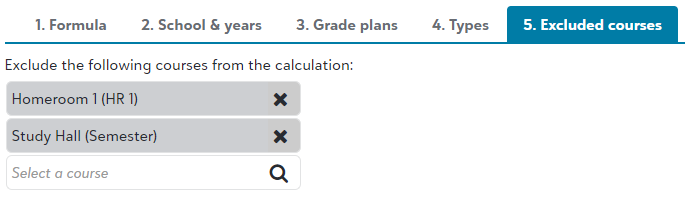
Step #5: Excluded CoursesExcluded Courses are courses that are not included in GPA calculations. Study halls and Homerooms, for example, may fit into this category. Courses do not need to be excluded if they are not in a Marking Period selected in the previous step. |
|
Ranks & Academic Performance
Ranks
Academics > Grades > Grading setup > Calculations > Rank
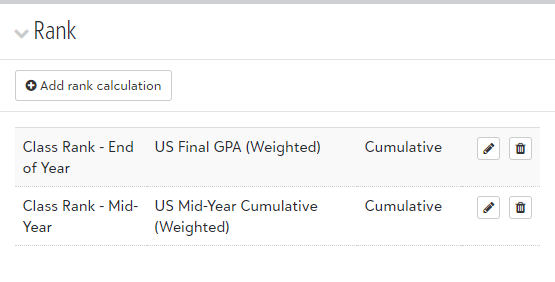
Ranks & Academic Performance rely on the formulas that you have established to determine how students rank against one another and if a student is deserving of additional accolades due to excellent performance.
Note: Ranks can appear on transcripts, and Academic Performance (ex. Honor Roll) can appear on report cards and transcripts.
|
Ranks use either the Cumulative, Term, or the Year to Date value calculated using a specified GPA calculation formula to display information on a transcript. Final grade schools need different grade average formulas for mid-year vs end-of-year, often because the Semester 1 grade for year-long courses should be counted in the cumulative grade at the mid-year, but only the final at the end-of-the-year.
|
Academic Performance
Academics > Grades > Grading setup > Calculations > Academic performance
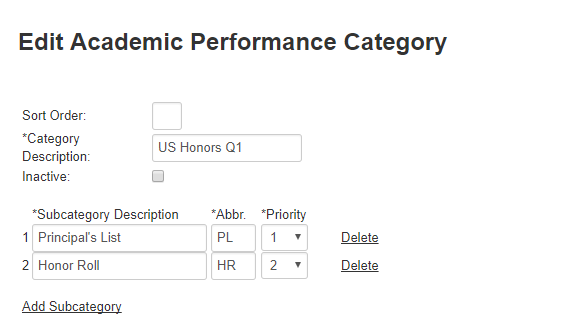
Step #1:Academic Performance can be used to compare students' grade averages against a metric you define. The outcome can range anywhere from a list of Probation-ranked students to assessing Honor Roll worthiness. You can associate similar Academic Performance measurements with one another. For example, President's List and Honor Roll can be subcategories within the same category, because they similarly reward success. The priority will determine which Academic Performance measurement is used if a student meets more than one requirement. In this example, a student would receive the Principal’s List designation if they met that requirement because of its higher priority. |
|
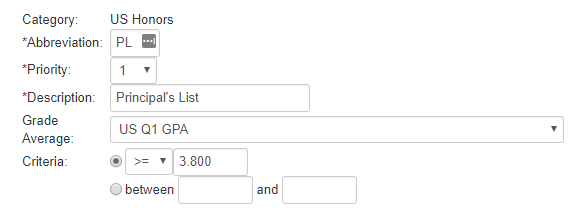
Step #2:Each subcategory must be assigned a means for comparing the GPA with a standard. Select the threshold that should be reached by the student to achieve the academic performance designation. In this example, Principal's List is set to a higher threshold requirement. If a student meets that threshold, and because Principal's list has the higher priority, the student will appear on the Principal's List and not the Honor Roll. |
|
Tip: Read More about Academic Performance
Linking Courses to Grades
Academics > Scheduling >
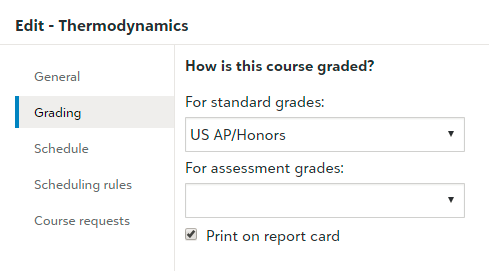
Linking courses involves associating the Grade Group containing your School Year Setup with a course. Once a course is linked to a Grade Group, teachers will be able to record what has been specified in the Marking Period that is currently active.
Step 1: Link Grade GroupBegin by selecting the Grade Group that contains the Marking Periods, and therefore Grade Columns, that are specific to this course. You can associate a course with one Traditional and one Skills-Based Grade Group, allowing for two unique report card representations of performance. |
|
Step 2: Credit WorthDetermine how many credits should be awarded for completion of a course. If a course is year-long, and therefore spans more than one term, toggle Specify Credit Awarded per Term to award partial credit only if a different credit amount should be awarded each term. Credits must be specified every year in the Offer Courses task. |

|
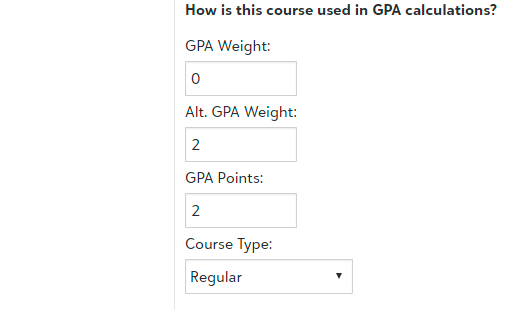
Step 3: GPA Weight DeterminationWeight influences GPA calculation. If you offer AP/Honors courses that are graded on the same scale as standard courses (4.0, for example), then give standard courses a weight of 1 and AP/Honors an appropriate bump. For example, students might get a .5 bump for AP courses, and a .3 for honors; this can be stored in the GPA Weight/Alt Weight fields in the Course. |
|
Step 4: Transcript OrganizationEnter an Abbreviation if the Abbreviation of the course should take place of the course name on the transcript. Enter the Transcript Category to determine how the course is organized on the transcript. Note: An Abbreviation is best used if the course title is too long and does not appear on transcripts fully. |

|
Tip: Read More about Course Grade Settings
Report Cards
Academics > Grades >
The process for working with report cards and transcripts is represented across two steps:
Build the report card template
Report Card Builder allows you to put grade, attendance, GPA information, and more on a report card that can be communicated to students, parents, and faculty. |
Generate report cards
Once you have created a report card template, you can either generate a report card from a student's profile in Academics or generate them in bulk from Report card setup. Report cards and transcripts are viewable online by parents, teachers, students, and administrators. |
Tip: Read more about Report Cards