Back to School - Teacher Navigation
Whether you're brand new to Blackbaud's Education Management or simply need a quick reminder of where to find something, this guide highlights the menus and tasks available under the Faculty persona.
Note: Keep in mind, your school may not have all the features mentioned here turned on.
Tip: For an interactive tour of the Faculty persona, select your name in the upper right, then Getting Started. Then select As a Faculty.
Global navigation
Across the top of all pages, you'll find the global navigation bar in one of your school colors. It includes the persona menu, Messages (if your school has in-system messaging enabled), and the name menu.

 More details
Persona menu
The persona menu in the top left, sometimes referred to as the "hamburger menu" because of the  icon, is where you can switch between your different personas, such as Faculty, Parent, and Alum, and different areas in the system, like Academics, Enrollment management, and Extracurricular. The personas and areas available for you to select are based on the user roles assigned to you by your administrator and your relationships in the system. For example, you must be the parent of a student, candidate, or alum to have access to the Parent persona.
Tip: For more information on selecting the persona or area you land on when signing in, see Back to School - Getting Started for .
Messages
Communicate with other faculty
Note: Depending on your school's settings, you may be able to send messages to groups or only individual constituents.
Name menu
Access your Profile, Files & Forms, Settings, Getting Started tours, and Sign Out.
Faculty top level menu
The top level menu in the Faculty persona includes My Day, Classes, Groups, Resources, News, Calendar, and Directories.

More details
My Day: Schedule & Performance
View your daily obligations, including classes, activities, advisories, athletics.
If applicable, you can take attendance from the daily schedule by selecting Take attendance.
On the right side of the page, access your Gradebooks, Grading, Conduct, and Reports.
My Day: Assignment Center
Keep track of your assignments for all the classes you teach. For more information, see Assignment Center.
Classes
Note: You can only view Classes after access is granted by your administrator.
Quickly access class pages for your current classes. To access classes from previous terms, select View Other Classes.
Groups
Access your current non-academic groups, such as Activities, Advisories, Athletics, and Dorms. Select Find more to browser other groups or access groups from other terms.
Resources
Includes general school information and resources your school has published for Faculty.
News
View recent news and announcements.
Calendar
Includes all your classes, groups, and school calendars. If your child is a student, you can also view their calendars.
Directories
Find information for other members of your school community.
Faculty Classes menu
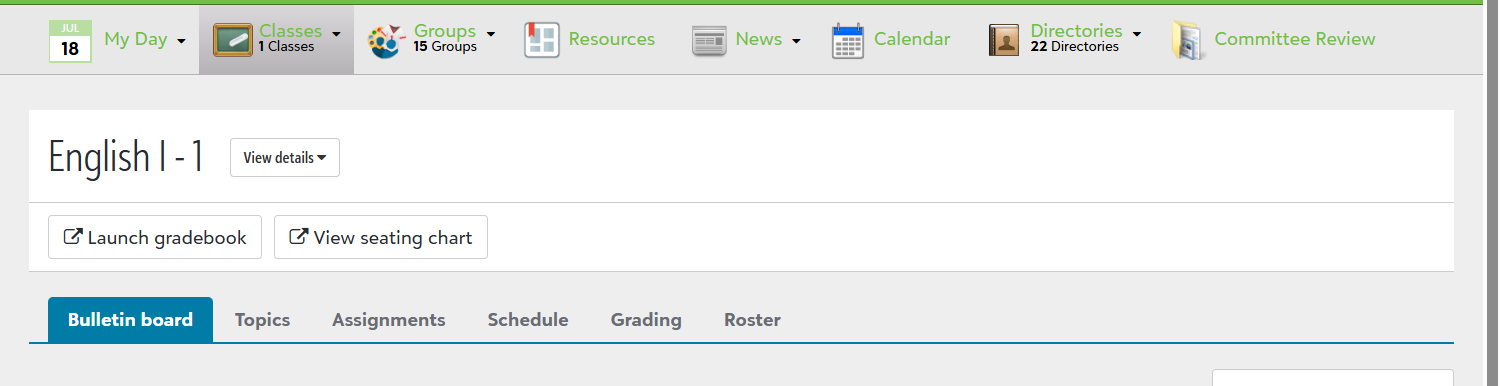
Select a class under the Classes menu to view the class page. Class pages include the Bulletin Board, Topics, Assignments, the class Schedule, Grading, and Roster. You can also launch your class Gradebook and access your class Seating Chart.
Note: You can only view Classes after access is granted by your administrator.
More details
Bulletin board
Share general information with your students, such as announcements, class downloads and links, photos, and a class syllabus. See Back to School - Bulletin Boards and Topics and Bulletin Boards for more details.
Topics
Organize learning materials for learning units or areas of focus. For example, a Literature class may include Topics for different books or Topics for different literary themes. See Back to School - Bulletin Boards and Topics and Topics and Topic Sharing for more information.
Assignments
Manage assignments for this class section. Assignments added here also display in the Assignment Center.
Launch gradebook
Record assignment grades. Assignments are integrated with the Gradebook - if you mark Add to gradebook for an assignment, it is included in the gradebook.
View seating chart
If your school uses Attendance, you can access your seating chart to edit or print it from the class page. You can take attendance via your seating chart from My Day, Schedule & Performance.
Schedule
View the schedule for this specific class section. You can view your schedule for all your classes from Calendar in the top level menu or from My Day, Schedule & Performance.
Grading
Enter or calculate
Roster
Access student profiles, view student