Working with Gradebook
In Faculty:
select Classes, choose a class section, then select Launch gradebook.
OR
select My Day, then Schedule & Performance, and then Gradebooks. All available gradebooks are listed along with the current grade average.
Tip: Once you've opened your gradebook, you can switch between classes and gradebook marking periods using the dropdowns at the top of the page.
Tip: If you are a Gradebook Manager looking for instructions on how to manage gradebooks for teachers, see Manage Gradebooks.
Warning: Before you start entering grades, go through your gradebook settings to ensure your setup is complete and correct.
 Navigate gradebook
Filter
When you access your gradebook, use Filter to limit the displayed assignments by Assigned date and/or Assignment type.
The following information is displayed above the list of students:
-
Total number of students in the class
-
Total number of assignments that have been added to the gradebook
-
Class Average
-
Number of grades that are Ready to commit
Grade columns
Select Grade columns to choose which summary grades you want to display, Current marking period, Last marking period, or Year cumulative (if applicable).
To highlight lower grades in your gradebook, specify a grade in the space provided under Highlight grades less than.
Gradebook Indicators
Gradebook indicators provide quick visual cues about students and assignments, such as if a student’s work is incomplete or missing, or if an assignment is associated with a rubric. For an explanation of what each icon means, select More, then See key. The key also includes available keyboard shortcuts used to quickly add status indicators for students or access gradebook details.
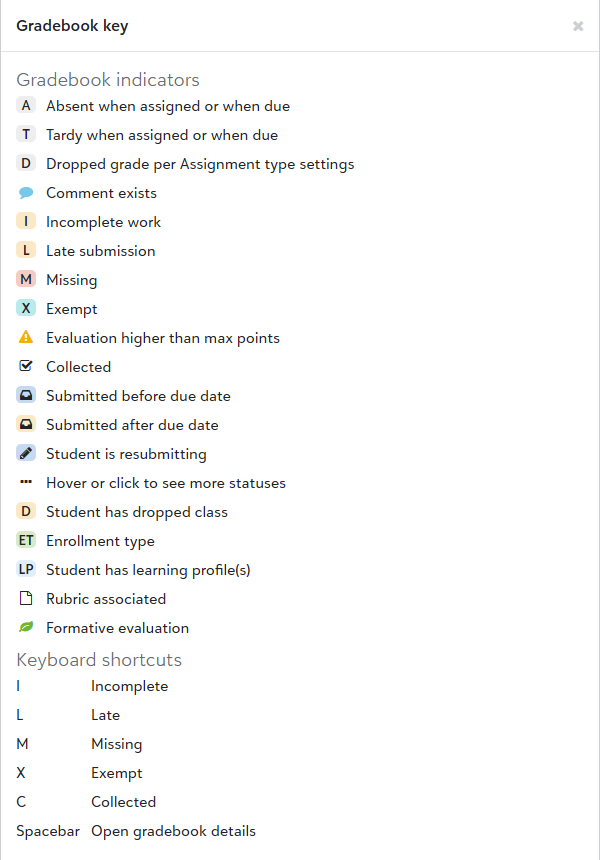
Note:
Show dropped students
To display students who have dropped the class in the gradebook, select More, Show dropped students. A count of dropped students appears above the roster and dropped students display in red with a Dropped indicator. Enter and commit grades for dropped students as you would for students currently enrolled in a class.
Preferences
In the gradebook, select Preferences to review your default settings for creating assignments, assignment list views, assignment imports, Google Drive (if applicable), and assignment evaluations. For additional details, see Preferences.
Skills
On the right side of the gradebook, you can select:
-
Show skills: All skill columns will appear in your gradebook.
-
Hide skills: This will hide all skills columns in your gradebook.
Assignments
The header for an assignment displays the max points, factor, and how many skills are attached to the assignment. You can also select the down arrow at the top of each assignment column to view additional options, including:
-
Sort by high to low, low to high, or default order
-
Bulk actions for adding grades, comments, and gradebook indicators to multiple students at once
-
See performance summary: View statistics for the assignment, such as Mean, Median, High Grade, Low Grade, and the number of Missing, Incomplete, or Late submissions.
Enter Grades and Comments
You can select the left side of a grade field to enter a grade for a student. You can also select right side of the grade field to open the Evaluate assignment screen. From here, you can add a grade, select any applicable indicators, and add a comment for the student. You can also view the Change history for the student's assignment grade from here. Select Save or Save and next student to continue grading.
Review your Gradebook settings to see who can view assignment grades and assignment comments.
Tip: For assignments that use letter grades or skill ratings, you can select a cell, then select it again to display a dropdown listing the grade or skill rating choices.
For more information on grading different types of assignments, see Grade Assignments.
Enter letter grades and skills ratings with keyboard
In the gradebook, you can use your keyboard to enter letter grades and skills.
-
Select a grade field to activate editing mode for that grade field. If using your keyboard, navigate to the grade field and press Enter on your keyboard to activate editing mode.
-
Use the up and down arrows, letter, or number keys on your keyboard to choose a letter grade or skill rating.
Tip: To display the dropdown with letter grade and skill rating choices, press Enter again.
-
Once the desired letter grade or skill rating is selected, press Tab on your keyboard to move down to the next student row. If you’re editing the bottom row, press esc to exit editing mode.
Tip: If the letter grade or skill dropdown is displayed, press Tab twice to exit editing mode and move down to the next student row.
Additional keyboard details:
-
Editing mode is indicated by a blue outline around the grade field.
-
You can exit editing mode by pressing esc on your keyboard. Press esc twice to exit editing mode if the grade or skill dropdown is visible.
-
When the grade/skill dropdown is visible, you can select the desired grade or skill rating, then press Enter to exit editing mode.
-
When you’re not in editing mode, use the arrow keys to navigate between grade fields.
-
Letters I (Incomplete), L (Late), M (Missing), X (Exempt), and C (Collected) are keyboard shortcuts for gradebook indicators. If you type these letters without pressing Enter to activate editing mode, you’ll update the gradebook indicators. To enter a letter grade using these letters, activate editing mode first by pressing Enter on your keyboard, then type the letter grade.
-
To open the full Evaluate assignment screen, press the spacebar on your keyboard.
Assignments with Rubrics
Select the cell next to the grade cell for the student to see the Rubric for the assignment. This will appear as a pop up in your gradebook. You can move through and select the appropriate proficiency level for each skill. You can provide a comment for each skill or an overall assignment comment if needed. In addition, if you need to edit the Points total after you have selected each proficiency level, you can edit the total points if you need to make any adjustments to the overall grade.
Note: You can bulk add in status indicators for students if needed for assignments with rubrics.
Mastery only and Hybrid assignments
If your skills for these assignments are hidden, you can select the down arrow at the top of the assignment column and select Show skills. The skills will appear to the right of the assignment column in your gradebook. You can use the available dropdown in the Grade cell for a student to add a skill rating. In addition, you can also select the cell to provide a Rating and comment.
Commit grades
Once you have finished adding grades and comments for students, you can commit your changes. Uncommitted grades will be highlighted in blue in your gradebook. In addition, you will see a Ready to commit notification at the top of your gradebook along with a Commit button at the top of the assignment column with the number of commits available. When you are ready, select Commit at the top of an assignment column and the evaluations will be committed to your gradebook. If you need to commit evaluations for multiple assignments, select Commit All to commit evaluations for all the assignments in the class and gradebook marking period currently selected in the gradebook.
Bulk actions
For each assignment, you can bulk add grades and comments when you select Bulk actions from the assignment column header. From here, you can:
-
Select Add bulk evaluation to set a grade for students. In addition, you can select if any of the available indicators should be applied for these students.
Tip: If you are using a letter grade scale for the selected assignment, the grade text field will instead be a drop down menu you can use the select the applicable letter grade.
-
Select Add bulk comment to add a comment for students.
-
You can also use the available list of students to select which students the bulk actions should apply to.
Tip: You will see both committed and uncommitted changes for students in the Apply to list if grades or comments have previously been entered for students.
In addition, you can use Bulk actions on a Skill column for Mastery only and Hybrid assignments to add a bulk evaluation or comment for the skill for specific students.
View Student Details
When you select a student from the list, you can:
-
See learning profiles: Select See < learning profile name> to generate the learning profile as a PDF.
-
Compose official note: you can compose an official note for the student.
-
Access the Student Gradebook: Select See student's gradebook to view a breakdown of the individual student's grades by Assignment type, their Status counts, Marking period grade, and more. See Student Gradebook for more information.
See change history
You can view the grade change history for a student for a specific assignment when you are in the Evaluate assignment screen. Changes will be listed with the most recent changes first. Columns include:
-
Changed item: the category of the item being changed.
-
Changed from: the original grading designation.
-
Changed to: the new grading designation.
-
Changed time: when the change was made.
Note: The format for Changed time is DD/MM/YYYY HH:MM AM/PM
The following are changes that would be included in the change history along with their category. The category will appear under Changed item in the Change history. If multiple changes are made at once, each change will have their own row in the change history:
| Change | Category |
| Total points | Score |
| Skills rating | Name of skill |
| Unchecked box becomes checked | [Name of indicator] status |
| Checked box becomes unchecked | [Name of indicator] status |
| Number of days late | [Name of indicator] status |
| Rubric | Rubric [Name of skill] rating |
| Assignment comment | Comment |
| Skill comment | [Name of skill] comment |
| Rubric comment | Rubric [Name of skill] Comment |