Receivables: Managing Third-party Applications Tutorial
Receivables allows you to track and monitor third-party applications. These occur when an additional payer shares responsibility for charges incurred by the client. This is common when someone other than the client assumes financial responsibility. For example, a parent pays a hospital bill or tuition for their child who is a patient or student.
In this tutorial, you'll learn how to:
-
Add additional payers. Include third-party payers to a client's record so you can bill them for charges along with the client.
-
Apply business rules for multiple payers. Define a rule that determines how payments and credits (applications) are allocated when multiple payers exist.
-
Save charges with third-party applications. Make sure charges are correctly entered and associated for all responsible parties.
Video: Third-Party Payments in Receivables
Why Use Third-party Applications?
-
Improve accuracy. Prevent billing errors by clearly defining payer responsibilities.
-
Enhanced flexibility. Support complex payment arrangements for families and organizations.
-
Better experience for clients. Streamlined processes reduce confusion and improve transparency.
Add Payers
Receivables, Clients
To add an additional payer, open the client’s record and go to Details. Under Payers, select Edit to include the additional payer who will share responsibility for the client’s charges. Under Responsible for paying, specify the percentage the client and each payer will cover.
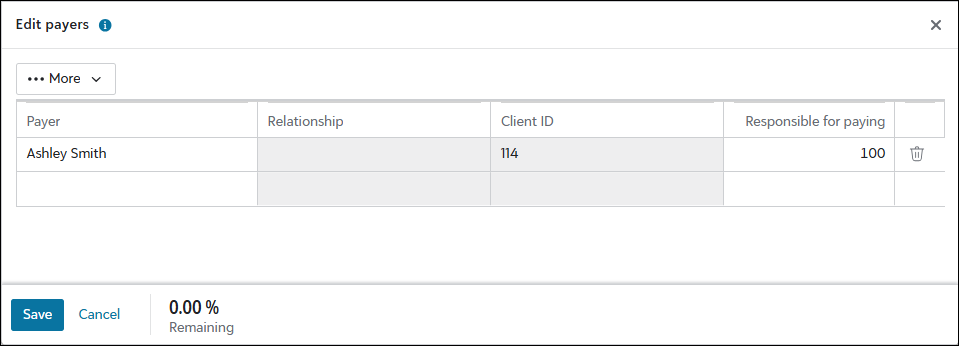
Tip: These percentages can be adjusted later. For compliance purposes, it's a best practice to verify the payer’s contact and billing info and keep a record of any agreements to pay before you save these changes.
For more details, including info about billing exceptions, see Payers and Billing Item Exceptions.
Settings: Apply the Owner's Charges
Settings, Receivables, Business rules
From General business rules, use the Apply to owner's charges setting to define how a client's payments and credits are applied when responsible for multiple sets of charges. This rule directly affects how applications are saved and applied for both the client and third-party payers, which maintains consistency and billing accuracy.
 Business rule option details
With other charges based on the above rule — Payments and credits apply to the most recent or the oldest charges first, as determined by the When applying automatically apply to business rule.
Before apply to others charges — Payments and credits made by the client apply to their own charges before applying to any additional charges they're also responsible for.
Only after applying to others charges — Payments and credits from a client apply first to the additional charges they're responsible for, before paying for their own charges.
For more details, see General business rules.
Third-party Application Scenario
Receivables, Charges
-
From the client’s record, under Activity, add the new charge and save it.
-
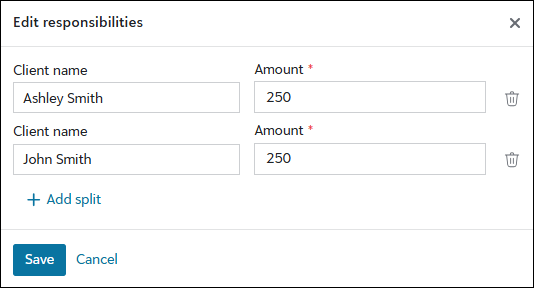
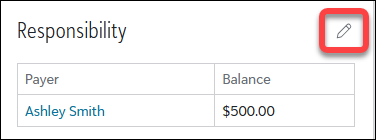
Under Responsibility, confirm the amounts owed by the payers. The amounts are based on the percentages you entered under Responsible for paying on the client's record. To make changes, select the pencil and update the details.
-
To view all payments and credits you can apply to this charge, select Applications.
-
When you save, the payment or credit will apply according to the business rule you selected. Using the previous example (for parents and their children), if the rule specifies that a parent pays for subsequent charges before their own, the parent’s payment applies to the hospital or tuition bill first.
-
The additional payer can't pay more than the amount that displays for them under Responsibility. If you need to increase their amount, edit Responsibility.
-