Customize Required Field Error Messages
Customize required-field error messages to give applicants and Grant Managers clearer guidance during submission. Well-written messages reduce confusion and improve first-pass completion quality.
Fields are set to Required by default when added to a form. Users cannot submit until all required responses are completed.
Note: The default message is This input is required.
For related rule behavior, see Configure Validation Rules and Configure Forms and Form Fields.
-
Navigate to the Custom Forms area.
-
Locate your form and select Edit.
-
Hover over the field and select Edit component.
-
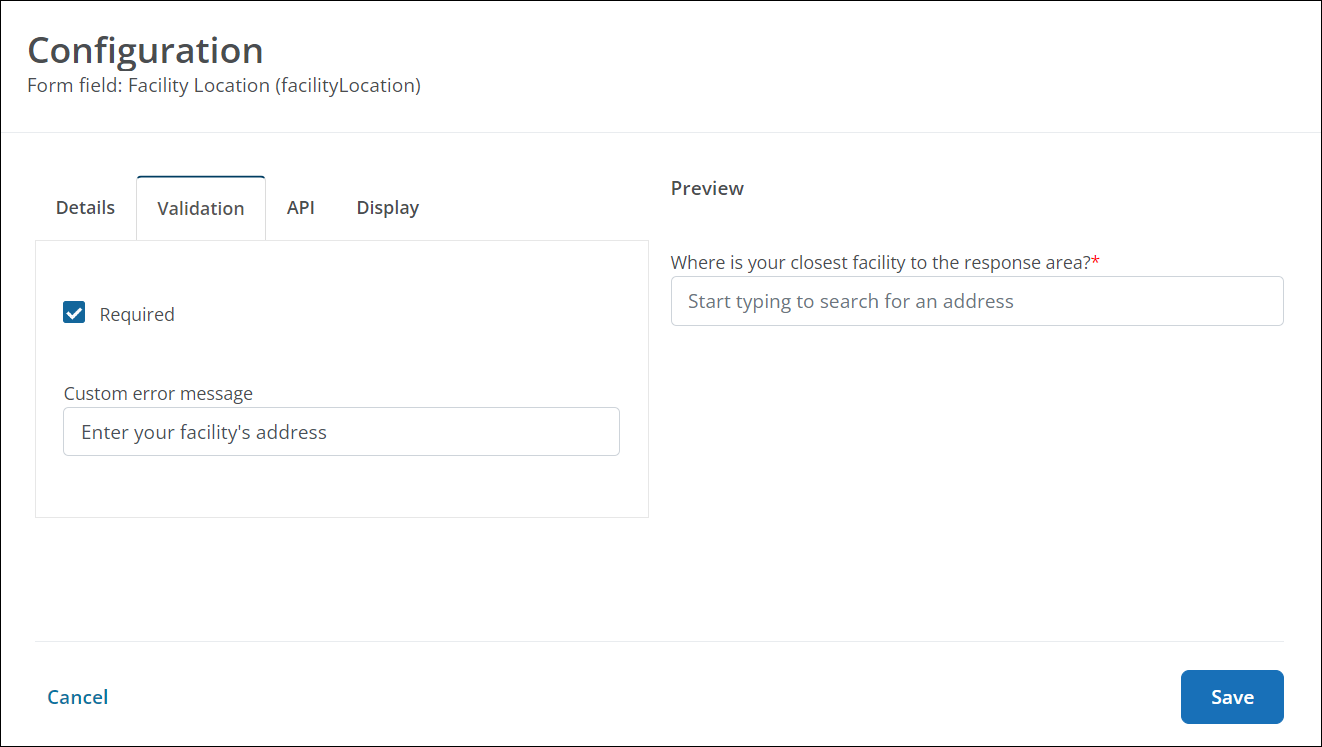
In the Configuration screen, select the Validation tab.
-
In Custom error message, enter the message that should appear when the required field is incomplete.
-
Save the field updates.
-
Save the form.
How error messages appear
If a user submits without completing all Required fields, errors appear in two places:
-
In a red call-out box at the top of the form
Note: Errors will be listed in the order that the related fields appear in the form.
-
In red text directly below each field (for example,
This input is requiredor your custom message)
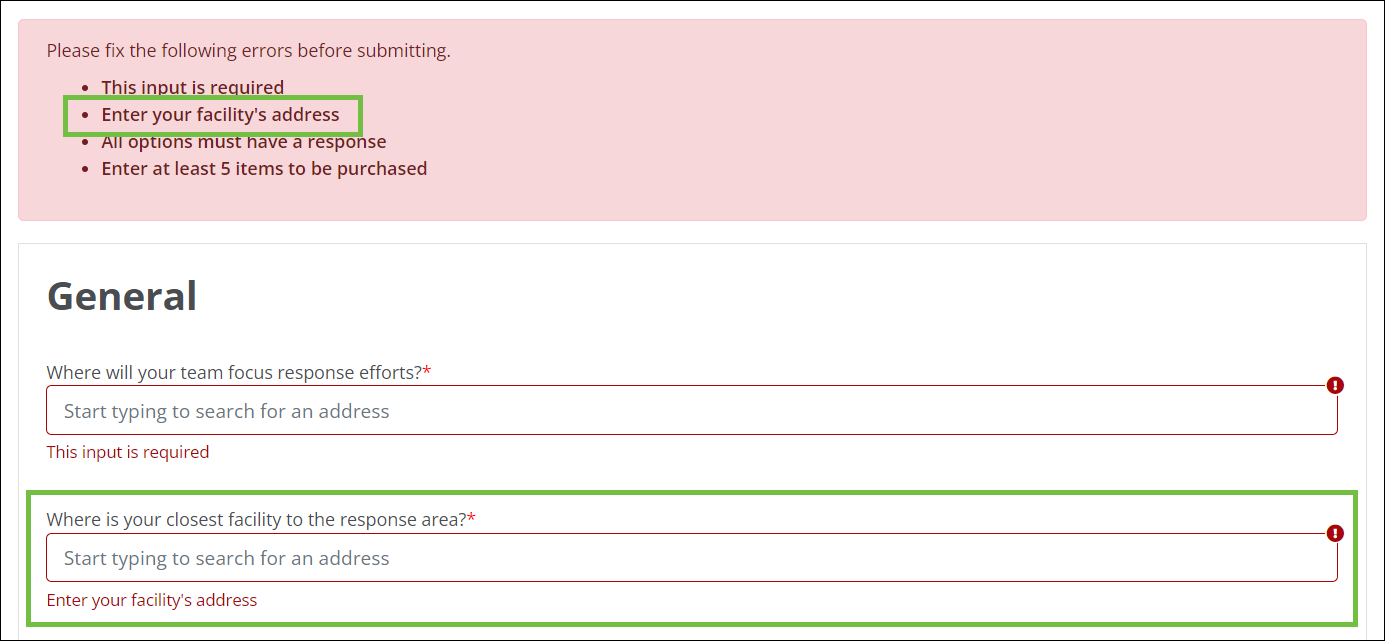
Preview the form, then select Submit without completing required fields. Error messages in Preview match what applicants and Grant Managers will see in the live form.