Configure Visibility of Form Fields
Configure field visibility to show or hide questions based on user responses. Visibility rules help reduce form clutter and present only the fields that are relevant to each applicant or reviewer.
Visibility settings use conditional logic. For deeper rule guidance, see Configure Conditions and Configure Forms and Form Fields.
-
Hover over the field on the form page.
-
Select the Edit component icon from the toolbar that appears.
-
In the Configuration screen, select the Display tab.
-
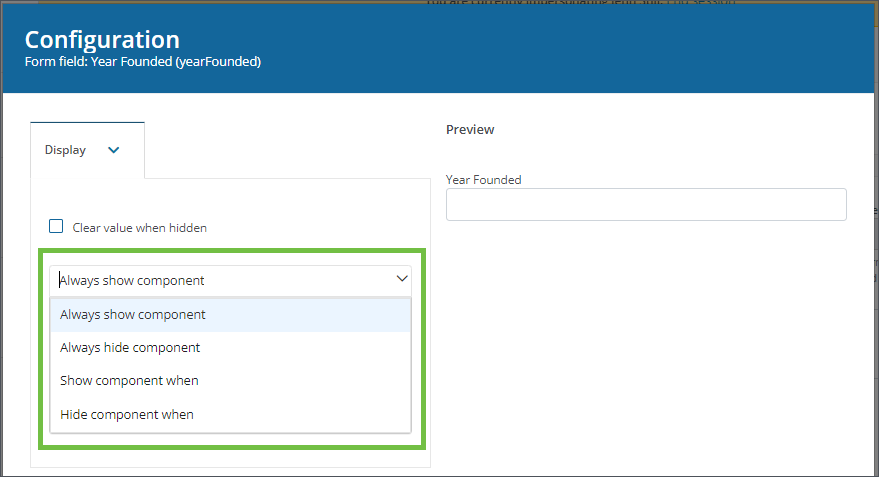
Choose one of the following visibility options:
-
Always show component - Default setting. The field always appears in the form.
-
Always hide component - The field never appears to the form audience.
-
Show component when - The field appears only when a defined condition or rule is true.
Note: Define these rules in Manage Conditional Logic.
-
Hide component when - The field is hidden only when a defined condition or rule is true.
Note: Define these rules in Manage Conditional Logic.
-
-
If you selected Show component when or Hide component when, complete the following:
-
Select Manage Conditional Logic in Configuration > Display.
-
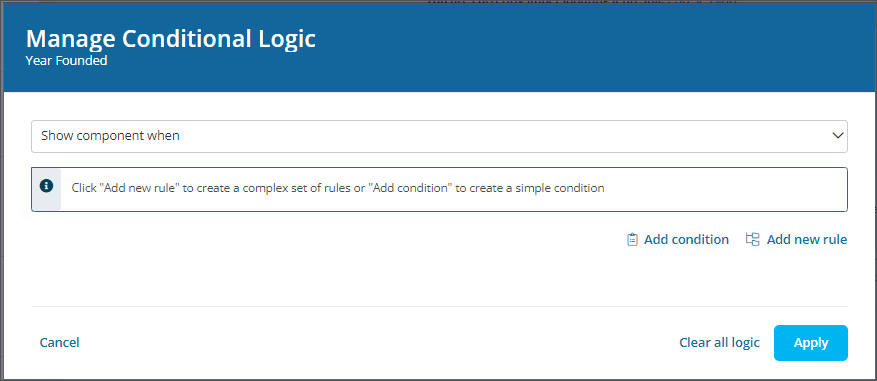
In Manage Conditional Logic, define when the field should display or remain hidden.
-
Add condition - Create a single condition.
Note: For example, "Cash amount requested (field) equal to 10,000 (specific value)".
-
Add new rule - Create a multi-condition rule set. Additional conditions can be nested in the same rule.
Note: For example, "Cash amount requested (field) equal to 10,000 (specific value)"AND "Approved date (field) before Project start date (value from another component)".
-
-
-
Save your changes.