Add Conditional Logic for Custom Validation
Use Conditional Logic Builder to define when a field response is considered valid. This helps you enforce business rules based on other values in the form.
Note: Custom validation logic is available for all field types.
For foundational validation settings such as required fields and standard rules, see Set Up Field Validation.
Add custom validation logic
-
In Form Builder, hover over the field and select Edit component.
-
In Configuration, select the Validation tab.
-
In Advanced Validation, select Manage custom validation.
-
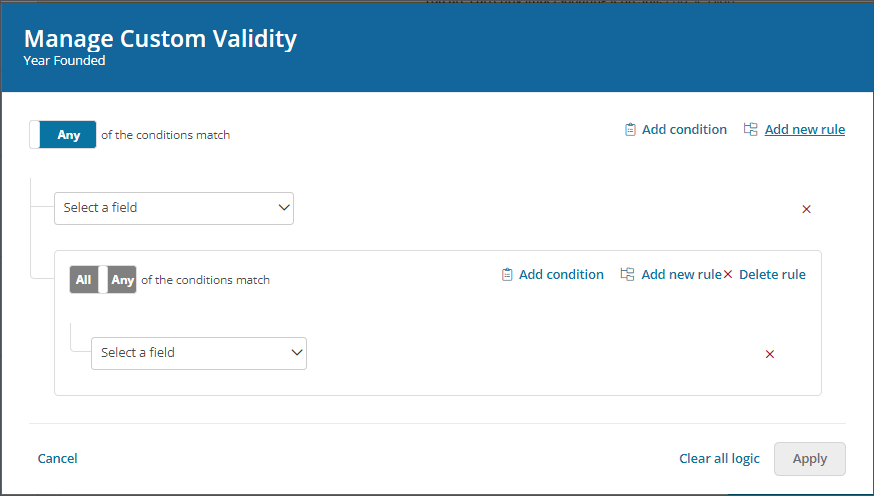
In Manage Custom Validity, build the logic that determines when the field is valid.
-
Select Add condition to create a single requirement.
Note: Example: Cash amount requested equals 10,000.
-
Select Add new rule to combine multiple conditions into one rule group.
Note: Example: Cash amount requested equals 10,000 AND Approved date is before Project start date.
-
-
Select Apply, then save the form.
When to use conditions vs. rules
Use a single condition for straightforward checks. Use rules when you need grouped logic such as combinations of AND/OR criteria across multiple fields.
To control field display behavior with similar logic patterns, see Configure Visibility of Form Fields.