Manage Form Revisions
Use form revisions to keep application forms accurate as requirements change, while controlling whether updates apply to future submissions only or to both existing and future submissions.
To decide which action to use, select Create a new form revision when changes should apply only to new submissions, or select Update the current form version when changes must apply to existing and new submissions.
Note: Only Published forms with submitted applications can be revised. For broader context on published-form management, see Manage Published Forms.
Create a new form revision
Create a new revision when you want changes to affect new submissions only. Previously submitted applications continue to use the earlier revision.
-
Navigate to Custom Forms.
-
From the Forms tab, find the published form you want to revise.
-
Select the ellipsis icon next to the form and then Edit.
-
Make updates to the form and its components as needed.
-
Select Save to continue.
-
In the Save Form screen, select the Create new revision button.
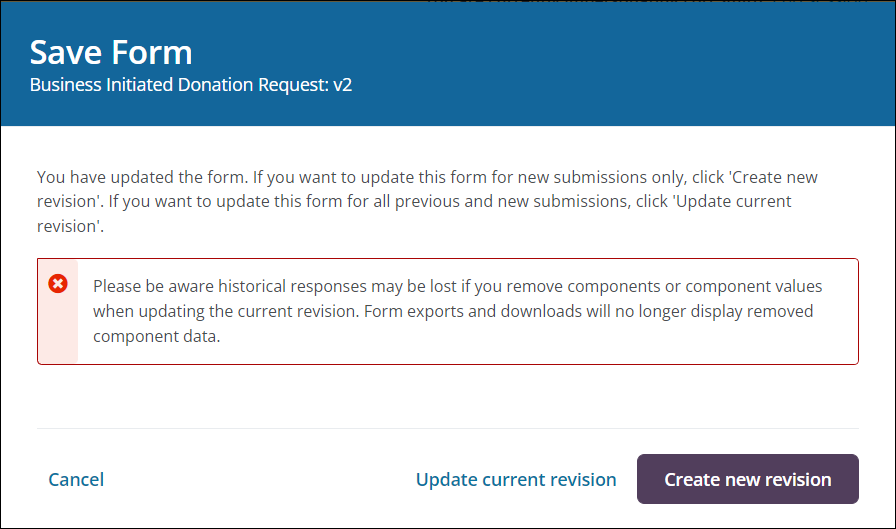
The system saves the form as a new revision.

Tip: The value in the Revision column in the Forms table on the Custom Forms page will update automatically once a new revision is created.
Update the current form version
Update the current revision when you want changes to apply to both existing and new submissions.
Warning: Historical responses may be lost if you remove components or component values when updating the current revision. Form exports and downloads will no longer display removed component data.
-
Navigate to Custom Forms.
-
From the Forms tab, find the published form you want to update.
-
Select the ellipsis icon next to the form and then Edit.
-
On the Edit Form page, make updates to the form and its components as needed.
Tip: If you need to update a previous revision of the form, click on the Form detail button and then select the appropriate version (e.g., v1, v2) from the Form revision field in the Edit Custom Form screen.
-
Select Save to continue.
-
In the Save Form screen, select the Update current revision button.
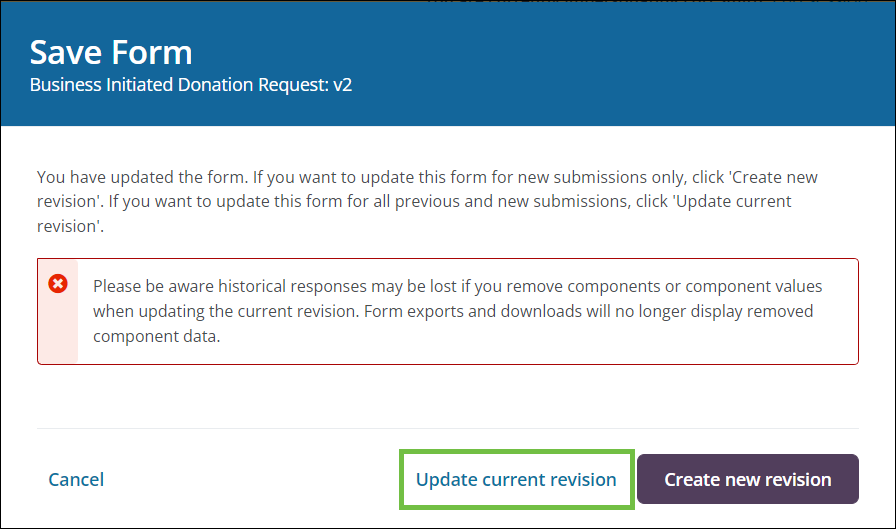
The system updates the current revision and applies supported changes to already submitted applications.